

📱 iOS Navigation
Bottom Tab Bar (3 Main Tabs)
From left to right: 1. 💬 Chat (Left)- AI Chat interface
- Ask questions
- Quick prompts
- Custom prompts
- Trade execution
- Feed with news
- Daily Summary
- Banana Bites
- Trending stocks
- Your themes
- Your holdings
- Performance
- Portfolio AI
- Positions list
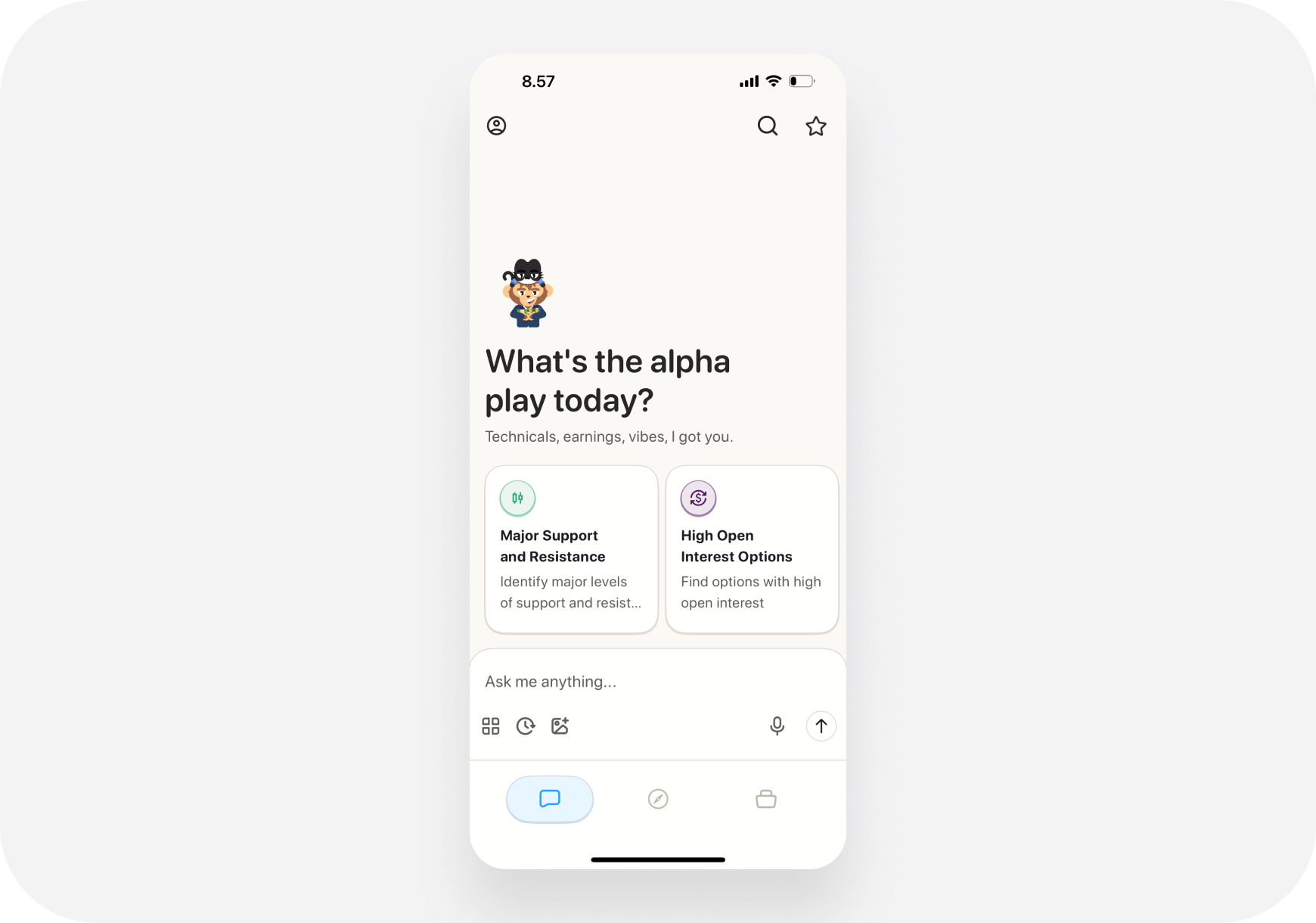
Top Bar Elements (iOS)
Left: Profile icon → Settings, Brokerages, Account Center: Current screen title Right: Search icon, notifications🌐 Web Navigation
Left Sidebar (Always Visible)
From top to bottom:- 🏠 Home - Feed/Dashboard
- 💬 Chat - AI Chat
- 🎯 Themes - Your stock lists
- 📊 Portfolio - Holdings
- ⚙️ Settings - Account settings
Top Bar Elements (Web)
Left: Ape AI logo → Home Center: Search bar Right: Profile menu, notifications⌨️ Keyboard Shortcuts (Web)
Master these for speed:/- Focus searchCtrl+P- Open promptsCtrl+H- Chat historyCtrl+K- Command paletteEsc- Close modals
🔄 Common Navigation Flows
Research a Stock
- Press
/(search) - Type ticker
- View ticker page
- Tap “Ask AI” if questions
- Set alert or trade
Morning Routine
- Check Discover/Home (news)
- Read Daily Summary
- Check Portfolio (holdings)
- Go to Chat (find setups)
Execute a Trade
- Chat → Ask AI for setup
- AI recommends trade
- Tap “Execute Trade”
- Review & confirm
- Check Portfolio for fill
💡 Pro Tips
1. Favorites (Coming Soon)- Pin frequently used sections
- Quick access
- See where you are
- Tap to go back
- Swipe right to go back
- Swipe left/right between sections
- Open multiple tabs
- Compare stocks side-by-side
❓ FAQ
Q: Can I customize navigation? A: Not yet. Standard layout for all users. Q: Where’s the old feature [X]? A: Check Settings → Help if you can’t find something. Q: Can I hide the sidebar (Web)? A: Yes, click collapse arrow on sidebar.What’s Next?
- Stock Search → - Find stocks fast
- Profile Management → - Account settings
Navigation = Get Where You Need to Go, Fast! 🧭⚡