

🎯 What is Trade Execution from Chat?
Trade Execution lets you place real trades directly from the AI Chat interface after getting trade recommendations.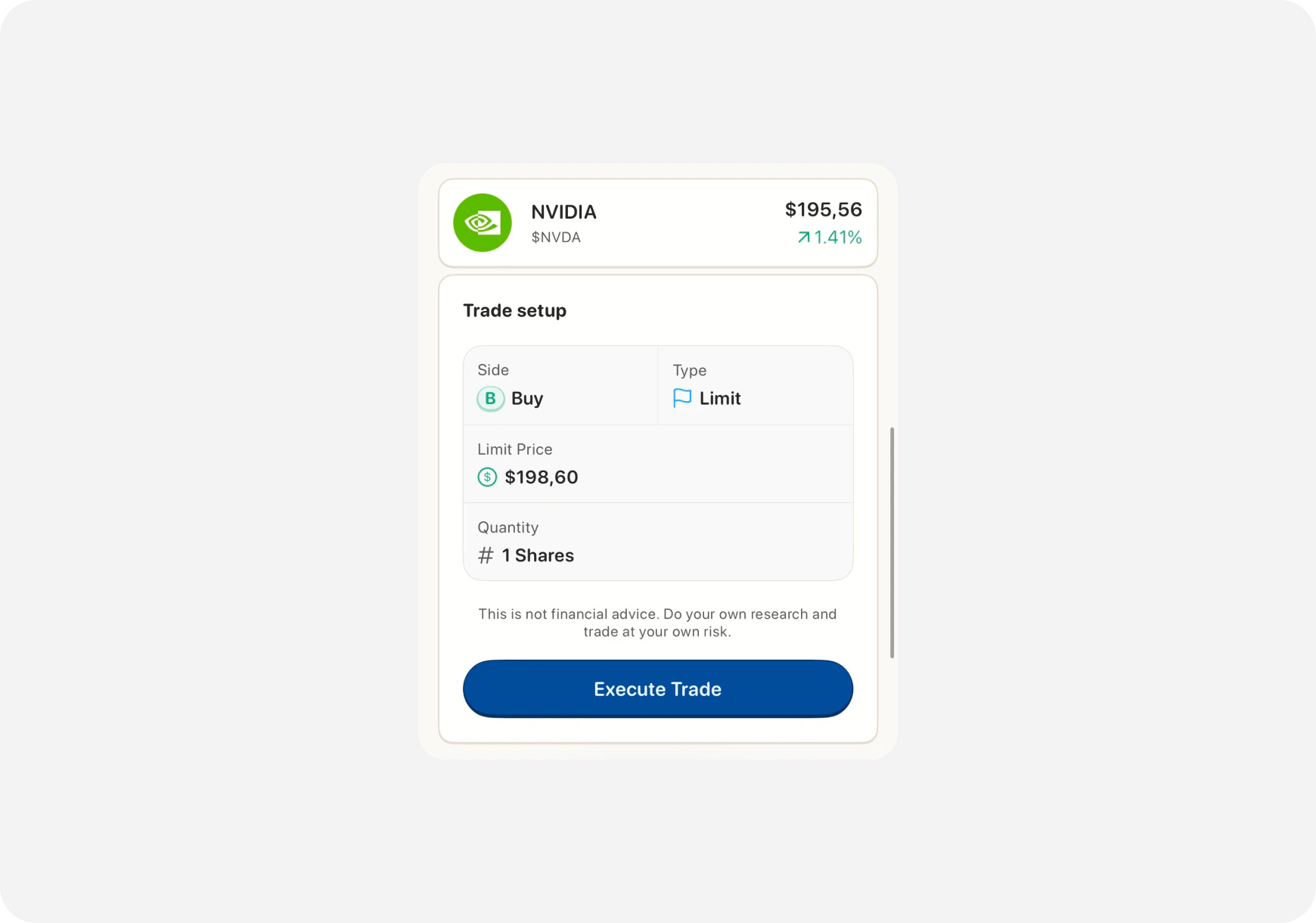
- Ask AI for trade ideas
- AI suggests a setup
- Tap/click “Execute Trade” button
- Review order details
- Confirm and place order
⚡ Why Execute from Chat?
Speed
- AI finds setup → You trade it instantly
- No copying ticker, strike, expiration
- No switching between chat and trading screens
Accuracy
- Order details pre-filled from AI recommendation
- No typos or wrong strikes
- Exactly what AI suggested
Confidence
- See the trade idea and rationale
- Review everything before confirming
- One-tap execution when ready
🔧 Setup Requirements
Before You Can Execute Trades:
1. Connect a Brokerage You need a connected brokerage account. Supported for Trading:- Robinhood
- Webull
- TD Ameritrade
- E*TRADE
- Interactive Brokers
- Others (check Supported Brokerages →)
- Ape Paper Trading Account works too!
- Practice risk-free
2. Enable Trading Permissions 📱 iOS:
- Tap Profile (top left)
- Go to Settings
- Find “Trading Permissions”
- Toggle ON
- Confirm with Face ID / Touch ID
- Click Profile icon
- Go to Settings
- Navigate to “Integrations”
- Enable “Execute Trades from Chat”
- Confirm
📱 How to Execute a Trade
Step 1: Get AI Trade Recommendation
Ask AI for a trade setup: Examples:- “Find me a day trade options setup for TSLA”
- “What’s a good swing trade entry for NVDA?”
- “Show me high-probability call options expiring this week”
AI (Blitz): “TSLA day trade setup: Stock: TSLA Setup: Momentum breakout Entry: $470 calls expiring Friday **Premium:** \~$5.50 Target: $8.00 (45% gain) **Stop:** $4.50 (18% loss) Risk/Reward: 3:1 Reasoning: TSLA breaking resistance at $470 with volume. Strong intraday momentum. Target $478 by EOD.”
Step 2: Tap “Execute Trade” Button
You’ll see an “Execute Trade” button below AI’s recommendation. 📱 iOS: Tap the button 🌐 Web: Click the buttonStep 3: Review Order Details
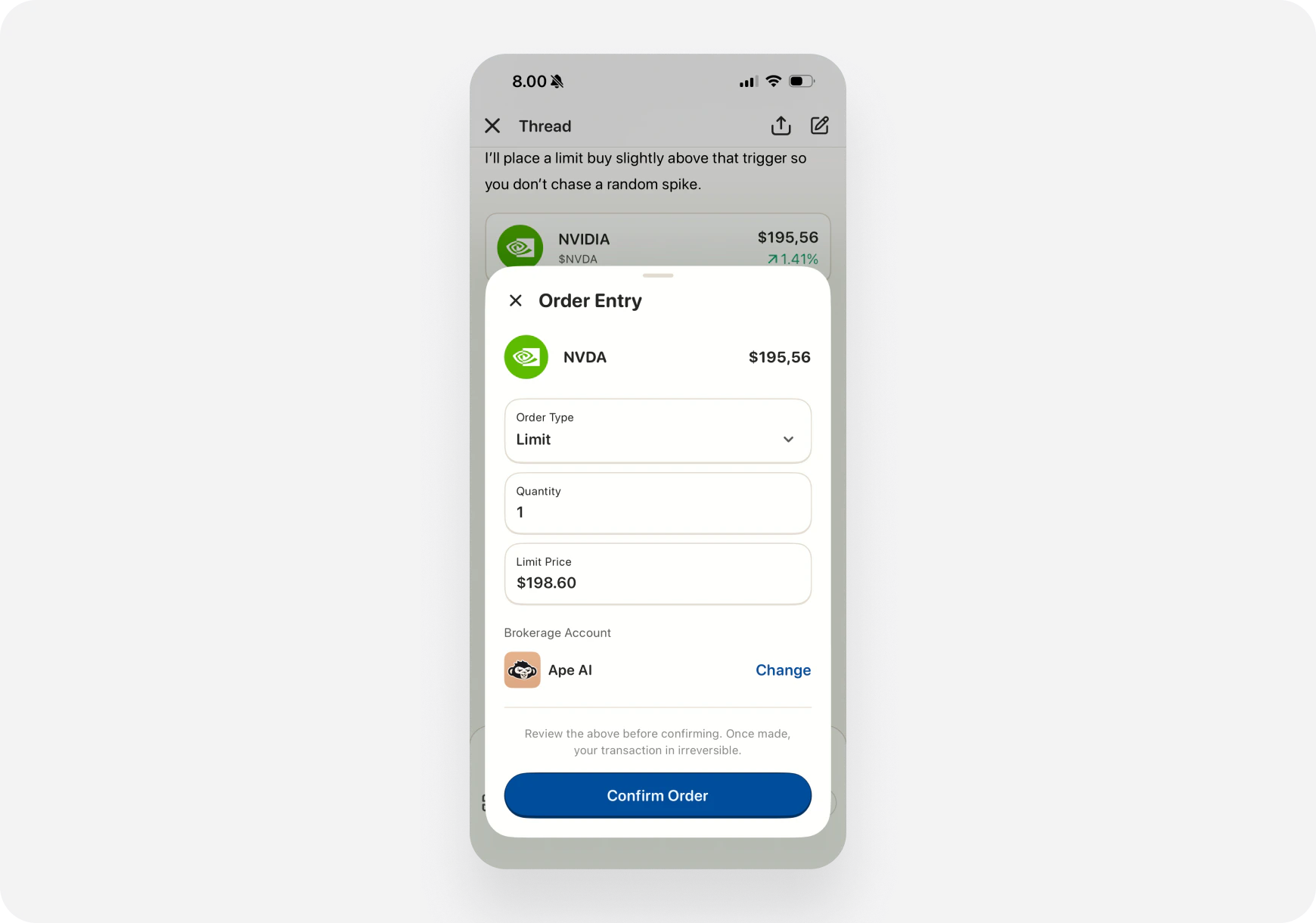
- Ticker: TSLA
- Action: Buy to Open
- Quantity: (You choose)
- Order Type: Limit / Market
- Price: $5.50 (pre-filled)
- Expiration: Friday (pre-filled)
- Strike: $470 (pre-filled)
- Estimated Cost: $550 (for 1 contract)
- Quantity (how many contracts/shares)
- Order type (market vs limit)
- Price (if limit order)
Step 4: Confirm and Place Order
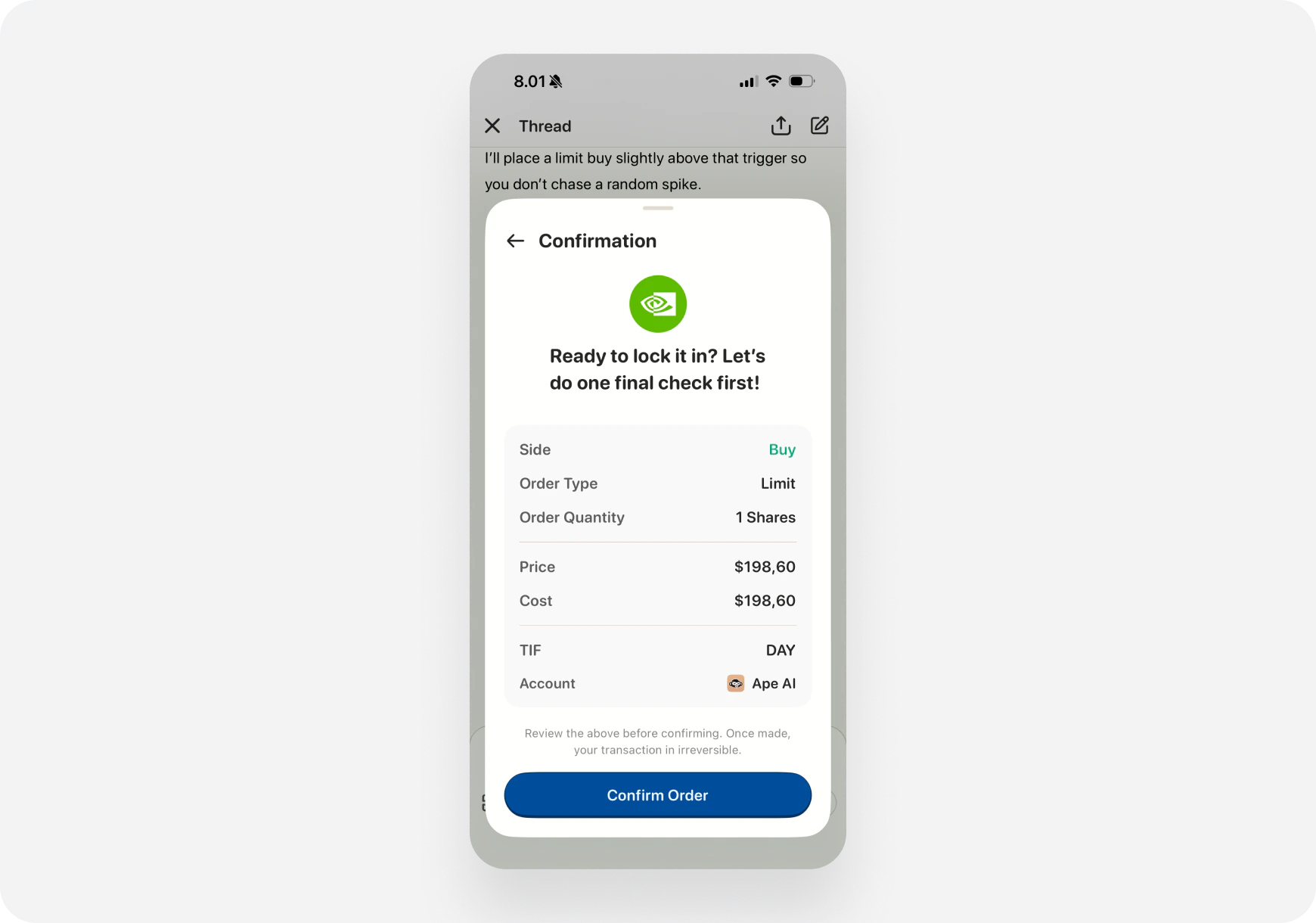
- ✅ Ticker is correct
- ✅ Strike and expiration match AI’s recommendation
- ✅ Quantity fits your risk tolerance
- ✅ Price is acceptable
- ✅ You have buying power
- iOS: Face ID / Touch ID
- Web: Re-enter password or 2FA
Step 5: Order Placed! 🎉
Success screen shows: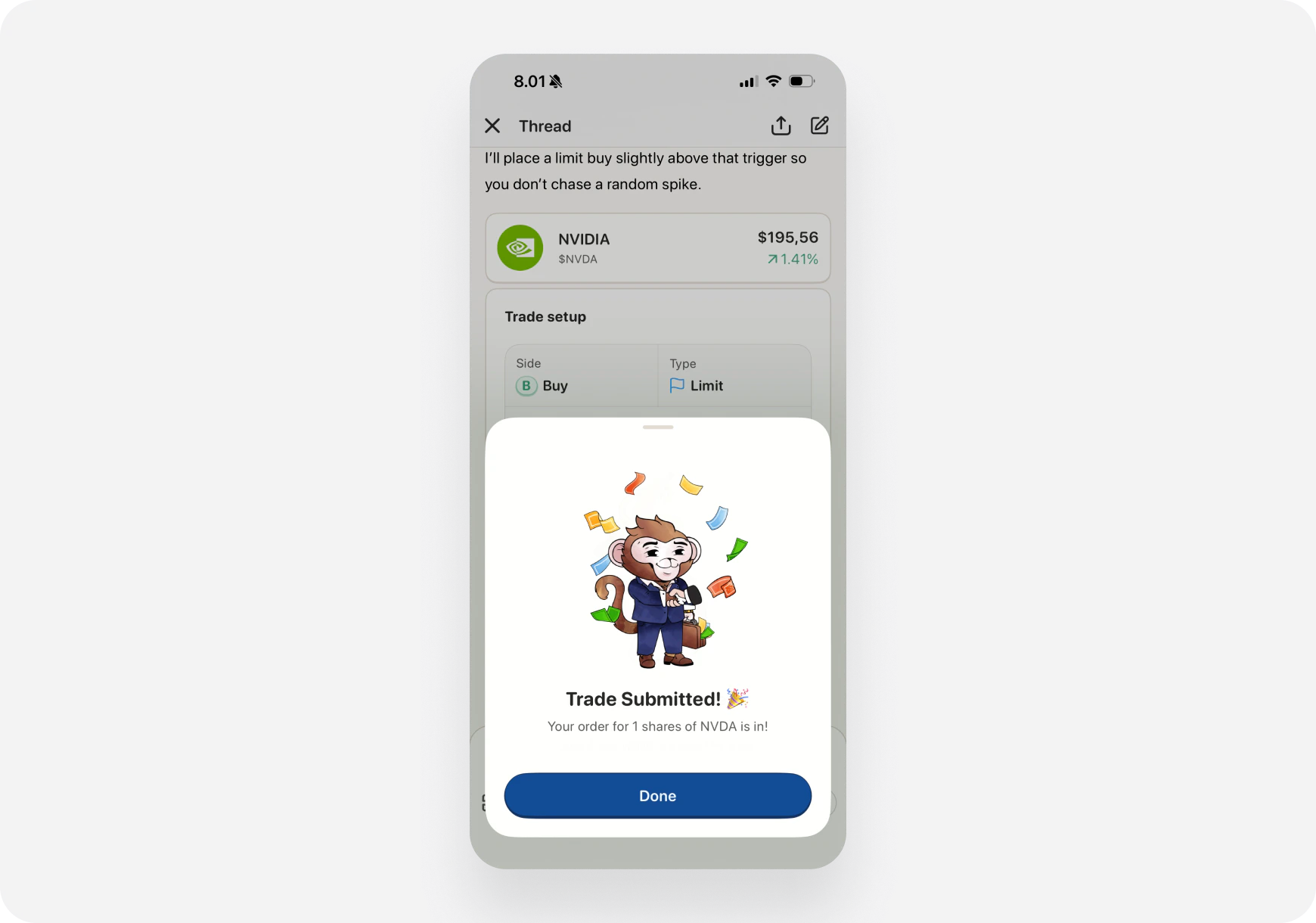
- ✅ Order placed
- Order ID
- Details of the trade
- Link to view in Portfolio
”✅ Order placed: Bought 1 TSLA $470 call exp 11/10 at $5.50. Good luck! 🚀”
🎯 Trade Types You Can Execute
Stocks (Shares)
Example AI Recommendation:“NVDA swing entry: Buy 10 shares at $875-880. Target $920, stop $860.”Execute Trade:
- Action: Buy
- Quantity: 10 shares
- Order: Limit at $878
Options (Calls & Puts)
Example AI Recommendation:“AMD $180 calls exp Friday. Entry $3.50, target $5.00.”Execute Trade:
- Action: Buy to Open
- Ticker: AMD
- Strike: $180
- Expiration: Friday
- Type: Call
- Quantity: 1 contract
- Price: $3.50 limit
Multi-Leg Strategies (Advanced)
Example AI Recommendation:“SPY bull call spread: Buy $450 call, sell $455 call, both exp Friday. Net debit $2.50.”Execute Trade:
- Strategy: Bull Call Spread
- Legs: 2 (buy + sell)
- All details pre-filled
- Review and confirm
⚙️ Order Types Explained
Market Order
- Executes immediately at current market price
- Fast but price not guaranteed
- Best for: Liquid stocks, urgent entries
Limit Order
- Executes at your price or better
- May not fill if price doesn’t reach your limit
- Best for: Precise entries, illiquid options
Stop Loss (After Entry)
- AI recommendations include stop loss levels
- You can set stop loss after trade is filled
- Do this in your brokerage’s interface or Portfolio tab
💡 Pro Tips
1. Always Review Before Confirming
AI is smart but not perfect:- Check the strike and expiration
- Verify quantity fits your risk
- Confirm you have buying power
- Make sure it’s the right ticker!
2. Adjust Quantity for Your Risk Tolerance
AI might suggest: “Buy 5 contracts” Your decision:- New trader? Start with 1
- Experienced? Maybe 5 is fine
- Small account? Buy fewer
- Large account? Scale up
3. Use Limit Orders for Options
Options spreads can be wide:- Market order might get bad fill
- Limit order ensures your price
- Wait for your price to get hit
4. Set Stop Losses Immediately
After trade fills:- Go to Portfolio tab
- Find your position
- Set stop loss at AI’s recommended level
- Protect your downside
5. Paper Trade First
Not sure about executing from chat?- Connect Ape Paper Trading Account
- Practice with fake money
- Get comfortable with the flow
- Then graduate to real money
⚠️ Important Warnings
You Are Responsible
- AI provides suggestions, not financial advice
- You make the final decision
- Review every order carefully
- Understand the risks
Options Are Risky
- Options can expire worthless
- You can lose 100% of your investment
- Don’t trade options unless you understand them
Check Your Buying Power
- Make sure you have funds available
- Orders may be rejected if insufficient funds
- Don’t overleverage
Execution Speed Doesn’t Mean Good Trade
- Fast execution is convenient
- But still do your own analysis
- Don’t FOMO into trades
- Stick to your strategy
🔒 Security & Safety
How We Keep Your Trades Safe:
1. Two-Factor Confirmation- Every trade requires authentication
- Face ID / Touch ID on iOS
- Password / 2FA on Web
- You explicitly enable trading
- Can disable anytime in Settings
- Off by default for new accounts
- AI never places trades automatically
- You always review and confirm
- Full control at every step
- OAuth 2.0 for connection
- Tokens encrypted
- No passwords stored
- Can set max order size in Settings
- Prevents accidental large orders
- Safety guardrails
🎯 Real Example Workflow
Scenario: Day Trading TSLA Calls
9:15 AM - Ask AI:“Find me a day trade options setup for TSLA”AI Response (Blitz):
“TSLA $470 calls exp today. Entry $5.50, target $8.00. Strong momentum.”9:16 AM - Execute:
- Tap “Execute Trade”
- Review: 1 contract, limit $5.50
- Confirm with Face ID
- Order placed ✅
- TSLA calls now at $7.20
- Up 31% 🚀
- AI: “Consider taking profits at $8.00 target”
- Ask AI: “Should I close my TSLA call?”
- AI: “TSLA hitting resistance. Take profits now.”
- Tap “Execute Trade” (Sell to Close)
- Sold at $7.80 ✅
- Entry: $5.50
- Exit: $7.80
- Profit: $230 (42%)
- Time: 2.5 hours
- Clicks: 6 (2 executions from chat)
- Switch to brokerage app
- Find TSLA
- Navigate to options chain
- Find correct strike/expiration
- Enter order details manually
- Way more time and clicks
📊 Execution from Chat vs Manual Entry
Chat execution wins on every metric.
❓ FAQ
Q: Does executing from chat cost extra? A: No! Same brokerage commissions apply. No Ape AI fees. Q: Can I cancel an order after placing it? A: Yes, go to Portfolio → Orders → Cancel (if order hasn’t filled yet). Q: What if I don’t have enough buying power? A: Order will be rejected. AI doesn’t check your buying power beforehand. Q: Can I execute trades on Ape Paper Trading Account? A: Yes! Great for practice. Q: Do all AI recommendations have “Execute Trade” button? A: Only if:- You have connected brokerage
- Trading permissions enabled
- AI gives specific trade recommendation with entry price
🚧 Troubleshooting
”Execute Trade” Button Not Showing
Possible reasons:- No brokerage connected → Connect one
- Trading permissions disabled → Enable in Settings
- AI response wasn’t a specific trade setup → Ask for specific entry
- Your brokerage doesn’t support this feature → Check supported list
Order Rejected
Common causes:- Insufficient buying power
- Options trading not approved (upgrade brokerage account)
- Market closed (can only place orders during market hours)
- Incorrect order details (review and fix)
Order Filled at Different Price
Why:- Market orders fill at current market price (can vary)
- Limit orders fill at your price or better
- Fast-moving stocks can have slippage
What’s Next?
Learn More About Chat:- Chat Basics → - How to use AI Chat
- Quick Prompts → - Pre-built prompts
- Custom Prompts → - Create your own
- My First Day Trade → - Execute from chat
- Premarket Routine → - Morning setups
Execute from Chat = Idea to Order in Seconds. Trade smarter, not harder! ⚡🚀