

📱🌐 Platform: Both iOS & Web
👤 Best for: Everyone
🎯 Before You Start
What You’ll Need:
For Ape Paper Trading (Easiest):- ✅ Ape AI account
- ✅ That’s it!
- ✅ Ape AI account
- ✅ Active brokerage account (Robinhood, Webull, TD Ameritrade, etc.)
- ✅ Brokerage login credentials
- ✅ 2FA device (if your broker uses it)
- ✅ 5 minutes
🍌 Option 1: Connect Ape Paper Trading (Recommended First)
This is the easiest and ALWAYS appears first.iOS
Step 1: Go to Portfolio Tab- Open Ape AI
- Tap Portfolio tab (bottom right)
- If no brokerages connected, you’ll see “Connect Brokerage” button
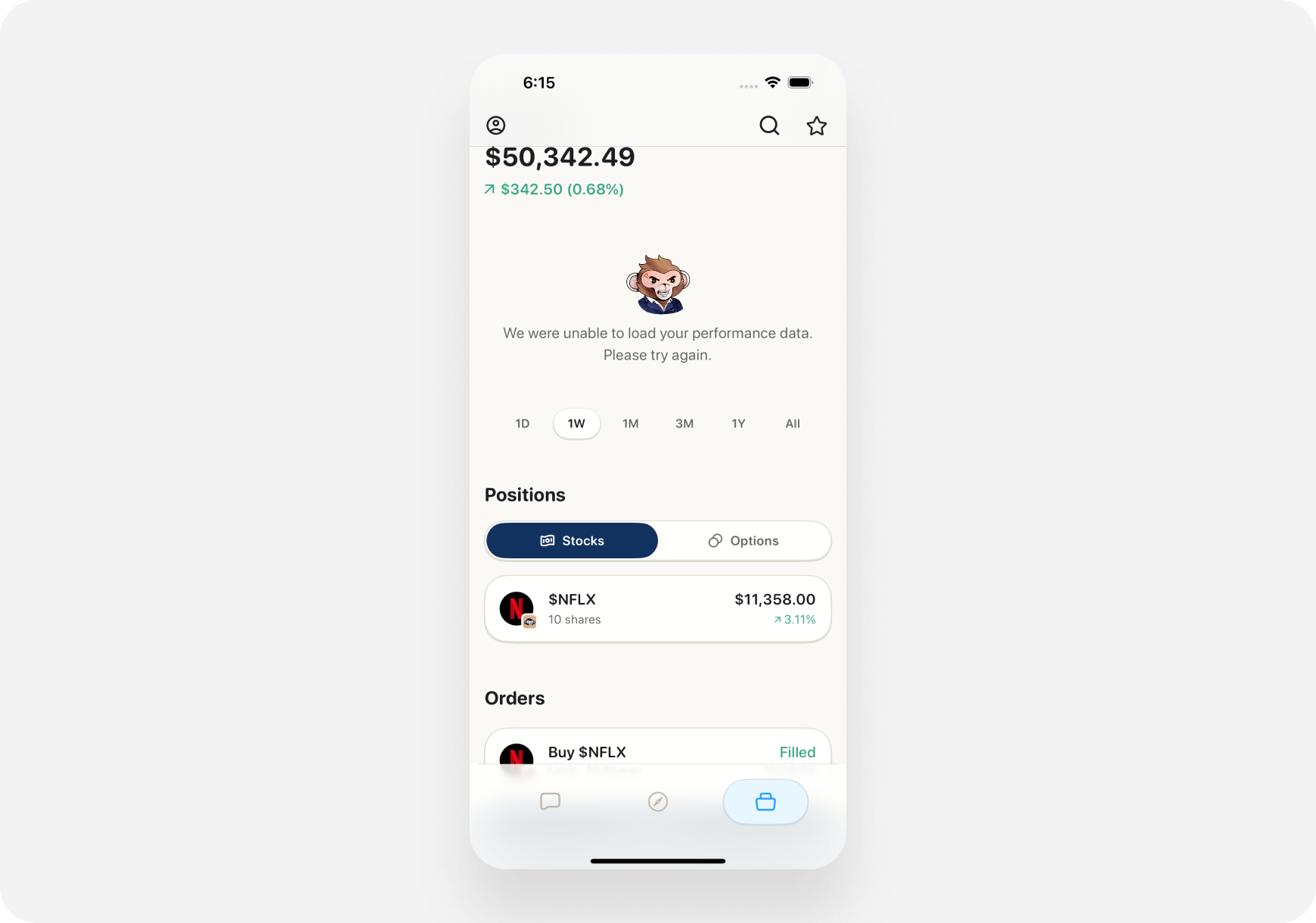
Step 2: Select Ape Paper Trading
- Tap “Connect Brokerage”
- See list of brokerages
- Ape Paper Trading is at the TOP ⭐
- Tap it
Step 3: Claim Your Account
- See welcome screen
- Explains you get $100,000 virtual cash
- Tap “Claim My Paper Trading Account”
Step 4: Done! ✅
- Account created instantly
- $100,000 available to trade
- Portfolio tab now shows your balance
- Start trading risk-free!
Web
Step 1: Go to Portfolio Page- Log into app.Ape AI.com
- Click Portfolio (left sidebar)
- Click ”+ Connect Brokerage” button
Step 2: Select Ape Paper Trading
- Brokerage list appears
- Ape Paper Trading at the TOP
- Click it
Step 3: Claim & Activate
- Click “Claim Account”
- Instant activation
- $100,000 virtual cash added
- Portfolio page updates
🏦 Option 2: Connect Real Brokerage
We’ll use Robinhood as an example. Process is similar for all brokers.iOS
Step 1: Open Brokerages- Tap Profile icon (top left)
- Tap “Brokerages”
- Or: Portfolio tab → ”+ Add Brokerage”
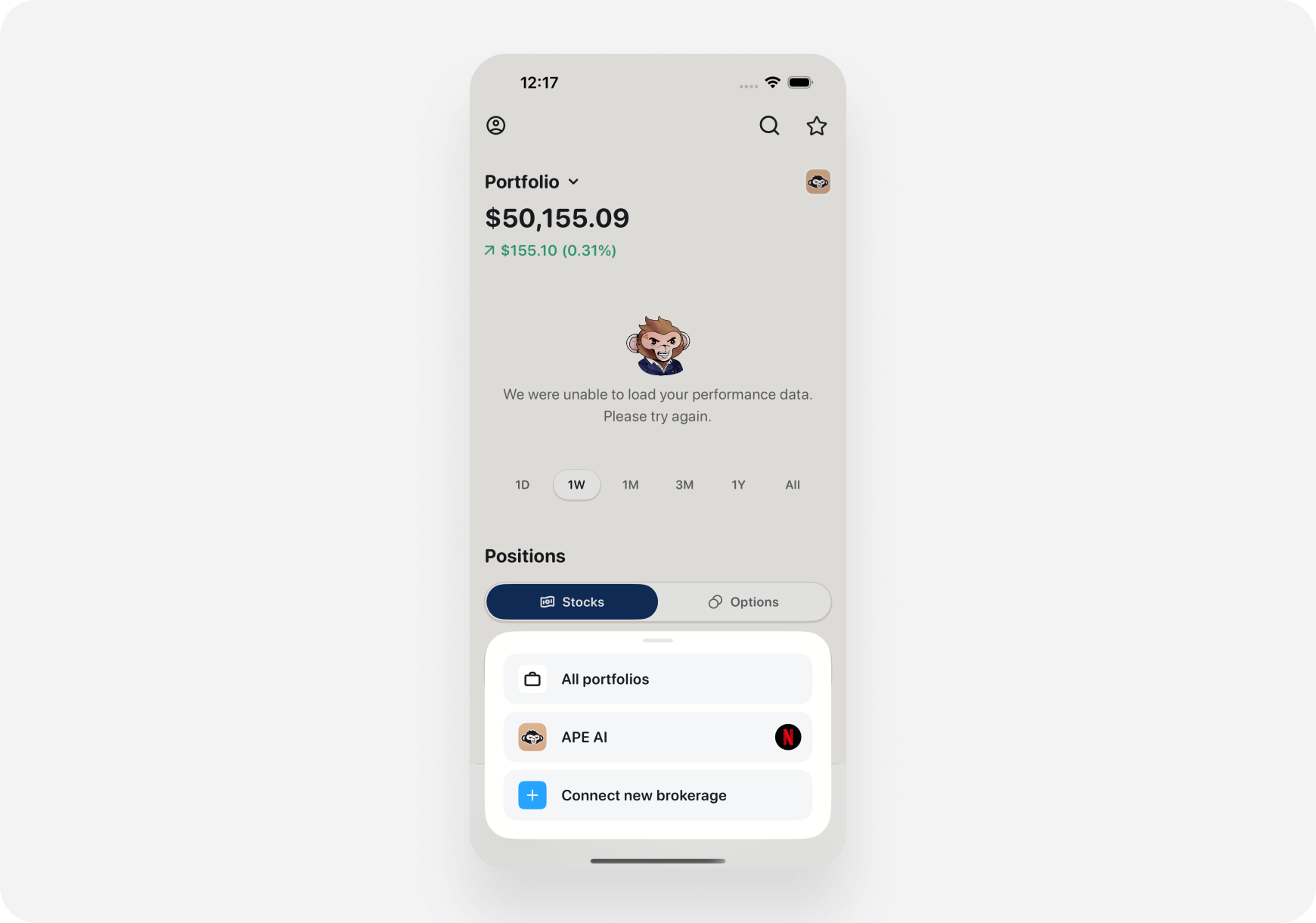
Step 2: Choose Your Broker
- See list of supported brokerages
- Scroll to find yours
- Tap your brokerage card
Step 3: Review Permissions
- See what Ape AI will access:
- ✅ View your portfolio
- ✅ See positions
- ✅ View order history
- ❌ Cannot trade (unless you enable later)
- Tap “Continue”
Step 4: OAuth Login (Broker Website)
- Redirected to your broker’s login page
- This is YOUR BROKER’S website (not Ape AI)
- Enter your broker username & password
- Complete 2FA if required
Step 5: Authorize Ape AI
- Broker asks: “Allow Ape AI to access your account?”
- Review permissions again
- Tap “Allow” or “Authorize”
Step 6: Connection Success! ✅
- Redirected back to Ape AI
- See “Connection Successful” message
- Your portfolio starts syncing
- Positions appear in Portfolio tab
Step 7: (Optional) Enable Trading
- By default, connection is view-only
- To enable trading from chat:
- Profile → Settings → Trading Permissions
- Toggle “Execute Trades” ON
- Confirm with Face ID/Touch ID
Web
Step 1: Go to Settings- Log into app.askape.com
- Click Profile icon (top right)
- Click “Settings”
- Go to “Integrations” or “Brokerages” tab
Step 2: Add Brokerage
- Click ”+ Connect New Brokerage”
- List of brokers appears
- Click your broker
Step 3: OAuth Flow
- New browser tab/window opens
- Your broker’s login page
- Enter credentials
- Complete 2FA
- Click “Authorize Ape AI”
Step 4: Return to Ape AI
- Tab closes automatically
- Back to Ape AI settings
- See broker listed as “Connected”
- Portfolio syncing begins
Step 5: (Optional) Enable Trading
- In Settings → Integrations
- Find your broker
- Toggle “Allow Trade Execution”
- Enter password to confirm
🔄 Connecting Multiple Brokerages
Have accounts at multiple brokers? Connect them all!How to Add a Second (or Third) Broker:
📱 iOS:- Profile → Brokerages
- Scroll to bottom
- Tap ”+ Add Another Brokerage”
- Repeat connection process
- Settings → Integrations
- Click ”+ Connect New Brokerage”
- Repeat steps
What You’ll See:
Portfolio tab shows:- Combined total value
- All positions from all accounts
- Breakdown by brokerage
- Unified profit/loss
Total Portfolio Value: $45,250 Accounts:One dashboard. All your trading.
- Robinhood: $25,000 (10 positions)
- Webull: $15,000 (5 positions)
- Ape Paper: $5,250 (3 positions)
🔧 Troubleshooting Connection Issues
Issue #1: “Connection Failed”
Possible causes:- Wrong broker username/password
- 2FA code expired
- Broker’s servers down
- Network issue
- Double-check credentials
- Try again (2FA might have timed out)
- Check broker’s status page
- Try different network
- Wait 10 minutes and retry
Issue #2: “Broker Not Responding”
Possible causes:- Broker doing maintenance
- High traffic on broker’s API
- Temporary outage
- Wait 30 minutes, try again
- Check broker’s app (is it working?)
- Try during off-peak hours (not 9:30 AM)
Issue #3: “Authorization Denied”
Possible causes:- You clicked “Deny” instead of “Allow”
- Broker requires additional approval
- Account restrictions
- Try connecting again
- Read permissions carefully
- Check if your broker account has API access enabled
- Contact broker support if needed
Issue #4: “Some Features Not Working”
Possible causes:- Account type not fully supported (e.g., IRA is view-only)
- Broker has restricted certain features
- Need to enable trading permissions
- Check Supported Brokerages for your broker’s feature list
- Enable trading in Settings if you want execution
- Contact Ape AI support for clarification
Issue #5: “Portfolio Not Syncing”
Possible causes:- First sync takes 1-2 minutes
- Broker API slow
- Token expired
- Wait 2-3 minutes for first sync
- Pull to refresh on Portfolio tab
- Try disconnecting & reconnecting
- Check broker connection in Settings
⚙️ Managing Connected Brokerages
View Connected Accounts
📱 iOS:- Profile → Brokerages
- See all connected accounts
- Green checkmark = Connected ✅
- Settings → Integrations
- See list of connected brokers
- Status: Connected / Disconnected
Reconnect a Broker
Sometimes OAuth tokens expire (every 90 days for some brokers) When it happens:- You’ll see “Reconnection Required” alert
- Portfolio stops syncing
- Notification sent
- Go to Brokerages/Integrations
- Tap/click broker showing “Disconnected”
- Tap “Reconnect”
- Go through OAuth flow again
- Connection restored
Disconnect a Broker
Changing brokers? Want to disconnect? 📱 iOS:- Profile → Brokerages
- Tap broker you want to remove
- Scroll to bottom
- Tap “Disconnect Brokerage” (red button)
- Confirm
- Settings → Integrations
- Find broker
- Click “Disconnect”
- Confirm
- OAuth connection revoked instantly
- Portfolio data removed from Ape AI
- Historical data may be kept for records
- Can reconnect anytime
Toggle Trading Permissions
Want to turn trade execution on/off? 📱 iOS:- Profile → Settings → Trading Permissions
- Find your broker
- Toggle “Execute Trades” ON/OFF
- Confirm with Face ID
- Settings → Integrations
- Find broker
- Toggle “Trade Execution”
- Enter password to confirm
🔒 Security Best Practices
1. Use Strong Broker Passwords
- Unique password (not used elsewhere)
- 12+ characters
- Mix of letters, numbers, symbols
2. Enable 2FA on Your Broker
- Use authenticator app (Google Authenticator, Authy)
- Not SMS (less secure)
- Protects your broker account
3. Review Connected Apps Regularly
- Check your broker’s “Connected Apps” page
- Remove apps you don’t use
- Keep only Ape AI and apps you trust
4. Monitor for Unusual Activity
- Check order history regularly
- Review trades you don’t remember
- Report suspicious activity immediately
5. Disconnect When Not Using
- Taking a trading break?
- Disconnect your broker
- Reconnect when you’re back
- Extra layer of security
💡 Pro Tips
1. Start with Paper, End with Real
Recommended path:- Week 1: Connect Ape Paper Trading
- Learn Ape AI features
- Practice trading
- Test strategies
- Week 4+: Connect real broker (once profitable in paper)
2. Connect Primary Broker First
Have multiple accounts?- Connect your main account first
- Make sure everything works
- Then add secondary accounts
- Easier troubleshooting
3. Test Read-Only First
Before enabling trading:- Connect as read-only
- Use for a few days
- Get comfortable
- Then enable trading when ready
4. Use Separate Brokers for Different Strategies
Pro trader setup:- Broker 1: Long-term holds (Schwab, Fidelity)
- Broker 2: Active trading (Robinhood, Webull)
- Ape Paper: Testing new strategies
- All connected to Ape AI
❓ FAQ
Q: Can I connect my broker on both iOS and Web? A: Yes! Once connected, it works on all platforms. One connection = all devices. Q: Does my broker charge fees for API access? A: No! API connections are free for all major brokers. Q: Will my broker’s app still work normally? A: Yes! Nothing changes with your broker’s app. Ape AI just reads data. Q: Can I trade through both Ape AI and my broker’s app? A: Yes! They’re independent. Trade wherever you want. Q: What if I change my broker password? A: Reconnection may be required. Ape AI will alert you. Q: Can someone hack my Ape AI and trade my account? A: Extremely unlikely. Trading requires:- Your Ape AI login
- Face ID/Touch ID or password
- Confirmation for every trade
- Can disable trading instantly
What’s Next?
After Connecting:- Portfolio Overview → - See your holdings
- Ask Maverick → - AI portfolio analysis
- Execute Trades → - Trade from chat
- Why Connect? → - Benefits explained
- [Ape Paper Trading →](<../../Use-Cases/Pre-Investor/Getting Started/paper-trading-practice.md>) - Start risk-free
Connect your brokerage and unlock Ape AI’s full power! 🔗🚀