

🌐 Step 1: Access the Web App
- Open your browser (Chrome, Safari, Firefox, Edge)
- Go to [app.askape.com]
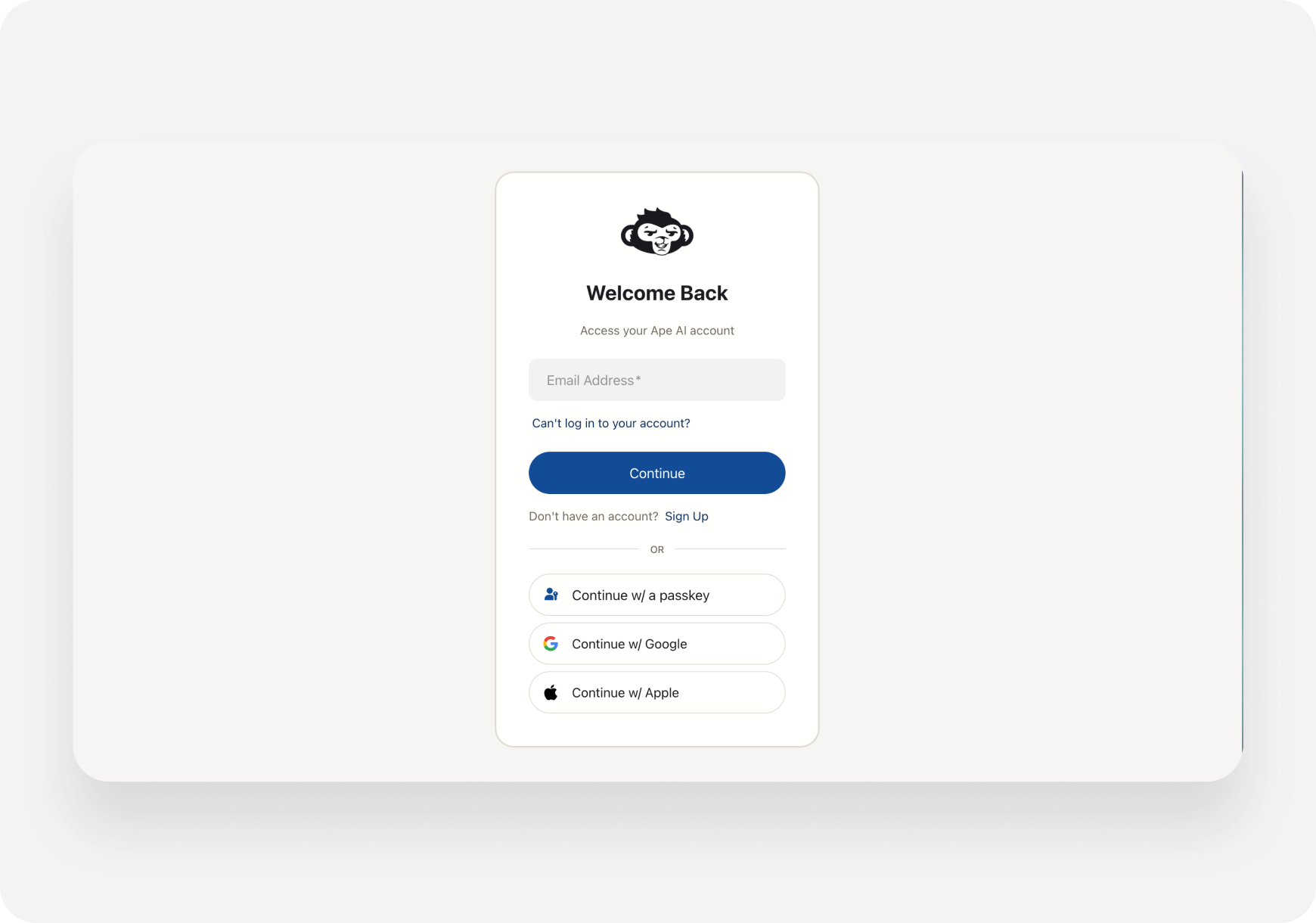
- You’ll see the login/signup page
🔐 Step 2: Create Your Account
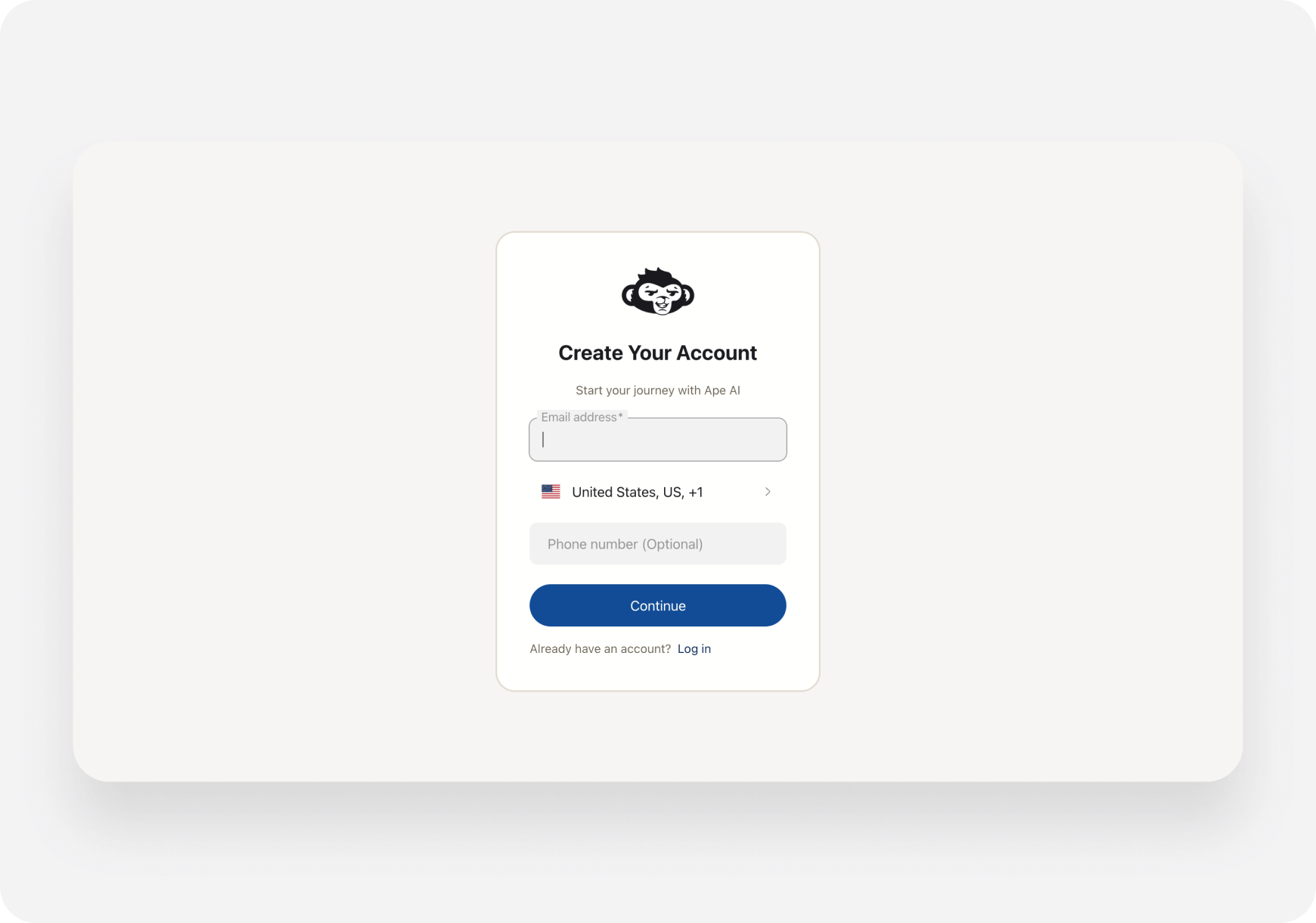
- Click Sign Up
- Enter your email and create a password
- Verify your email (check your inbox)
- Log back in
- Apple
🗺️ Step 3: Dashboard Tour
Once logged in, you’ll see the main dashboard: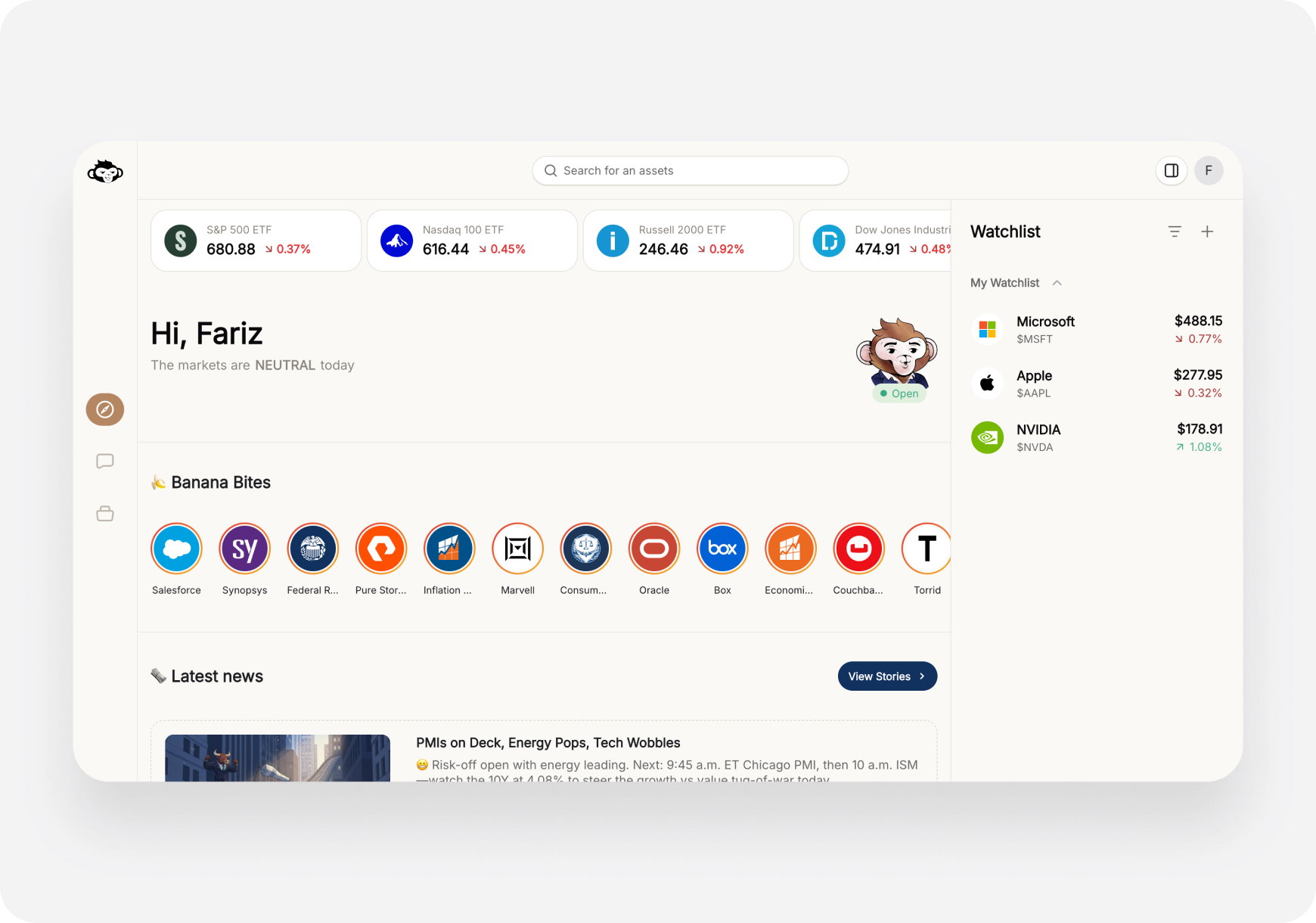
Left Sidebar Navigation
- News Feed 🏠 - Market overview, news, trending
- Chat 💬 - AI trading assistant
- Portfolio 💼 - Your holdings and analysis
Top Bar
- Search 🔍 - Find any stock
- Profile 👤 - Settings and account
🤖 Step 4: Ask Your First Question
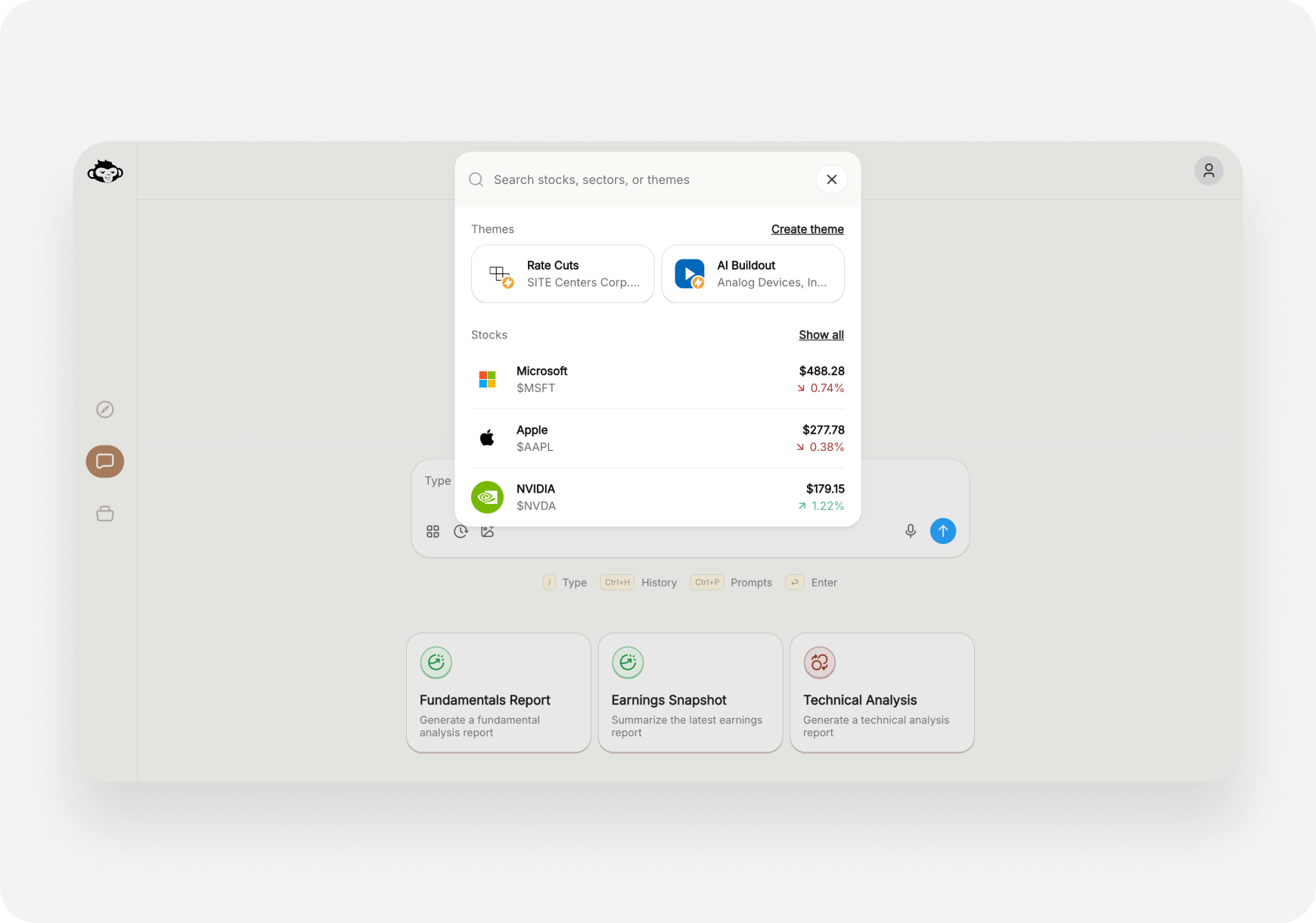
Let’s try the AI Chat:- Click Chat in the left sidebar (or press
/then type) - You’ll see the chat interface with your companion indicator
- Click the Prompts icon (or press
Ctrl+P) to see Quick Prompts - Select “Find Strong Catalyst Stocks” (or “Swing Trade Ideas”)
- Wait for the AI to respond
- Review entries, risks, and timeframe
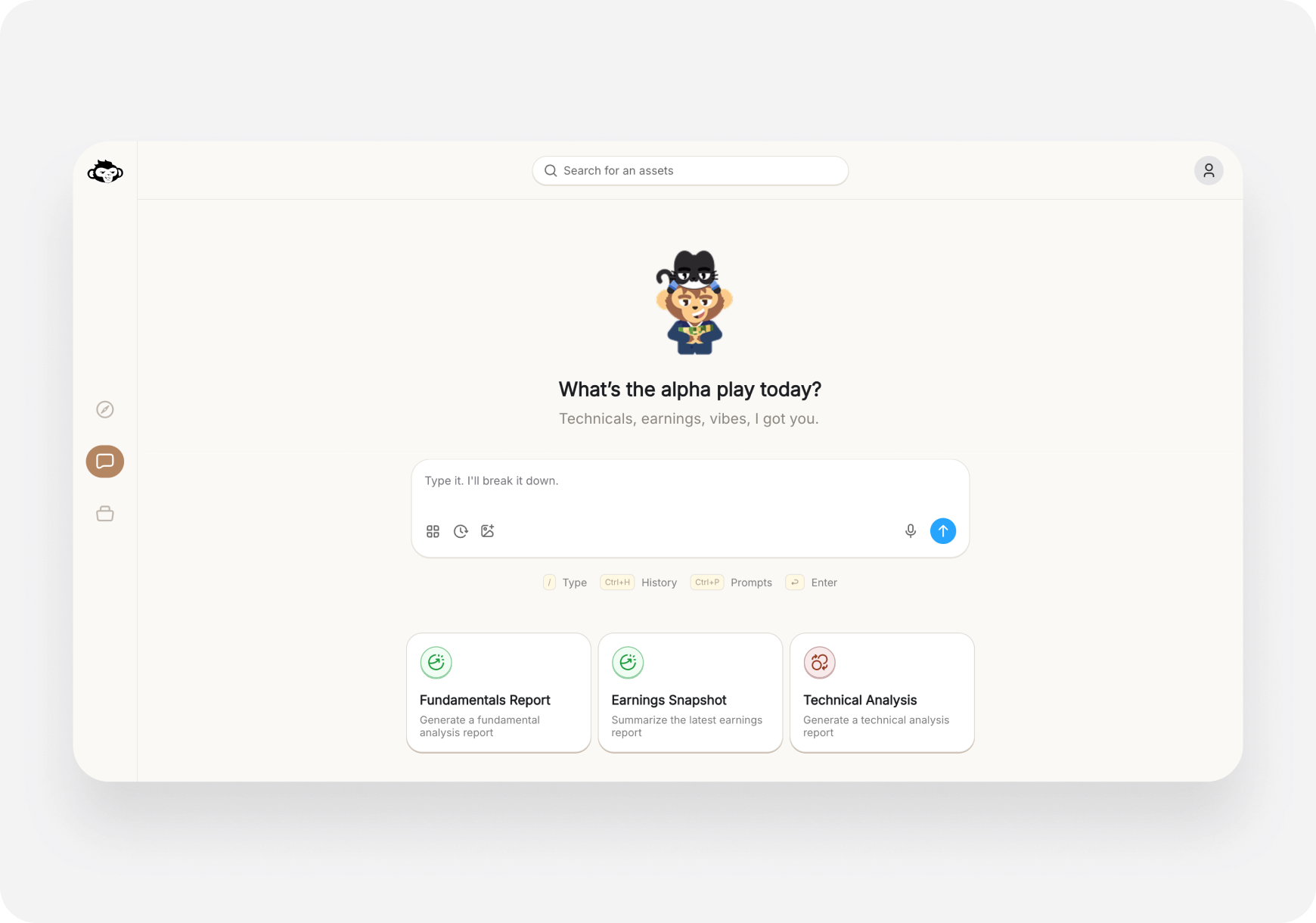
- Click in the text box at bottom
- Type: “What stocks have improving fundamentals this month?”
- Press Enter or click Send
- Get personalized, companion‑aware analysis!
Ctrl+P- Open promptsCtrl+H- Chat history/- Focus searchEnter- Send message
📈 Step 5: Research a Stock
Let’s look up a stock:- Click the Search bar at the top (or press
/) - Type a ticker symbol (e.g., “NVDA”)
- Click the result or press Enter
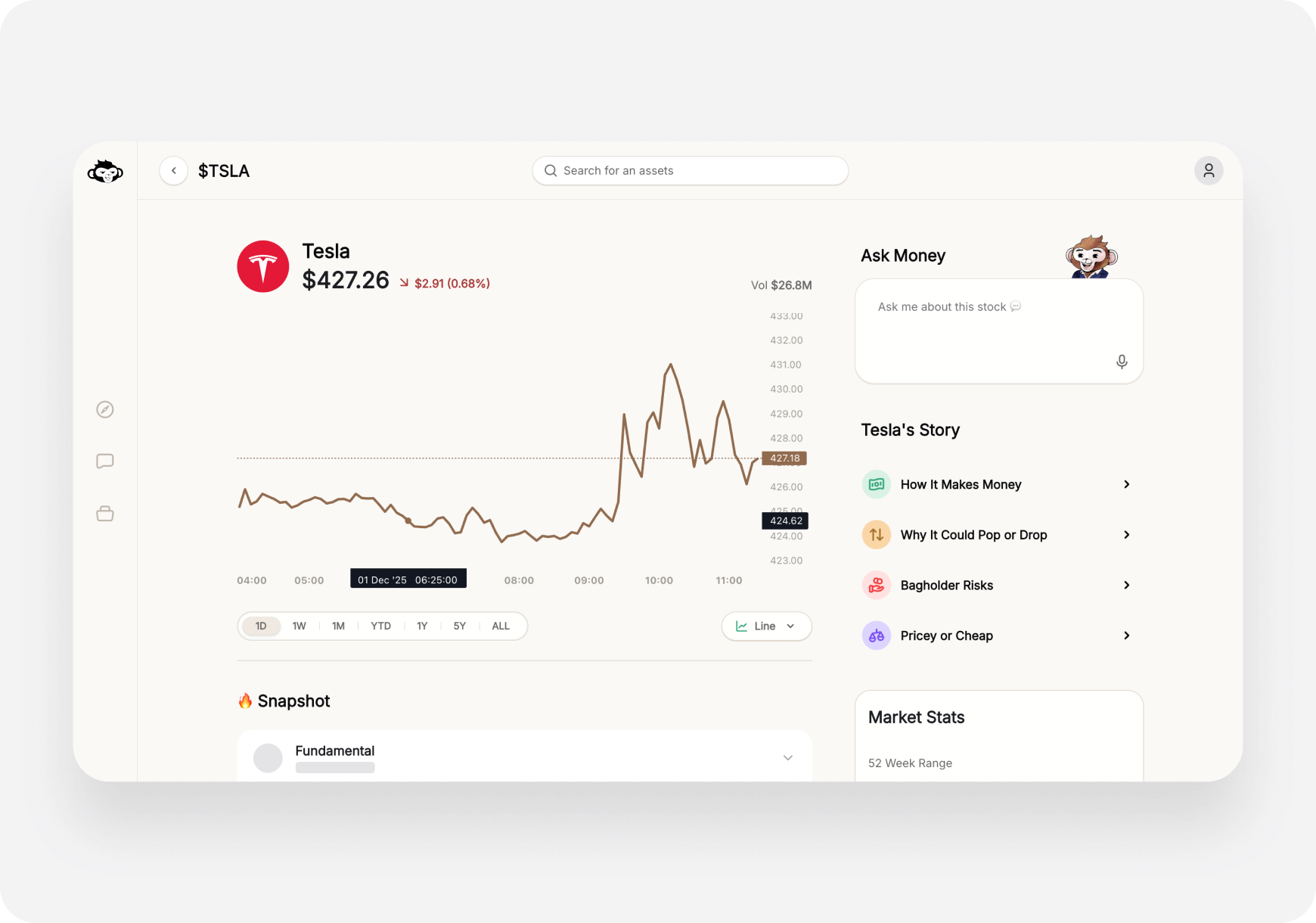
- Price Chart - Interactive, multiple timeframes
- AI Snapshot Grades - 4 letter grades (A to F) ⭐
- Market Stats - Cap, P/E, Volume, 52W range
- Bulls vs Bears - Sentiment analysis
- Company Story - 4 quick action prompts
- Performance - vs S&P 500
- Related Companies - Similar stocks
📰 Step 6: Explore the Feed
Check what’s hot:- Click Home in the left sidebar
- Scroll through the page
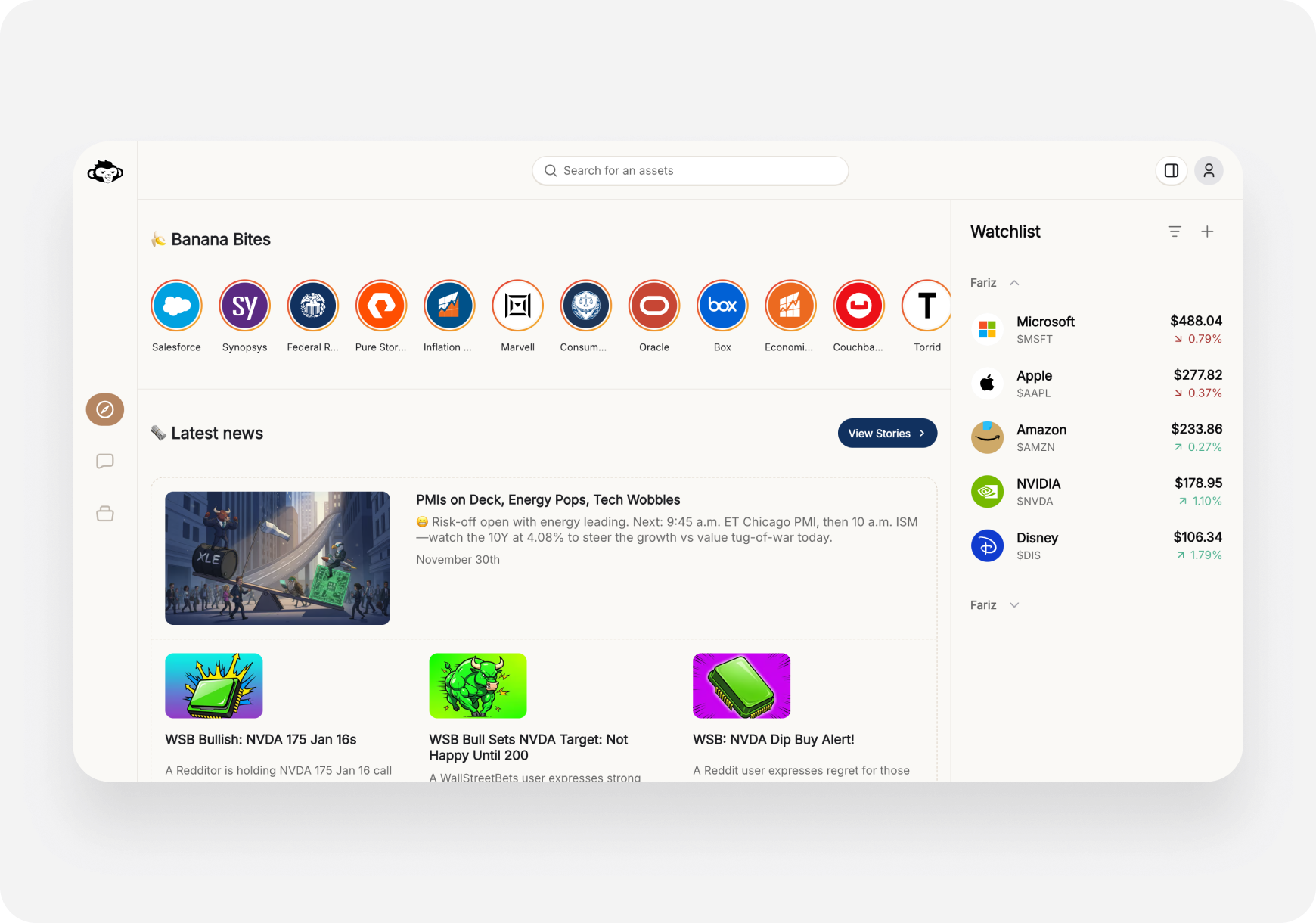
- Market Indices (SPY, QQQ, IWM, DIA)
- Banana Bites 🍌 - Hot stocks quick access
- Latest News - Personalized feed
- Today’s Recap - Daily market summary
- Trending Stocks - Most Active, Top Gainers, etc.
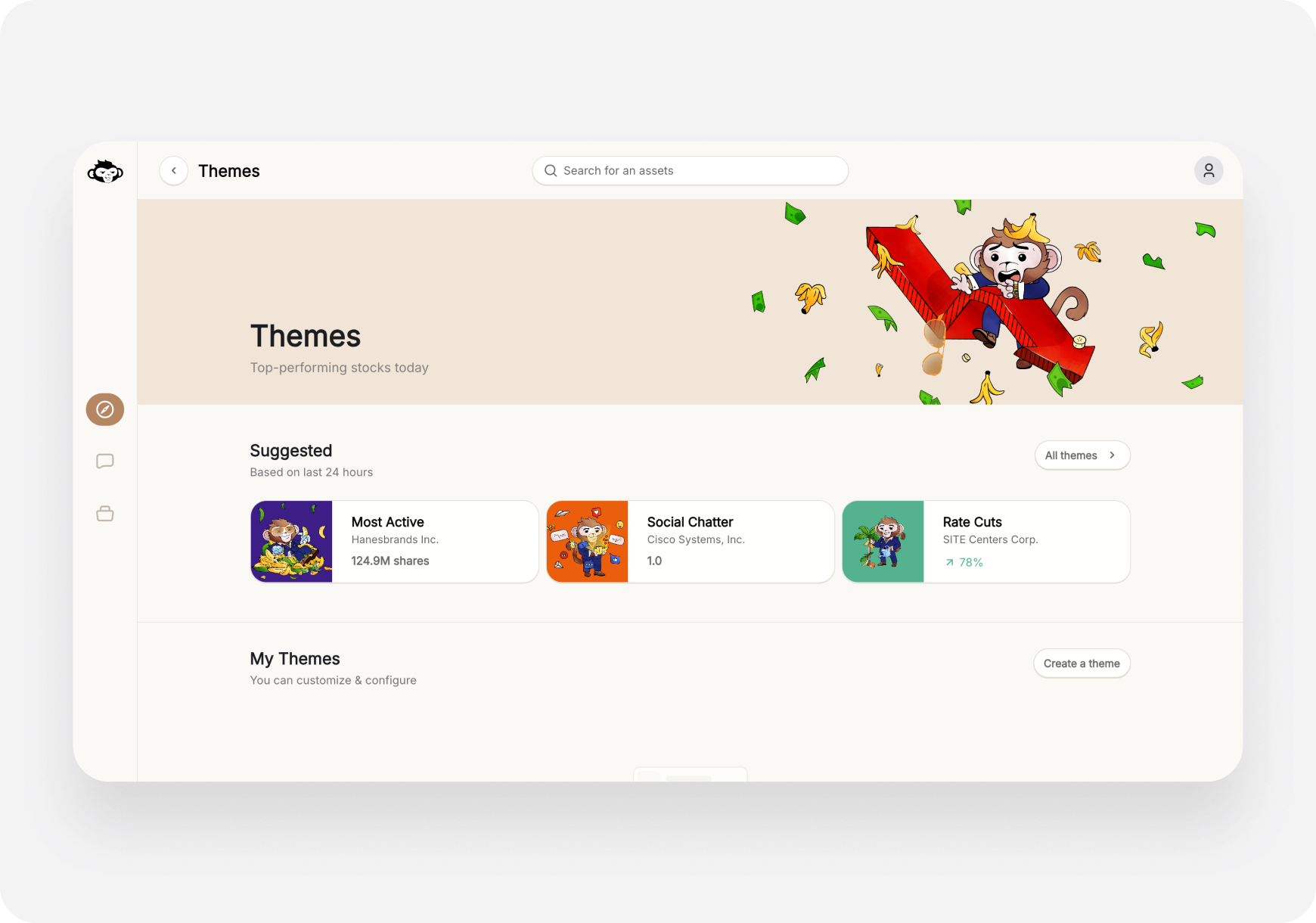
- Themes - Suggested stock lists
💼 Step 7: Set Up Portfolio (Optional)
Track your investments:- Click Portfolio in the left sidebar
- Click Connect a brokerage
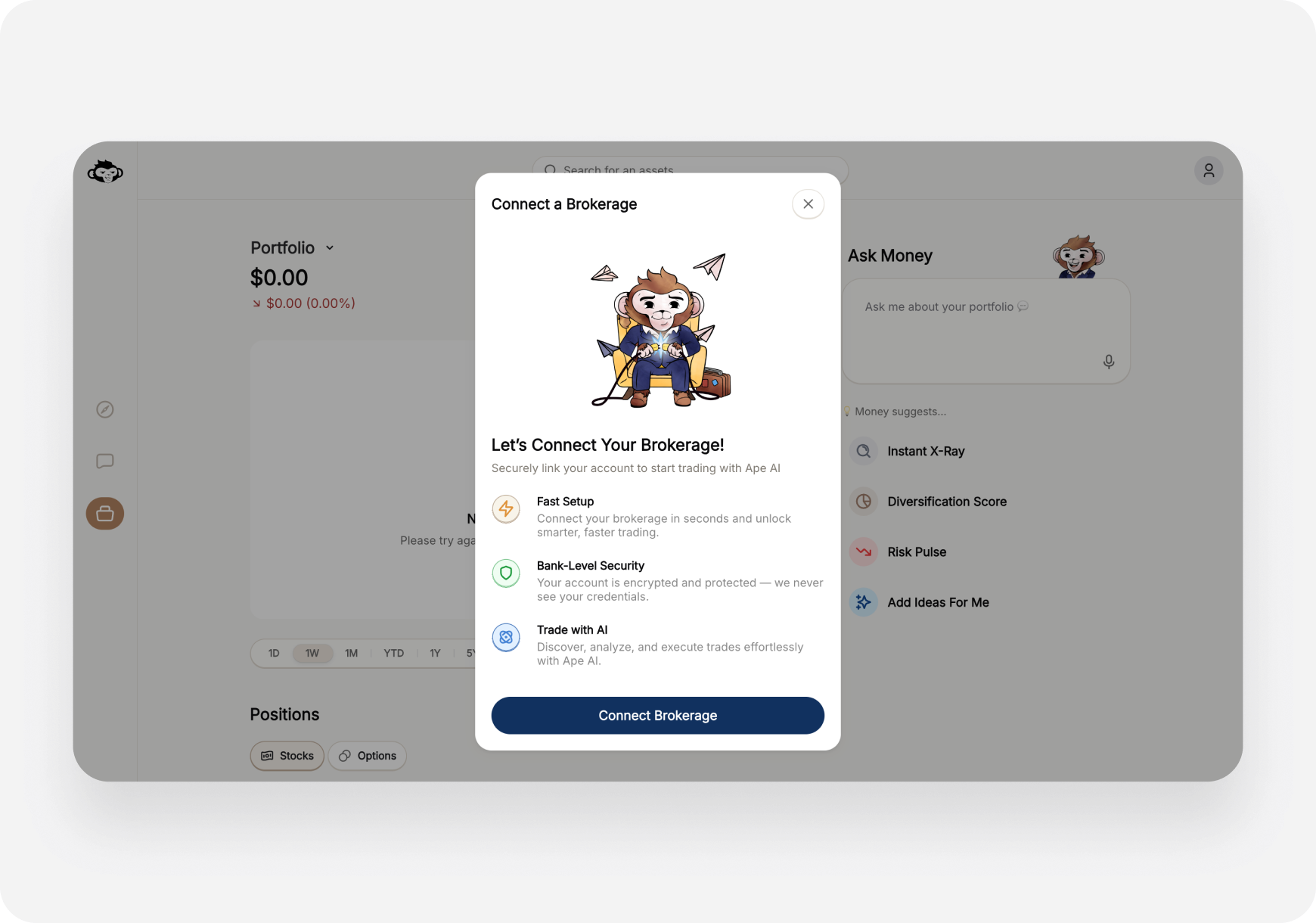
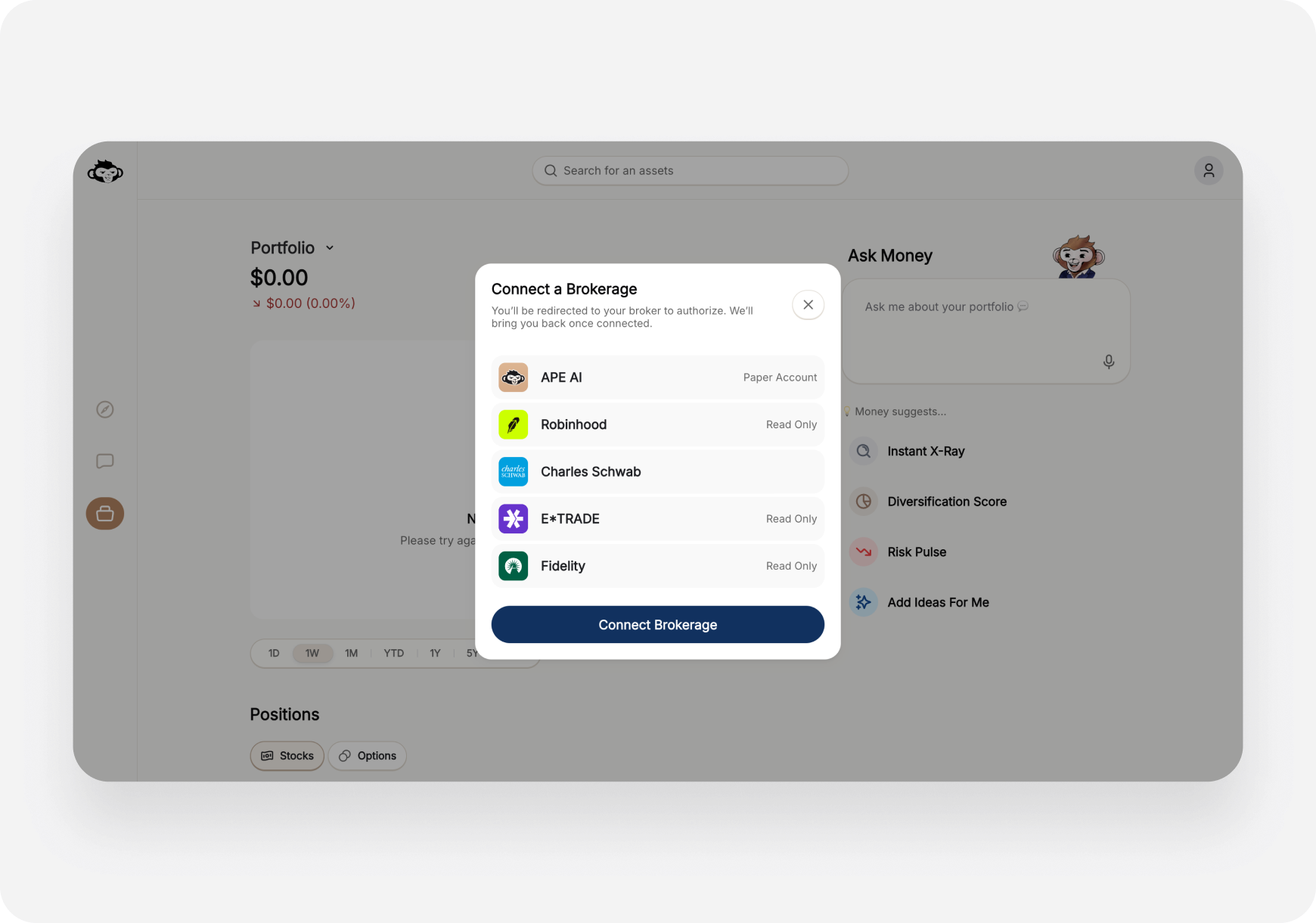
Option A: Ape Paper Trading (FREE) 📄
Perfect for beginners or practicing!- You’ll see “Ape Paper Trading” listed first
- Click Claim Account
- Get virtual money to practice
- Start trading risk-free!
Option B: Connect Real Brokerage 🏦
- Select your brokerage from supported list
- Click Connect and authorize
- Your positions sync automatically
- Track everything in one place
🎨 Step 8: Create Your First Theme
Themes are like custom stock screeners:- Go to Home page
- Scroll to Themes section
- Click “Create a theme”
- Type your criteria in natural language:
- “Tech stocks under $50 with positive earnings”
- “Dividend stocks with 5%+ yield”
- “EV companies with strong momentum”
- Name your theme
- Save and track it!
⚡ Quick Tips for Web
Keyboard Shortcuts
/- Focus search barCtrl+P- Open promptsCtrl+H- Chat historyCtrl+K- Quick command menu (if available)Esc- Close modals
Multi-Window Workflow
Open multiple tabs:- Tab 1: Chat for AI questions
- Tab 2: Ticker page for research
- Tab 3: Portfolio for monitoring
Bookmarks
Bookmark frequently used:app.askape.com- Homeapp.askape.com/chat- Chatapp.askape.com/portfolio- Portfolio- Specific tickers:
app.askape.com/tickers/TSLA
🎯 What’s Next?
Now that you’re set up: Choose Your Companion: Note: Companion selection is currently iOS-only but coming to web soon! Learn the Features: Try a Workflow:📱 Want Mobile Too?
The iOS app syncs with web! Use both:- Web for deep research and analysis
- iOS for quick checks on-the-go
❓ Need Help?
Welcome to the ape army! 🦍🚀 Ready to find some alpha! Let’s go →
Platform Comparison: Not sure which to use? → iOS vs Web Comparison