

📱 Step 1: Download the App
- Open the App Store on your iPhone
- Search for “ApeAI” (one word!)
- Tap Get to download
- Open the app once installed

Requirements: iOS 18.0 or later | 308.9 MB | Age 18+
🔐 Step 2: Create Your Account
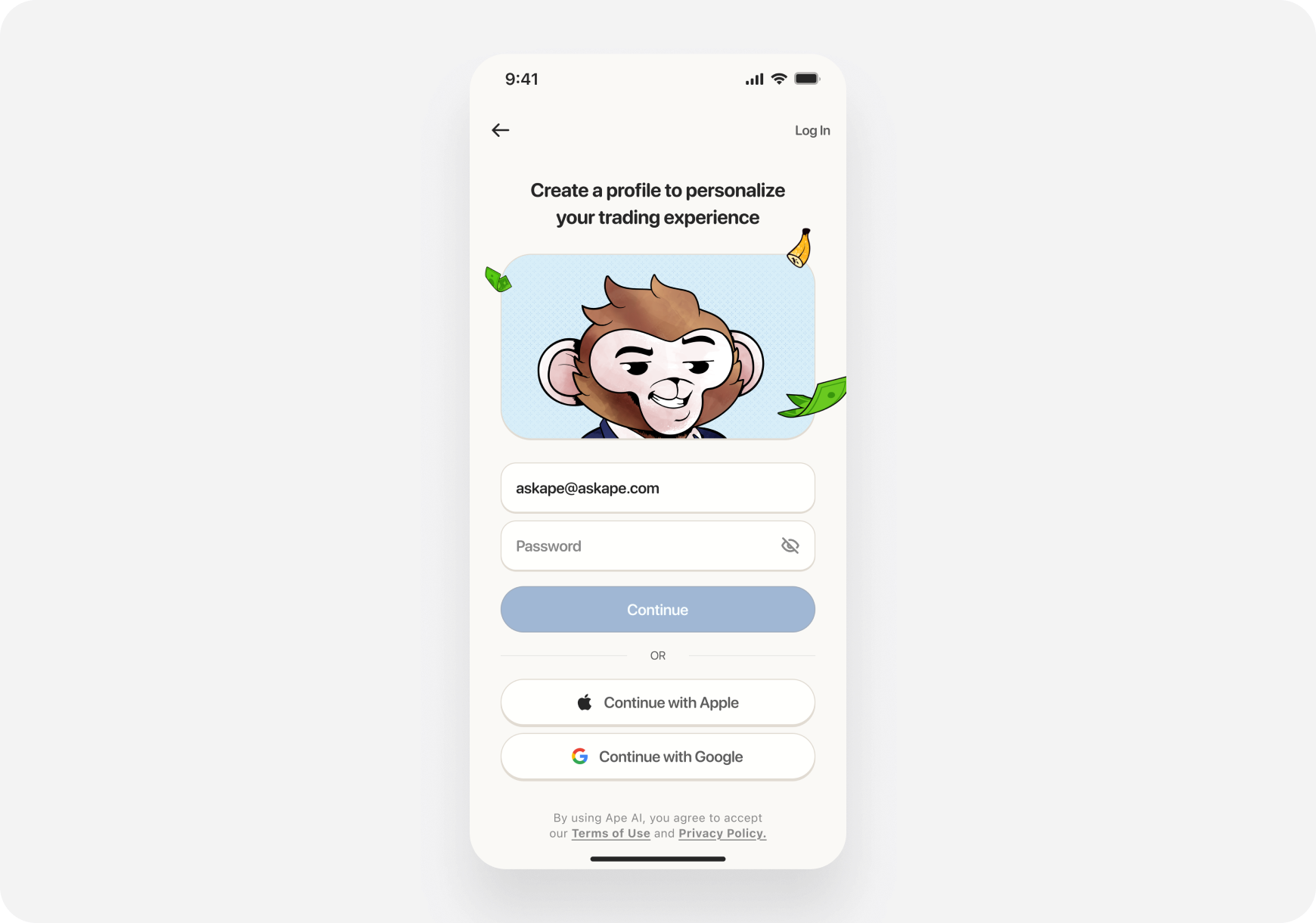
- On the welcome screen, tap Join the Troop (Sign Up)
- Enter your email and create a password
- Verify your email (check your inbox)
- Log in to the app

- Apple
🎭 Step 3: Choose Your Companion
This is important! Your companion determines how the AI assists you.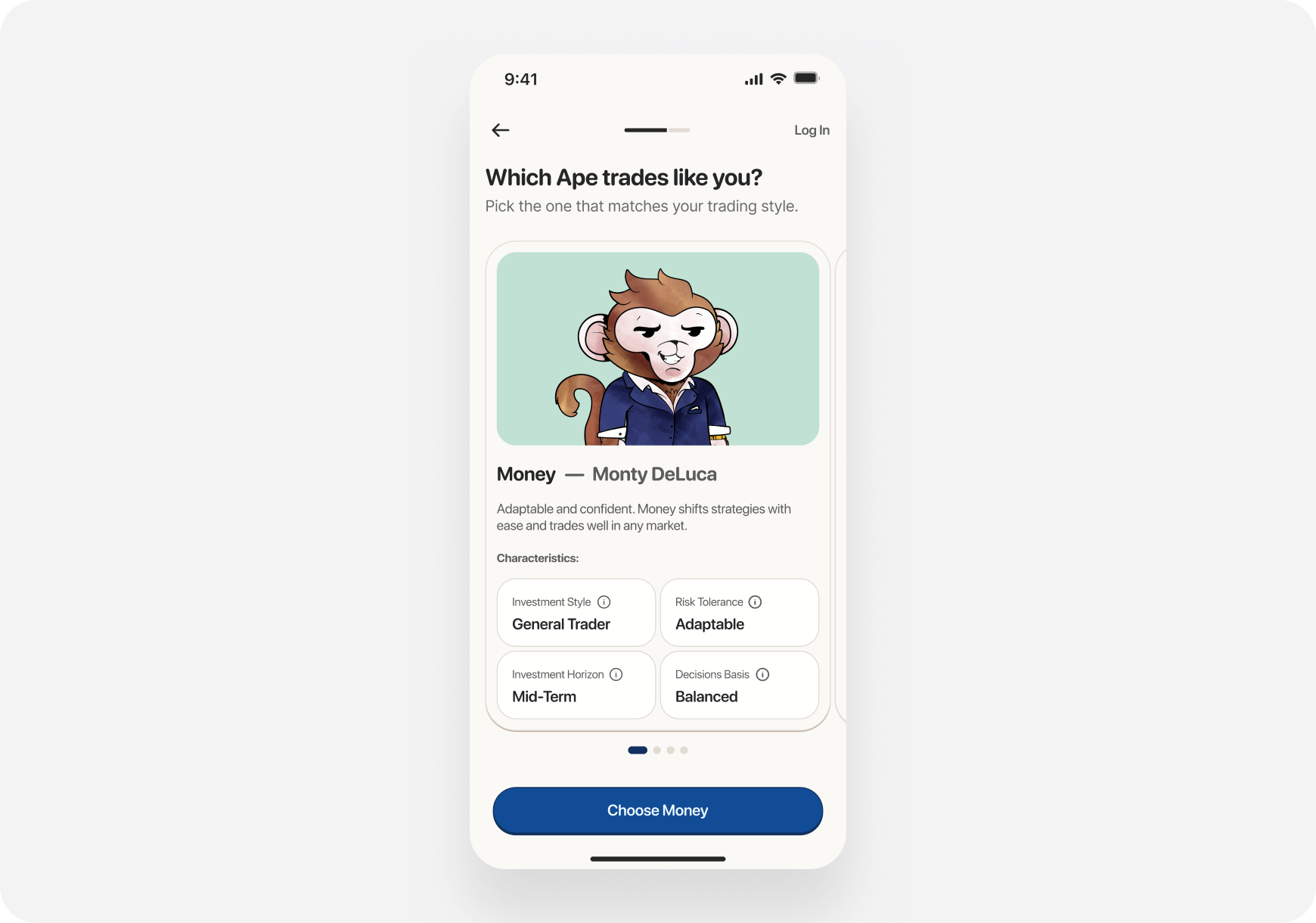
- 💰 Money Monty – Balanced generalist (primary), 2–5 trades/week
- 📈 Maverick – Momentum swing trader (days to weeks)
- 🏦 Sage – Long‑term investor (fundamentals, buy & hold)
- 🚀 Blitz – Experienced day trader (intraday, advanced only)
💡 Don’t worry—you can change your companion anytime in settings.
🗺️ Step 4: Take the Tour
The app has 3 main tabs at the bottom:
1. Chat 💬
Your AI trading companion. Ask anything!- Quick Action cards for common prompts
- Custom questions
- Trade setups and analysis
2. Discover 📰
Market intelligence and news- Ticker carousel (hot stocks)
- Personalized news feed
- Trending stocks
- Themes (stock lists)
3. Portfolio 💼
Track and analyze your holdings- Connect brokerages
- View positions
- Ask your companion
- Get AI analysis
🤖 Step 5: Ask Your First Question
Let’s try the AI Chat:- Tap the Chat tab (bottom left)
- You’ll see Quick Action cards—swipe through them
- Tap “Major Support and Resistance” or “High Open Interest Options”
- Wait a few seconds for the AI to respond
- Review entries, risks, and timeframe
- Tap the text input at bottom
- Type: “What stocks have improving fundamentals this month?”
- Tap send (arrow icon)
- Get your answer!
📈 Step 6: Look Up a Stock
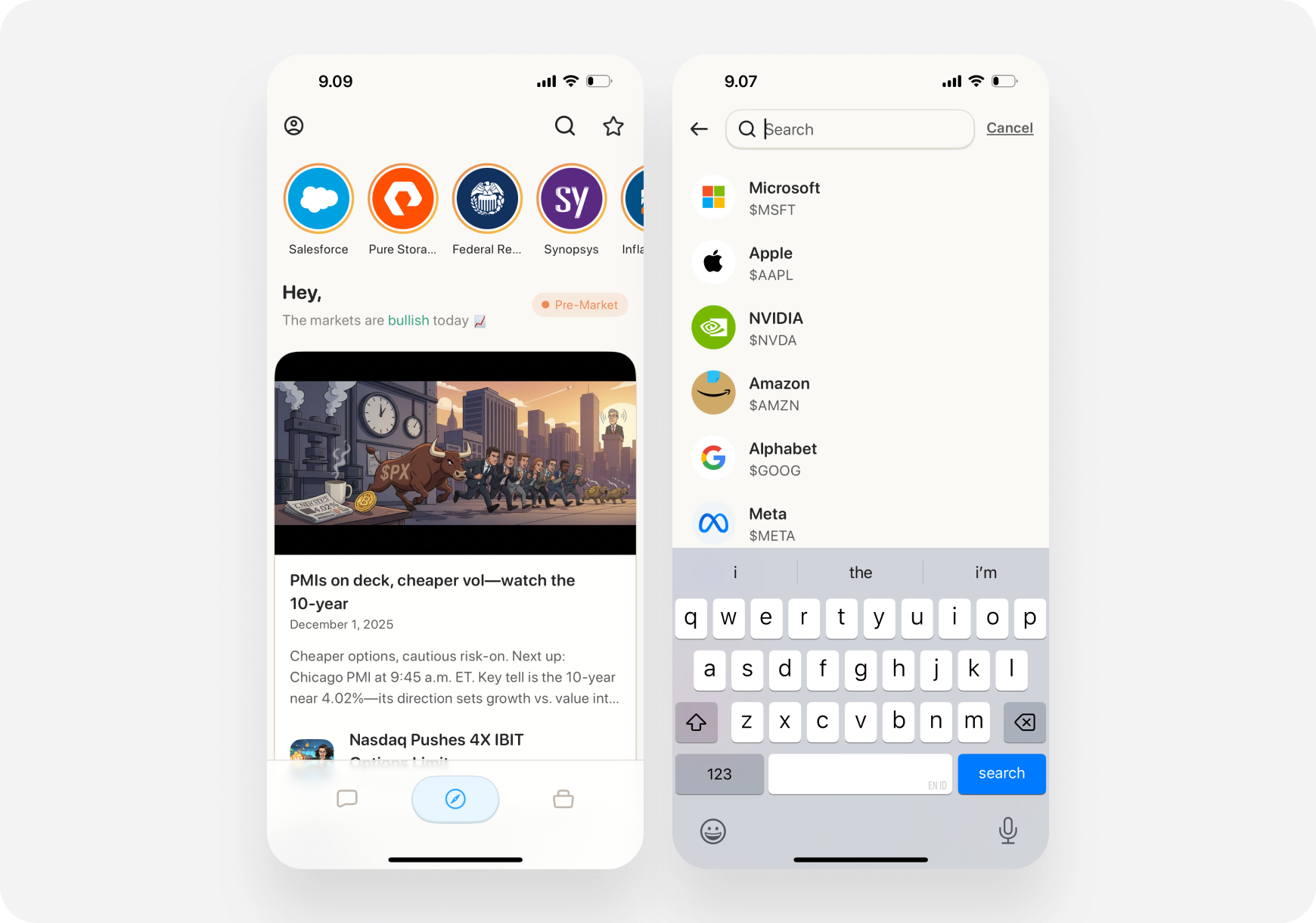
Let’s research a stock:- Tap the Search icon (top right)
- Type a ticker symbol (e.g., “AAPL”)
- Tap the result to view the ticker page
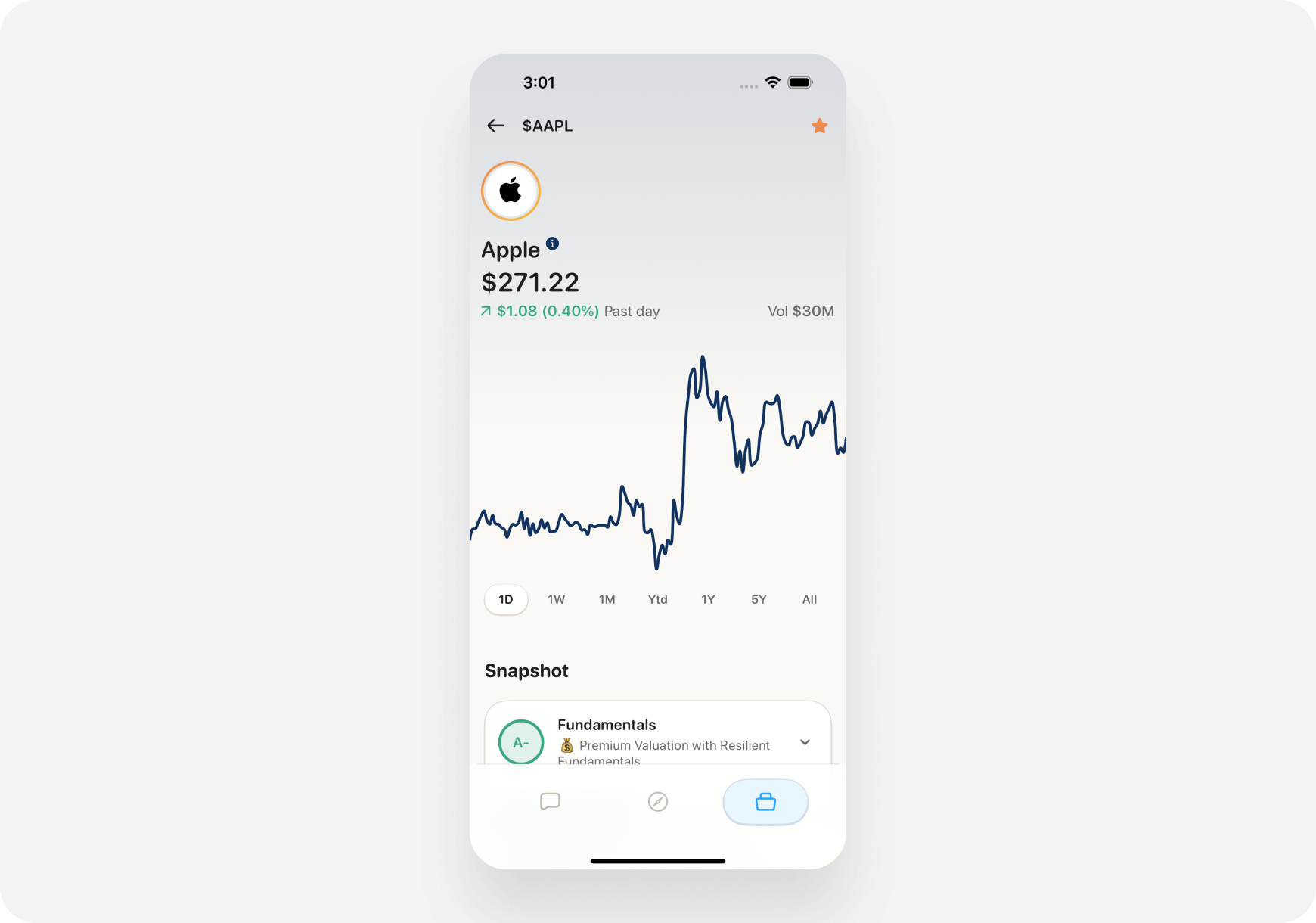
- Price chart (swipe timeframes)
- AI Snapshot Grades (A-F ratings) ⭐
- Market stats
- Bulls vs Bears sentiment
- Company Story
- Performance comparison
🎨 Step 7: Create Your First Theme
Themes are like custom stock screeners:- Go to Discover tab
- Scroll down and tap More Themes
- Click “Create a theme”
- Type your criteria in natural language:
- “Tech stocks under $50 with positive earnings”
- “Dividend stocks with 5%+ yield”
- “EV companies with strong momentum”
- Name your theme
- Save and track it!
-1.png?fit=max&auto=format&n=bJ0yjEqTsXepHRxP&q=85&s=70fea39e9106c8062950f5a3ee04c119)
.png?fit=max&auto=format&n=bJ0yjEqTsXepHRxP&q=85&s=dfec0ed1befc443abd189f36185cde83)
💼 Step 8: Set Up Portfolio (Optional)
Want to track your investments?- Tap the Portfolio tab
- Tap Connect a brokerage
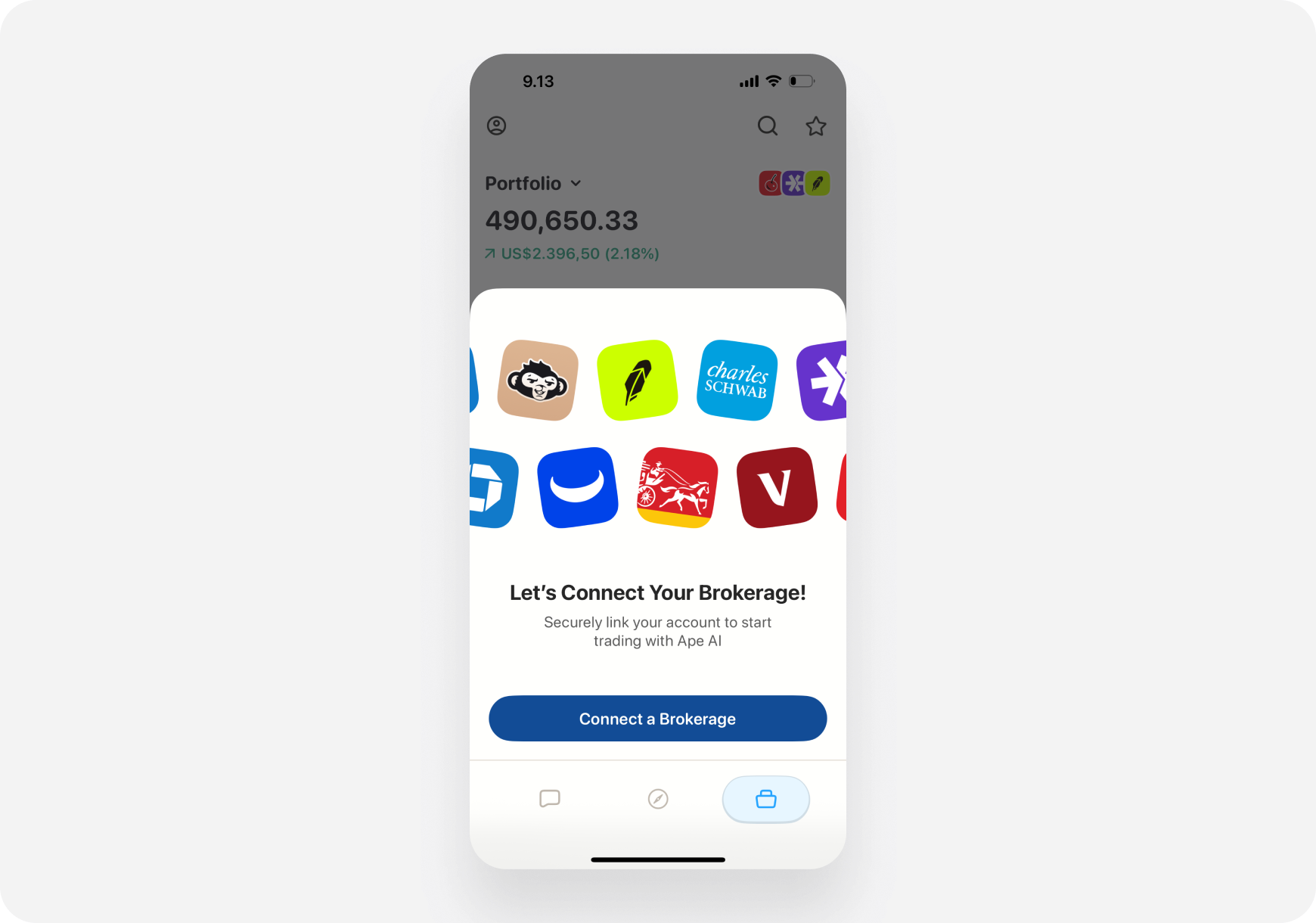
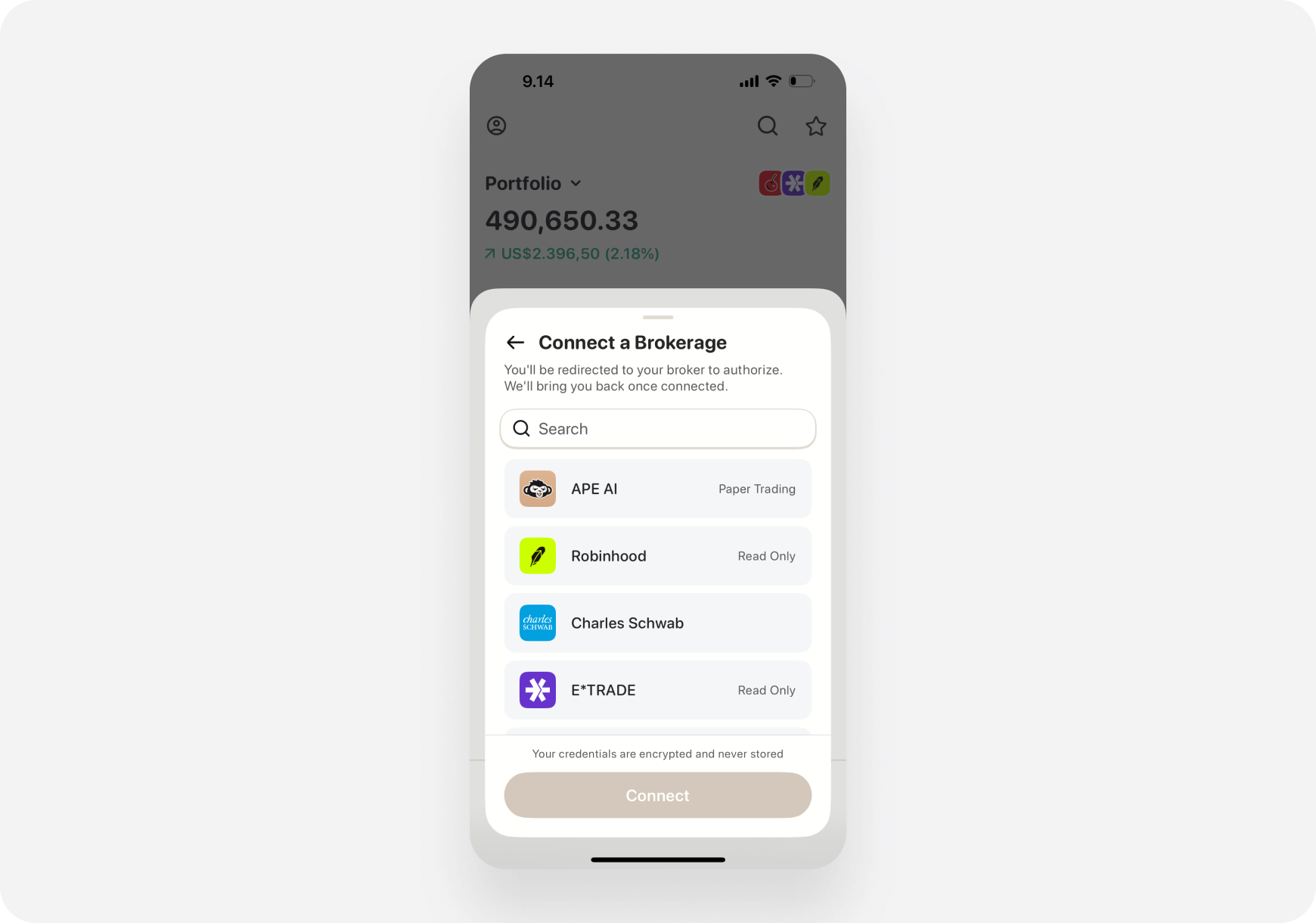
Option A: Ape Paper Trading (FREE) 📄
Perfect for beginners! Practice with virtual money.- See “APE AI Paper Trading” at the top
- Tap Claim Account
- Start practicing risk-free!
Option B: Connect Real Brokerage 🏦
- Choose your brokerage from the list
- Follow the connection steps
- Your positions sync automatically
⚡ Quick Tips for iOS

Gestures
- Swipe left/right on Quick Action cards
- Tap to expand Snapshot Grade cards
- Swipe back from left edge to go back
- Pull down to refresh news and data
Navigation
- Bottom tabs for main sections
- Top search icon for quick stock lookups
- Profile icon (top left) for settings
Quick Actions
- Use Quick Action cards in Chat for common tasks
- They’re faster than typing!
🎯 What’s Next?
Now that you’re set up: Complete Your Profile:- Choose Your Companion (if you haven’t)
- Connect a Brokerage
❓ Need Help?
Welcome to the ape army! 🦍🚀 Ready to find some alpha on the web instead? → Web Quick Start