> ## Documentation Index
> Fetch the complete documentation index at: https://guide.askape.com/llms.txt
> Use this file to discover all available pages before exploring further.
# Quick Start: Web
Get started with Ape AI on your desktop in 5 minutes.
***
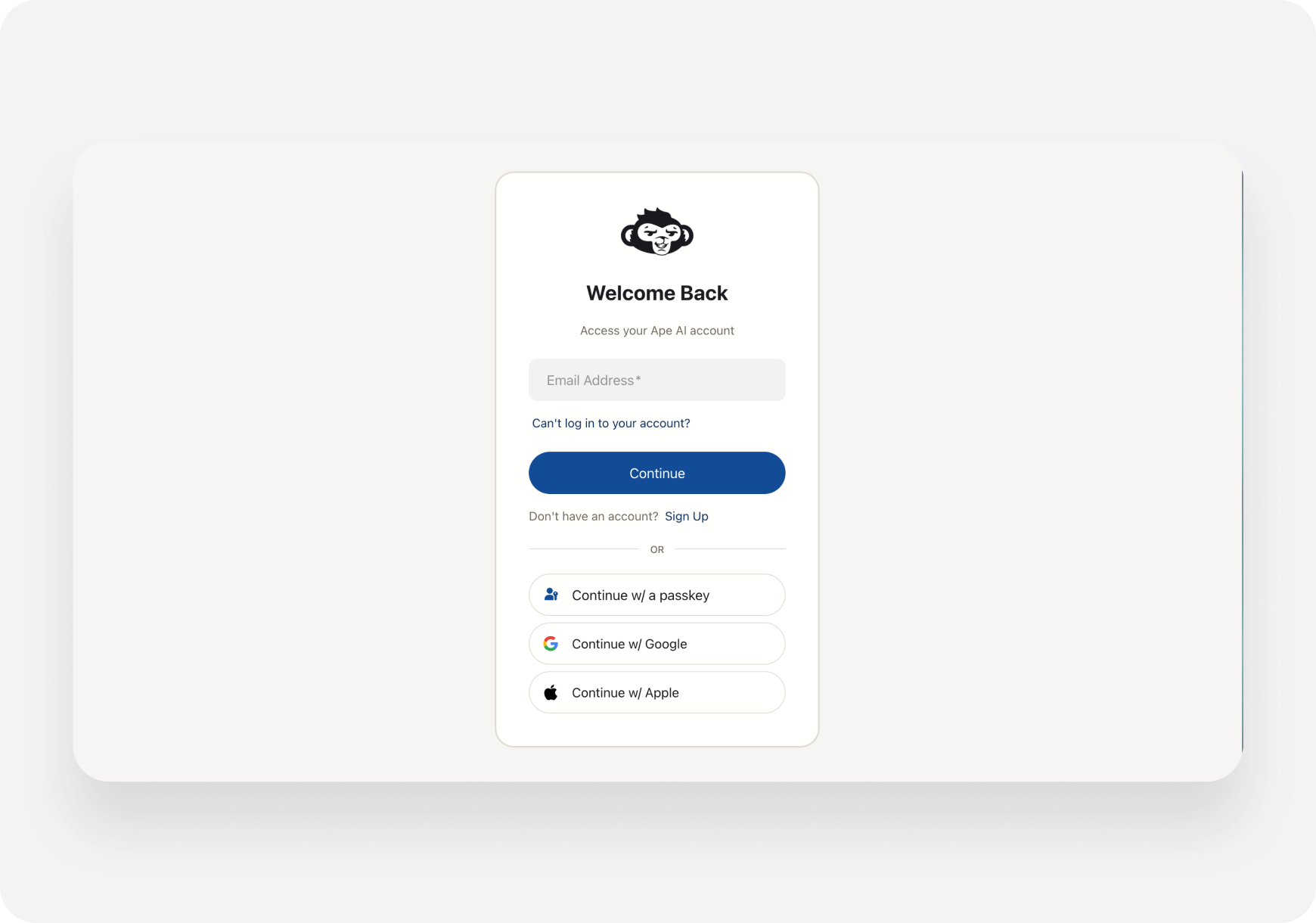
## 🌐 Step 1: Access the Web App
1. Open your browser (Chrome, Safari, Firefox, Edge)
2. Go to **\[**[**app.askape.com**](https://app.askape.com/)**]**
3. You'll see the login/signup page
 ***
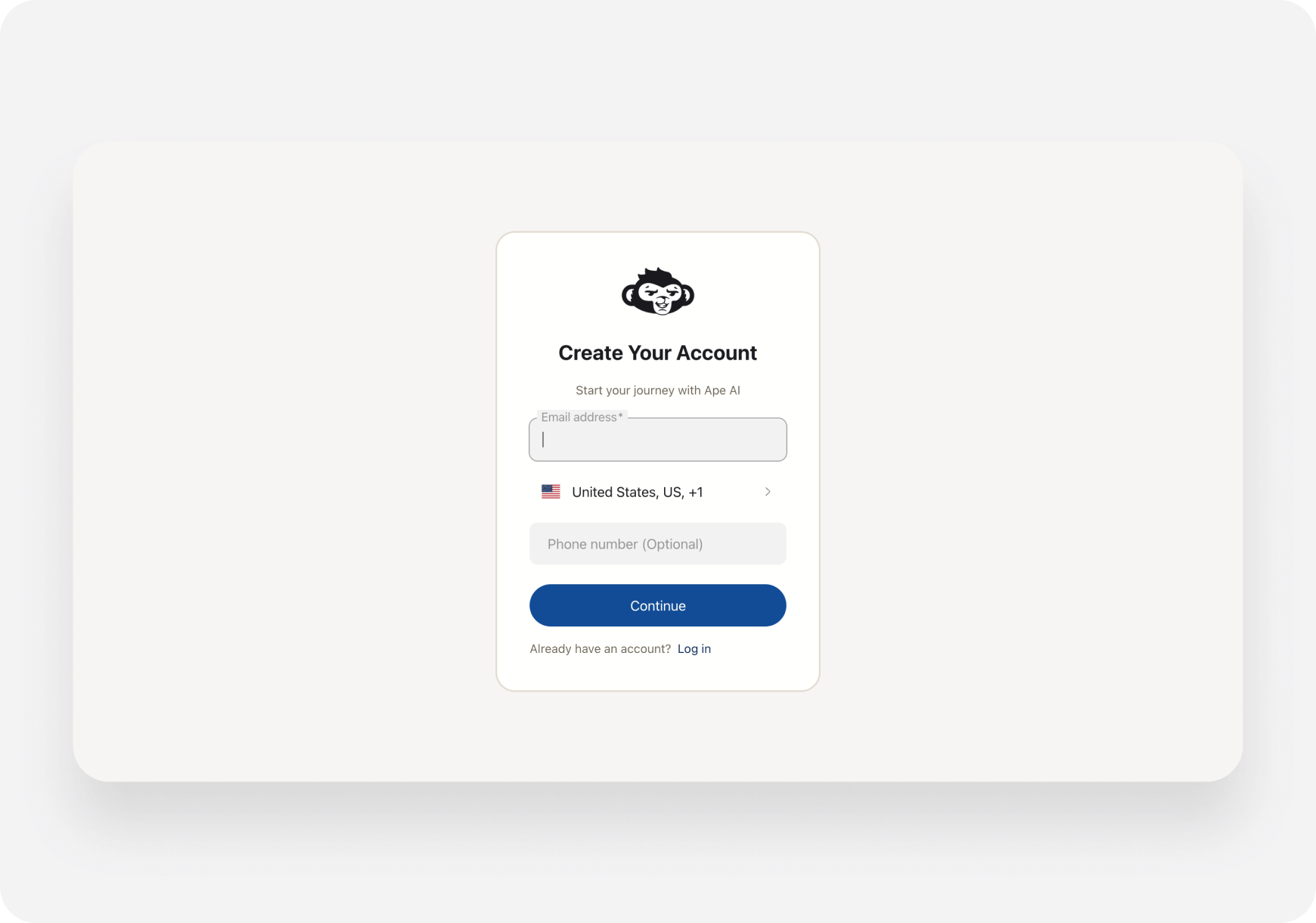
## 🔐 Step 2: Create Your Account
1. Click **Sign Up**
2. Enter your email and create a password
3. Verify your email (check your inbox)
4. Log back in
***
## 🔐 Step 2: Create Your Account
1. Click **Sign Up**
2. Enter your email and create a password
3. Verify your email (check your inbox)
4. Log back in
 **Or sign in with:**
* Google
* Apple
***
## 🗺️ Step 3: Dashboard Tour
Once logged in, you'll see the main dashboard:
**Or sign in with:**
* Google
* Apple
***
## 🗺️ Step 3: Dashboard Tour
Once logged in, you'll see the main dashboard:
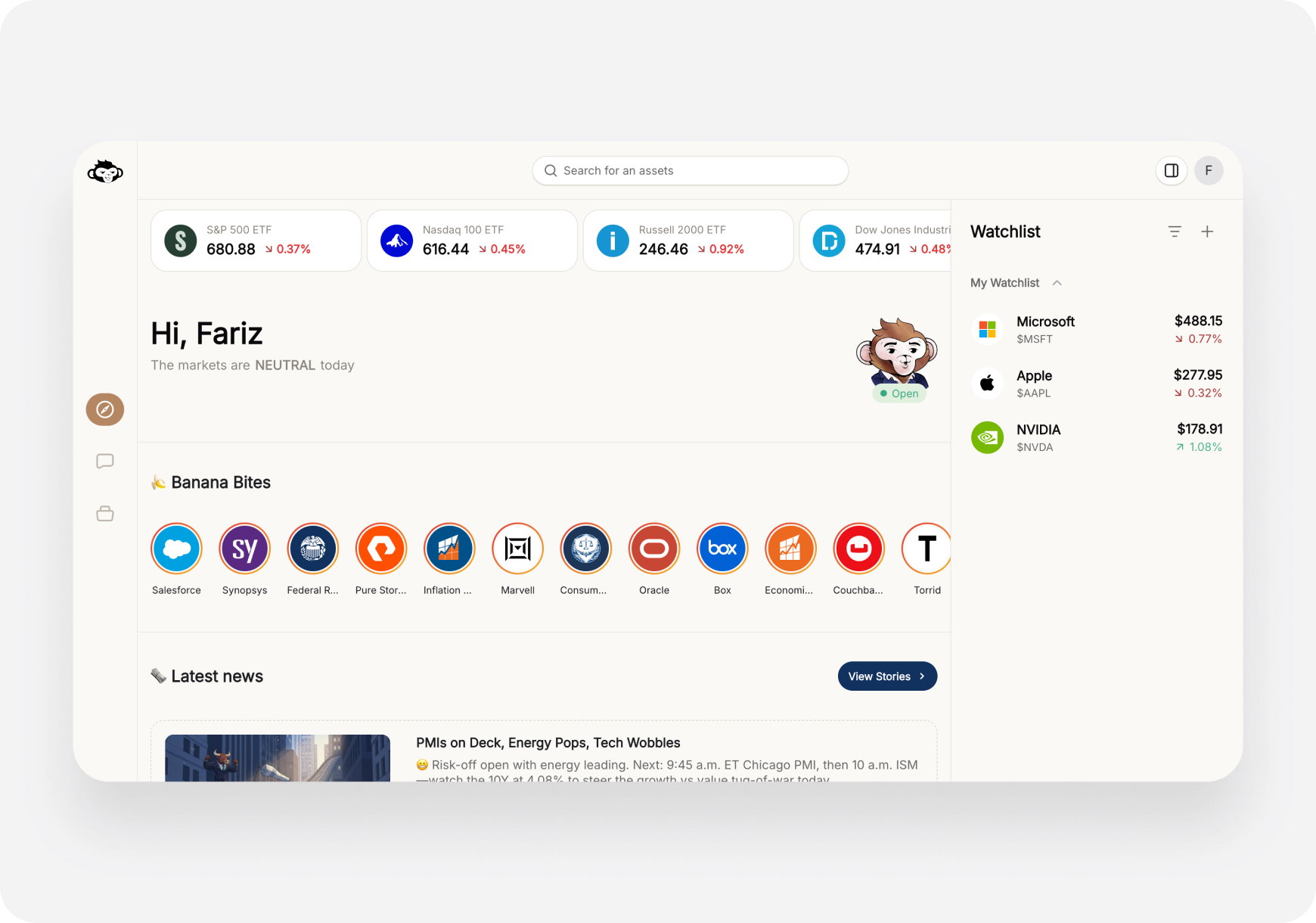 **Main sections:**
### Left Sidebar Navigation
* **News Feed** 🏠 - Market overview, news, trending
* **Chat** 💬 - AI trading assistant
* **Portfolio** 💼 - Your holdings and analysis
### Top Bar
* **Search** 🔍 - Find any stock
* **Profile** 👤 - Settings and account
***
## 🤖 Step 4: Ask Your First Question
Let's try the AI Chat:
1. Click **Chat** in the left sidebar (or press `/` then type)
2. You'll see the chat interface with your companion indicator
3. Click the **Prompts** icon (or press `Ctrl+P`) to see Quick Prompts
4. Select **"Find Strong Catalyst Stocks"** (or "Swing Trade Ideas")
5. Wait for the AI to respond
6. Review entries, risks, and timeframe
**Main sections:**
### Left Sidebar Navigation
* **News Feed** 🏠 - Market overview, news, trending
* **Chat** 💬 - AI trading assistant
* **Portfolio** 💼 - Your holdings and analysis
### Top Bar
* **Search** 🔍 - Find any stock
* **Profile** 👤 - Settings and account
***
## 🤖 Step 4: Ask Your First Question
Let's try the AI Chat:
1. Click **Chat** in the left sidebar (or press `/` then type)
2. You'll see the chat interface with your companion indicator
3. Click the **Prompts** icon (or press `Ctrl+P`) to see Quick Prompts
4. Select **"Find Strong Catalyst Stocks"** (or "Swing Trade Ideas")
5. Wait for the AI to respond
6. Review entries, risks, and timeframe
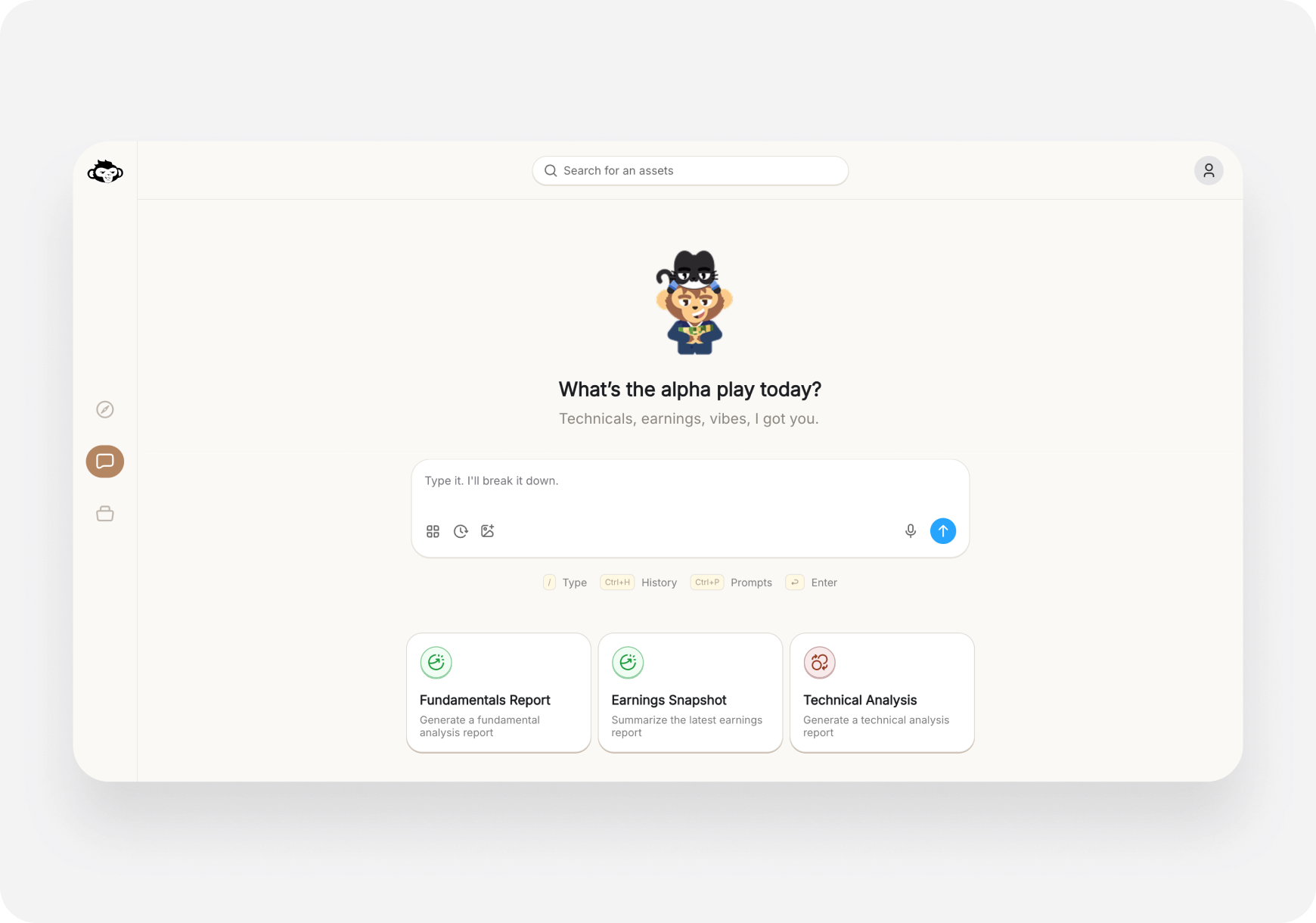 **Or type your own question:**
* Click in the text box at bottom
* Type: *"What stocks have improving fundamentals this month?"*
* Press Enter or click Send
* Get personalized, companion‑aware analysis!
**Keyboard Shortcuts:**
* `Ctrl+P` - Open prompts
* `Ctrl+H` - Chat history
* `/` - Focus search
* `Enter` - Send message
***
## 📈 Step 5: Research a Stock
Let's look up a stock:
1. Click the **Search bar** at the top (or press `/`)
2. Type a ticker symbol (e.g., **"NVDA"**)
3. Click the result or press Enter
**Or type your own question:**
* Click in the text box at bottom
* Type: *"What stocks have improving fundamentals this month?"*
* Press Enter or click Send
* Get personalized, companion‑aware analysis!
**Keyboard Shortcuts:**
* `Ctrl+P` - Open prompts
* `Ctrl+H` - Chat history
* `/` - Focus search
* `Enter` - Send message
***
## 📈 Step 5: Research a Stock
Let's look up a stock:
1. Click the **Search bar** at the top (or press `/`)
2. Type a ticker symbol (e.g., **"NVDA"**)
3. Click the result or press Enter
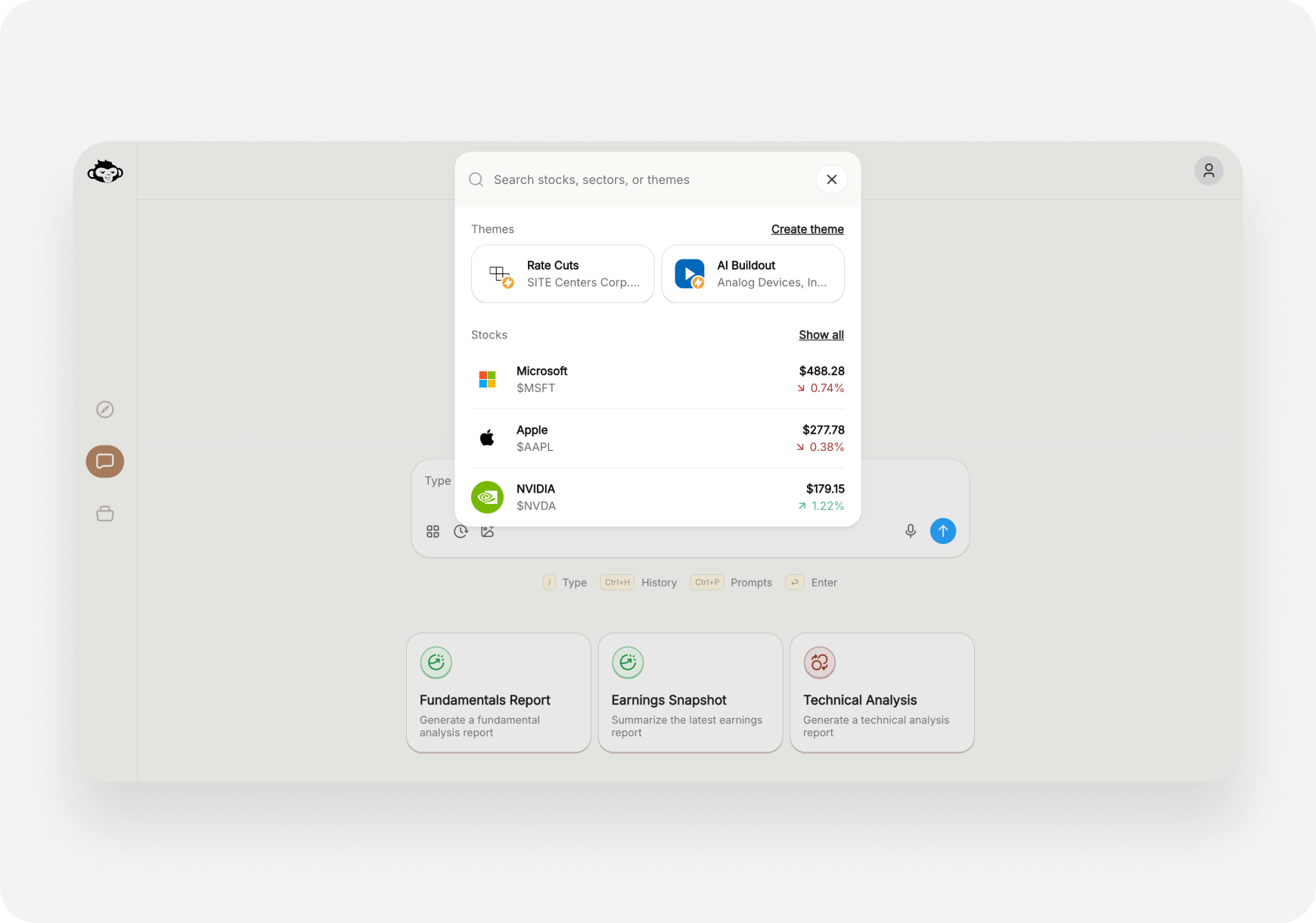 **You'll see the ticker page:**
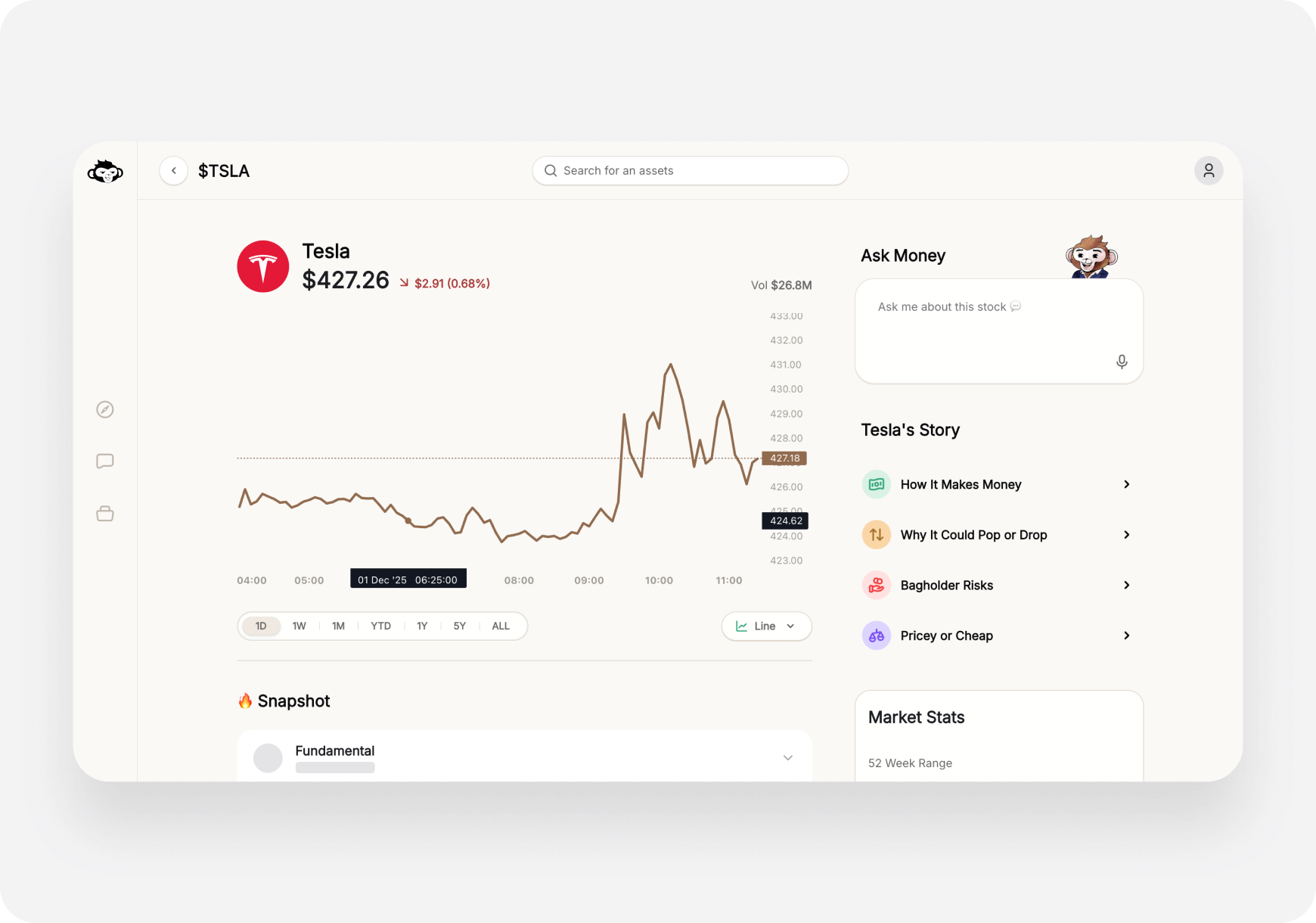 **Key sections:**
* **Price Chart** - Interactive, multiple timeframes
* **AI Snapshot Grades** - 4 letter grades (A to F) ⭐
* **Market Stats** - Cap, P/E, Volume, 52W range
* **Bulls vs Bears** - Sentiment analysis
* **Company Story** - 4 quick action prompts
* **Performance** - vs S\&P 500
* **Related Companies** - Similar stocks
**Click any Snapshot Grade** to expand and see full AI reasoning.
***
## 📰 Step 6: Explore the Feed
Check what's hot:
1. Click **Home** in the left sidebar
2. Scroll through the page
**Key sections:**
* **Price Chart** - Interactive, multiple timeframes
* **AI Snapshot Grades** - 4 letter grades (A to F) ⭐
* **Market Stats** - Cap, P/E, Volume, 52W range
* **Bulls vs Bears** - Sentiment analysis
* **Company Story** - 4 quick action prompts
* **Performance** - vs S\&P 500
* **Related Companies** - Similar stocks
**Click any Snapshot Grade** to expand and see full AI reasoning.
***
## 📰 Step 6: Explore the Feed
Check what's hot:
1. Click **Home** in the left sidebar
2. Scroll through the page
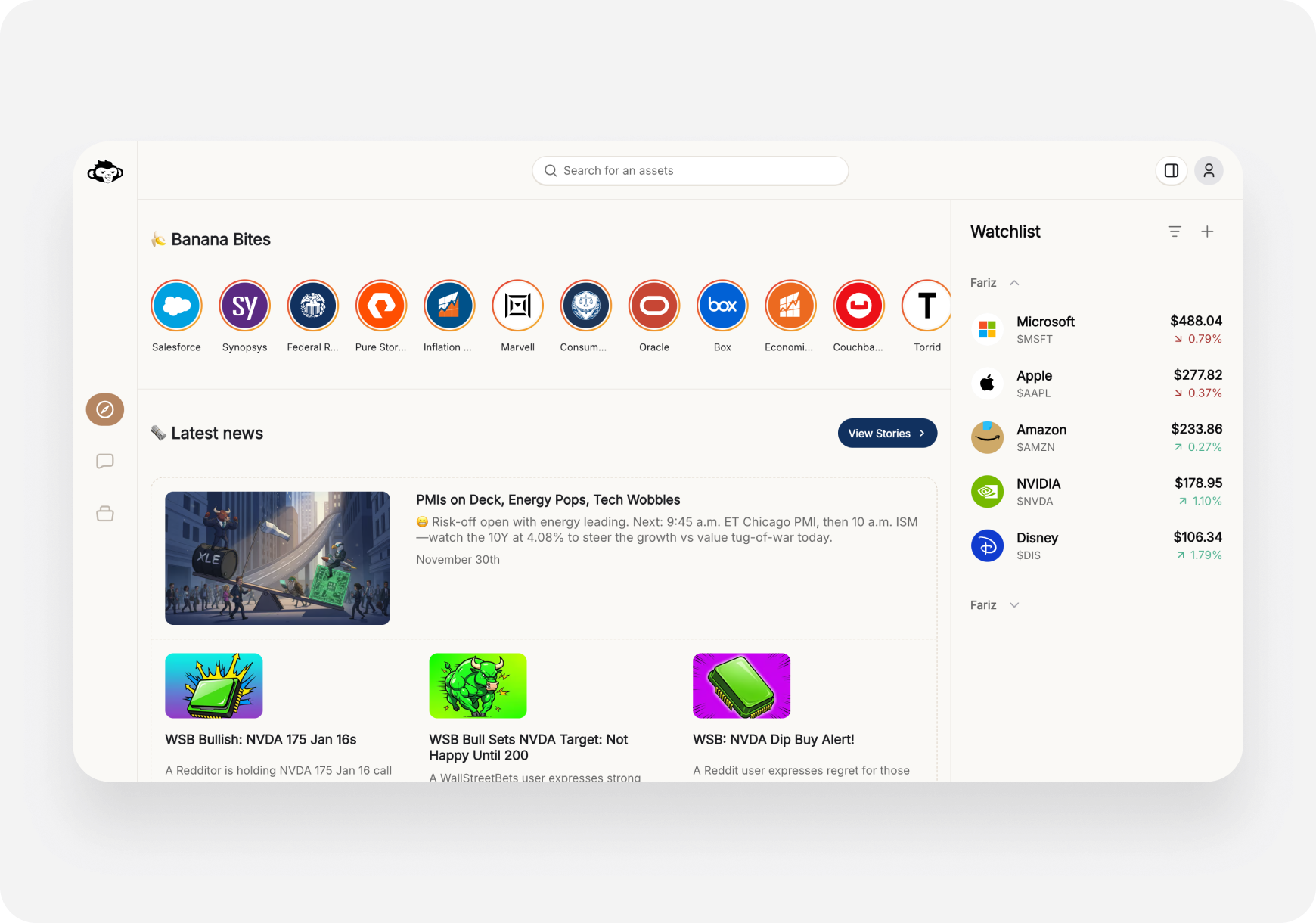 **You'll see:**
* **Market Indices** (SPY, QQQ, IWM, DIA)
* **Banana Bites** 🍌 - Hot stocks quick access
* **Latest News** - Personalized feed
* **Today's Recap** - Daily market summary
* **Trending Stocks** - Most Active, Top Gainers, etc.
* **Themes** - Suggested stock lists
***
## 💼 Step 7: Set Up Portfolio (Optional)
Track your investments:
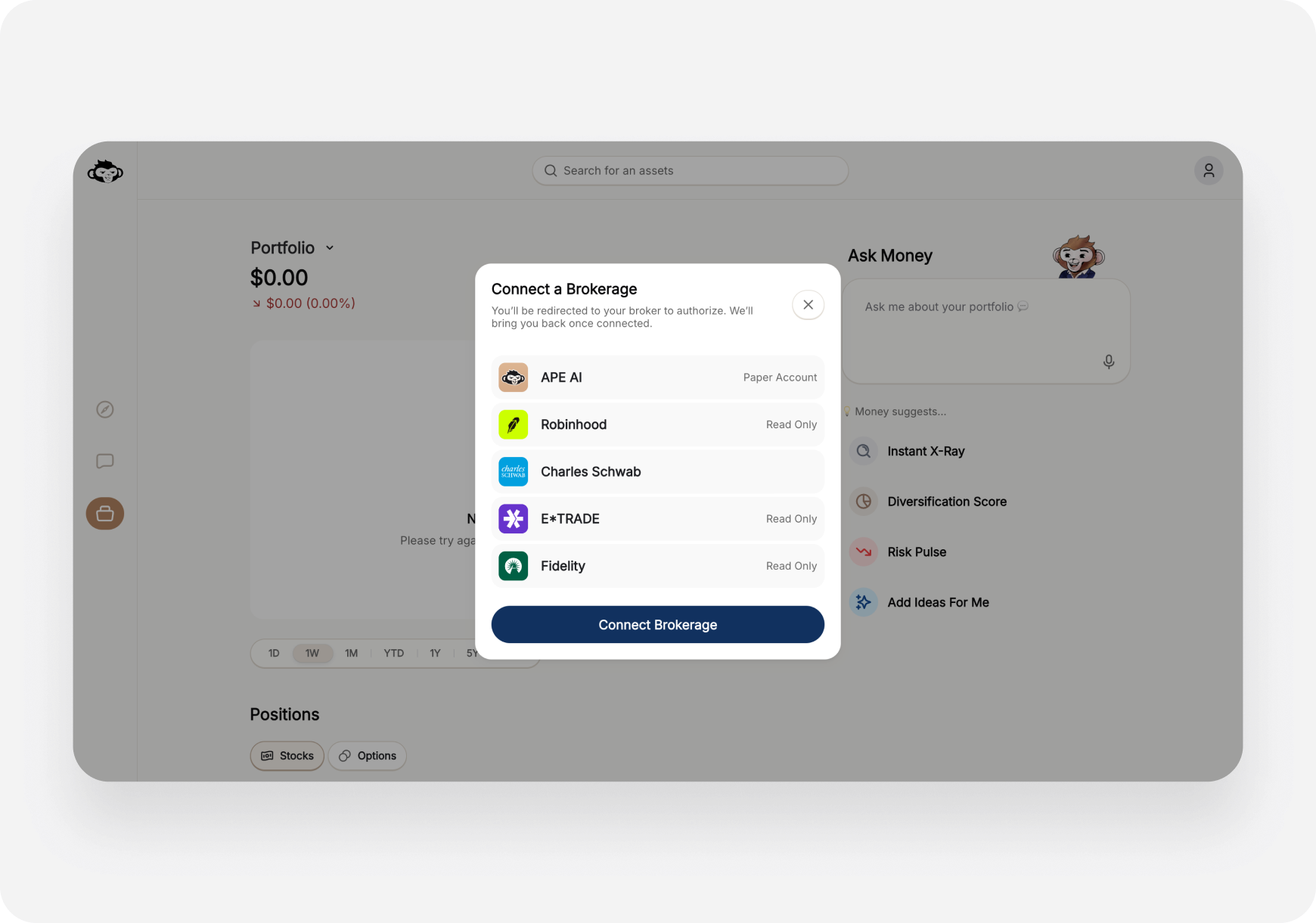
1. Click **Portfolio** in the left sidebar
2. Click **Connect** a brokerage
**You'll see:**
* **Market Indices** (SPY, QQQ, IWM, DIA)
* **Banana Bites** 🍌 - Hot stocks quick access
* **Latest News** - Personalized feed
* **Today's Recap** - Daily market summary
* **Trending Stocks** - Most Active, Top Gainers, etc.
* **Themes** - Suggested stock lists
***
## 💼 Step 7: Set Up Portfolio (Optional)
Track your investments:
1. Click **Portfolio** in the left sidebar
2. Click **Connect** a brokerage
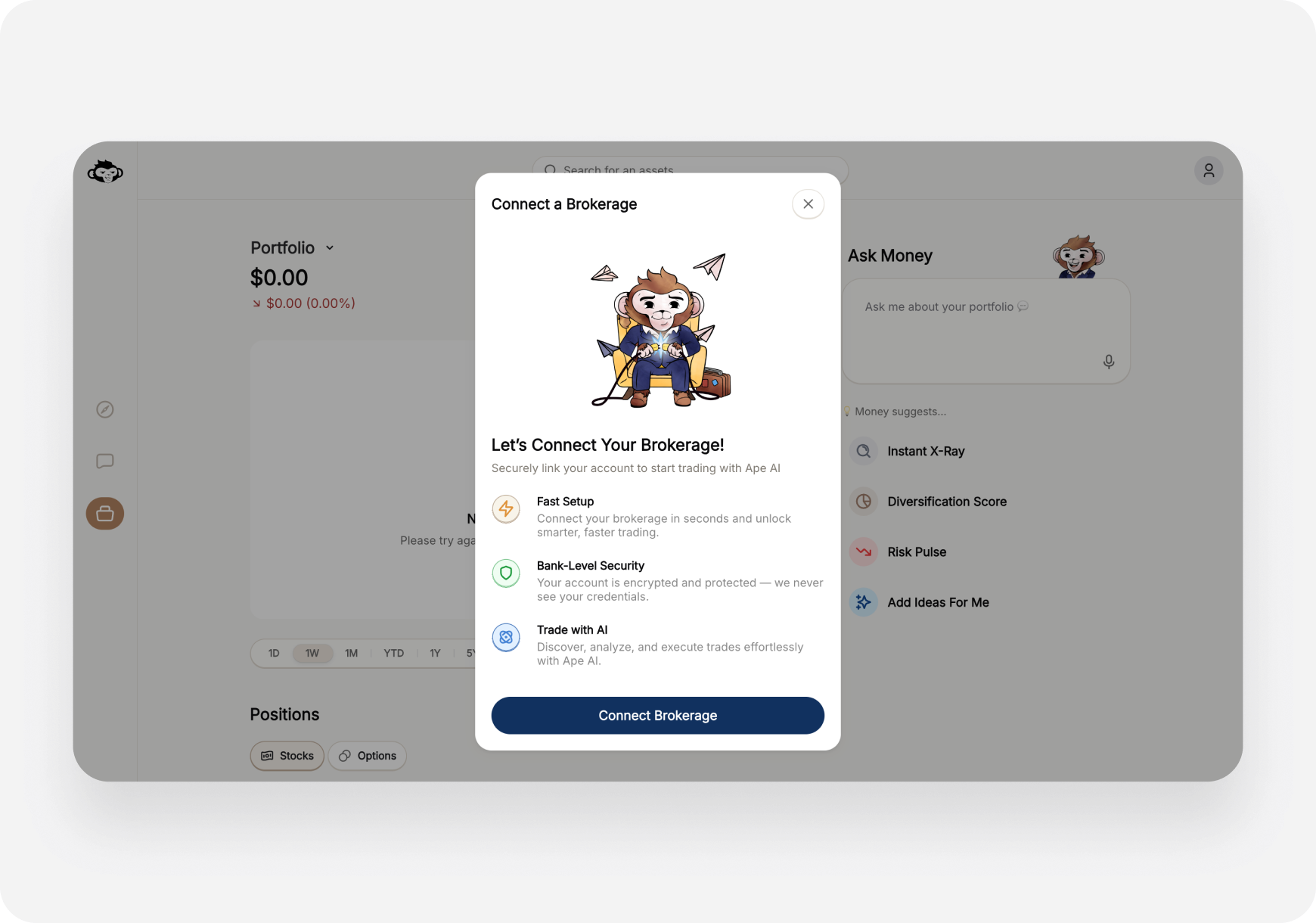 **Two options:**
 ### Option A: Ape Paper Trading (FREE) 📄
Perfect for beginners or practicing!
1. You'll see "Ape Paper Trading" listed first
2. Click **Claim Account**
3. Get virtual money to practice
4. Start trading risk-free!
### Option B: Connect Real Brokerage 🏦
1. Select your brokerage from supported list
2. Click Connect and authorize
3. Your positions sync automatically
4. Track everything in one place
***
## 🎨 Step 8: Create Your First Theme
Themes are like custom stock screeners:
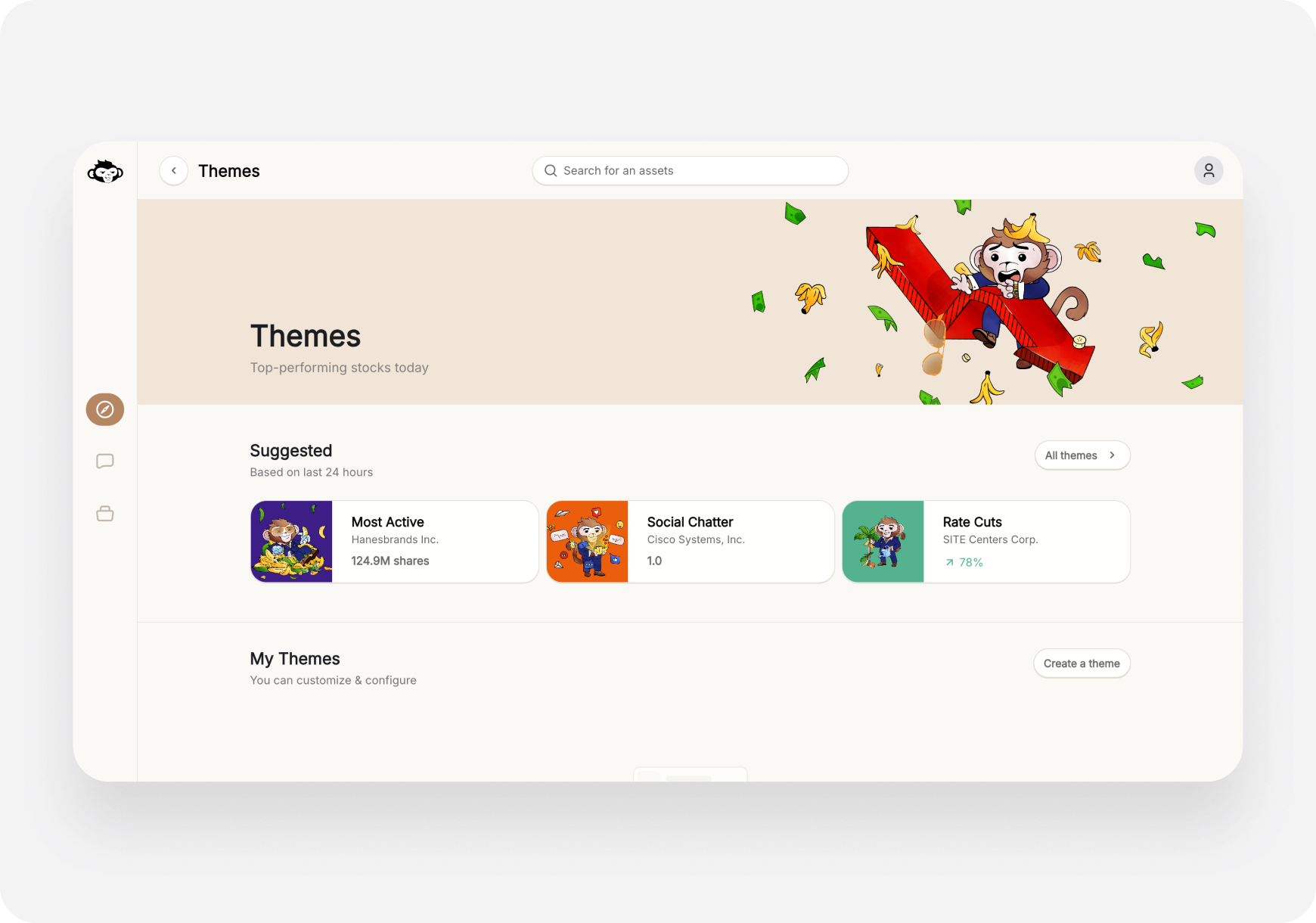
1. Go to **Home** page
2. Scroll to **Themes** section
3. Click **"Create a theme"**
4. Type your criteria in natural language:
* *"Tech stocks under \$50 with positive earnings"*
* *"Dividend stocks with 5%+ yield"*
* *"EV companies with strong momentum"*
5. Name your theme
6. Save and track it!
### Option A: Ape Paper Trading (FREE) 📄
Perfect for beginners or practicing!
1. You'll see "Ape Paper Trading" listed first
2. Click **Claim Account**
3. Get virtual money to practice
4. Start trading risk-free!
### Option B: Connect Real Brokerage 🏦
1. Select your brokerage from supported list
2. Click Connect and authorize
3. Your positions sync automatically
4. Track everything in one place
***
## 🎨 Step 8: Create Your First Theme
Themes are like custom stock screeners:
1. Go to **Home** page
2. Scroll to **Themes** section
3. Click **"Create a theme"**
4. Type your criteria in natural language:
* *"Tech stocks under \$50 with positive earnings"*
* *"Dividend stocks with 5%+ yield"*
* *"EV companies with strong momentum"*
5. Name your theme
6. Save and track it!
 ***
## ⚡ Quick Tips for Web
### Keyboard Shortcuts
* **`/`** - Focus search bar
* **`Ctrl+P`** - Open prompts
* **`Ctrl+H`** - Chat history
* **`Ctrl+K`** - Quick command menu (if available)
* **`Esc`** - Close modals
### Multi-Window Workflow
Open multiple tabs:
* Tab 1: Chat for AI questions
* Tab 2: Ticker page for research
* Tab 3: Portfolio for monitoring
### Bookmarks
Bookmark frequently used:
* `app.askape.com` - Home
* `app.askape.com/chat` - Chat
* `app.askape.com/portfolio` - Portfolio
* Specific tickers: `app.askape.com/tickers/TSLA`
***
## 🎯 What's Next?
Now that you're set up:
**Choose Your Companion:**
* [What Are Companions?](../features/companions/)
* [Meet the Companions](../Features/Companions/meet-the-companions)
Note: Companion selection is currently iOS-only but coming to web soon!
**Learn the Features:**
* [AI Chat Basics](../Features/Chat/basics)
* [Understanding Snapshot Grades](../Features/Ticker/snapshot-grades)
* [What Are Themes?](../features/themes/)
**Try a Workflow:**
* [My First Stock Research](../Use-Cases/Beginner/first-research)
* [Premarket Day Trading Routine](../Use-Cases/Advanced/premarket-routine)
***
## 📱 Want Mobile Too?
The iOS app syncs with web! Use both:
* **Web** for deep research and analysis
* **iOS** for quick checks on-the-go
→ [Download iOS App](https://apps.apple.com/us/app/ape-ai-stock-market-assistant/id6740998643)
***
## ❓ Need Help?
* [Troubleshooting](../support)
***
**Welcome to the ape army! 🦍🚀**
Ready to find some alpha! Let's go →
***
**Platform Comparison:** Not sure which to use? → [iOS vs Web Comparison](../platforms/comparison/)
***
## ⚡ Quick Tips for Web
### Keyboard Shortcuts
* **`/`** - Focus search bar
* **`Ctrl+P`** - Open prompts
* **`Ctrl+H`** - Chat history
* **`Ctrl+K`** - Quick command menu (if available)
* **`Esc`** - Close modals
### Multi-Window Workflow
Open multiple tabs:
* Tab 1: Chat for AI questions
* Tab 2: Ticker page for research
* Tab 3: Portfolio for monitoring
### Bookmarks
Bookmark frequently used:
* `app.askape.com` - Home
* `app.askape.com/chat` - Chat
* `app.askape.com/portfolio` - Portfolio
* Specific tickers: `app.askape.com/tickers/TSLA`
***
## 🎯 What's Next?
Now that you're set up:
**Choose Your Companion:**
* [What Are Companions?](../features/companions/)
* [Meet the Companions](../Features/Companions/meet-the-companions)
Note: Companion selection is currently iOS-only but coming to web soon!
**Learn the Features:**
* [AI Chat Basics](../Features/Chat/basics)
* [Understanding Snapshot Grades](../Features/Ticker/snapshot-grades)
* [What Are Themes?](../features/themes/)
**Try a Workflow:**
* [My First Stock Research](../Use-Cases/Beginner/first-research)
* [Premarket Day Trading Routine](../Use-Cases/Advanced/premarket-routine)
***
## 📱 Want Mobile Too?
The iOS app syncs with web! Use both:
* **Web** for deep research and analysis
* **iOS** for quick checks on-the-go
→ [Download iOS App](https://apps.apple.com/us/app/ape-ai-stock-market-assistant/id6740998643)
***
## ❓ Need Help?
* [Troubleshooting](../support)
***
**Welcome to the ape army! 🦍🚀**
Ready to find some alpha! Let's go →
***
**Platform Comparison:** Not sure which to use? → [iOS vs Web Comparison](../platforms/comparison/)