> ## Documentation Index
> Fetch the complete documentation index at: https://guide.askape.com/llms.txt
> Use this file to discover all available pages before exploring further.
# Quick Start: iOS
Get started with Ape AI on your iPhone in 5 minutes.
***
## 📱 Step 1: Download the App
1. Open the **App Store** on your iPhone
2. Search for **"ApeAI" (one word!)**
3. Tap **Get** to download
4. Open the app once installed
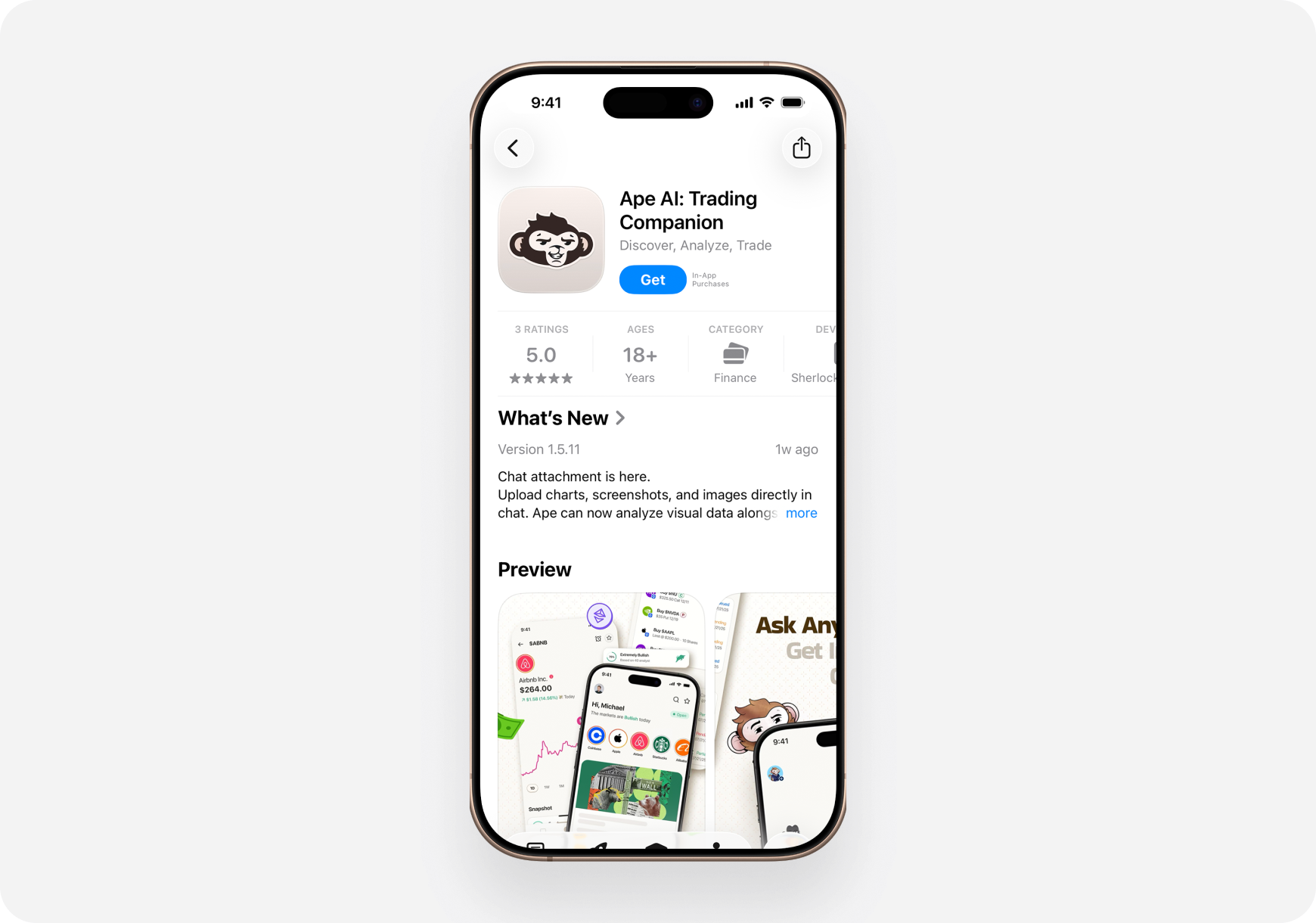 > **Requirements:** iOS 18.0 or later | 308.9 MB | Age 18+
***
## 🔐 Step 2: Create Your Account
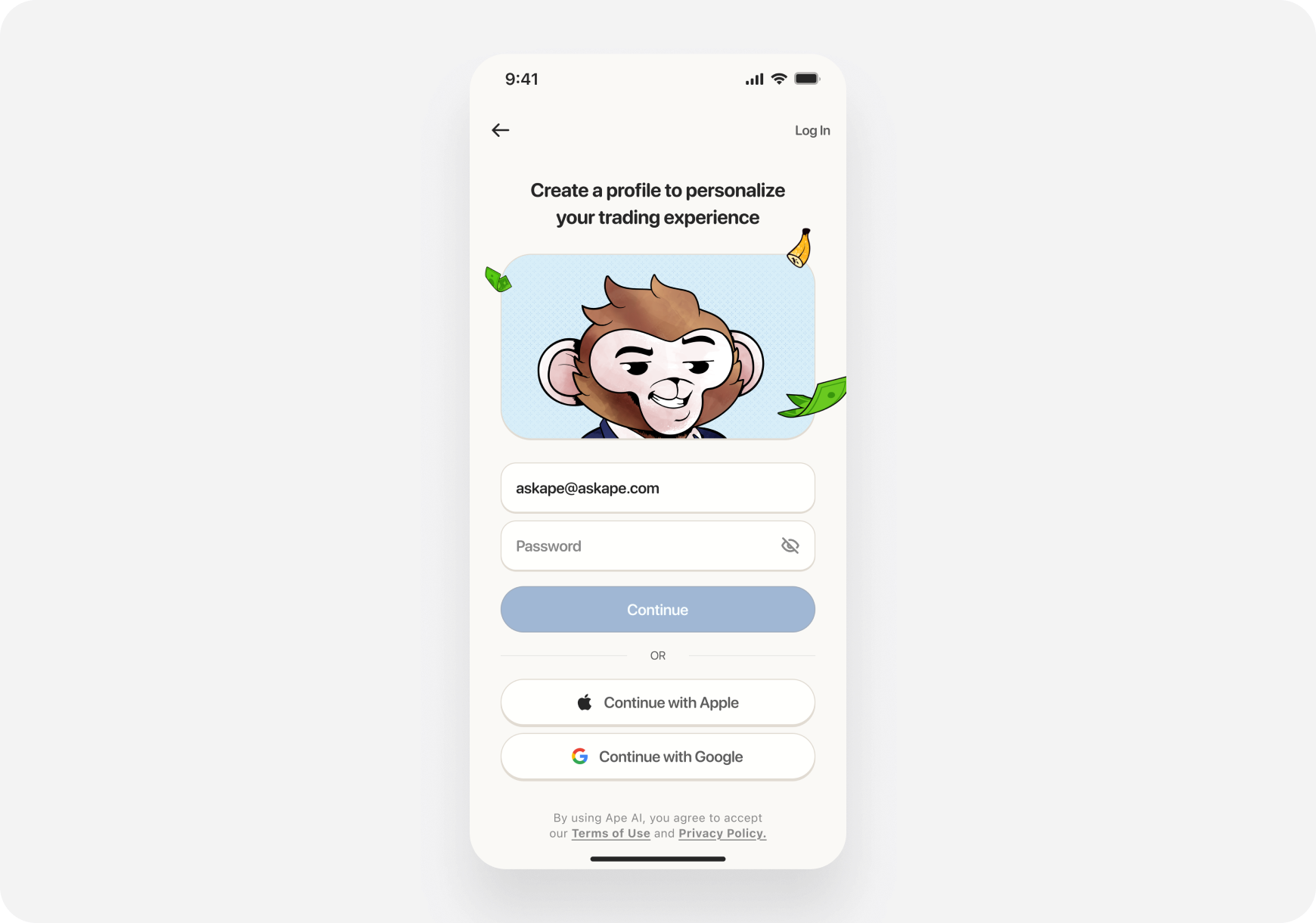
1. On the welcome screen, tap **Join the Troop** (**Sign Up)**
2. Enter your email and create a password
3. Verify your email (check your inbox)
4. Log in to the app
> **Requirements:** iOS 18.0 or later | 308.9 MB | Age 18+
***
## 🔐 Step 2: Create Your Account
1. On the welcome screen, tap **Join the Troop** (**Sign Up)**
2. Enter your email and create a password
3. Verify your email (check your inbox)
4. Log in to the app
 **Or sign in with:**
* Apple
* Google
**Or sign in with:**
* Apple
* Google
 ***
## 🎭 Step 3: Choose Your Companion
**This is important! Your companion determines how the AI assists you.**
***
## 🎭 Step 3: Choose Your Companion
**This is important! Your companion determines how the AI assists you.**
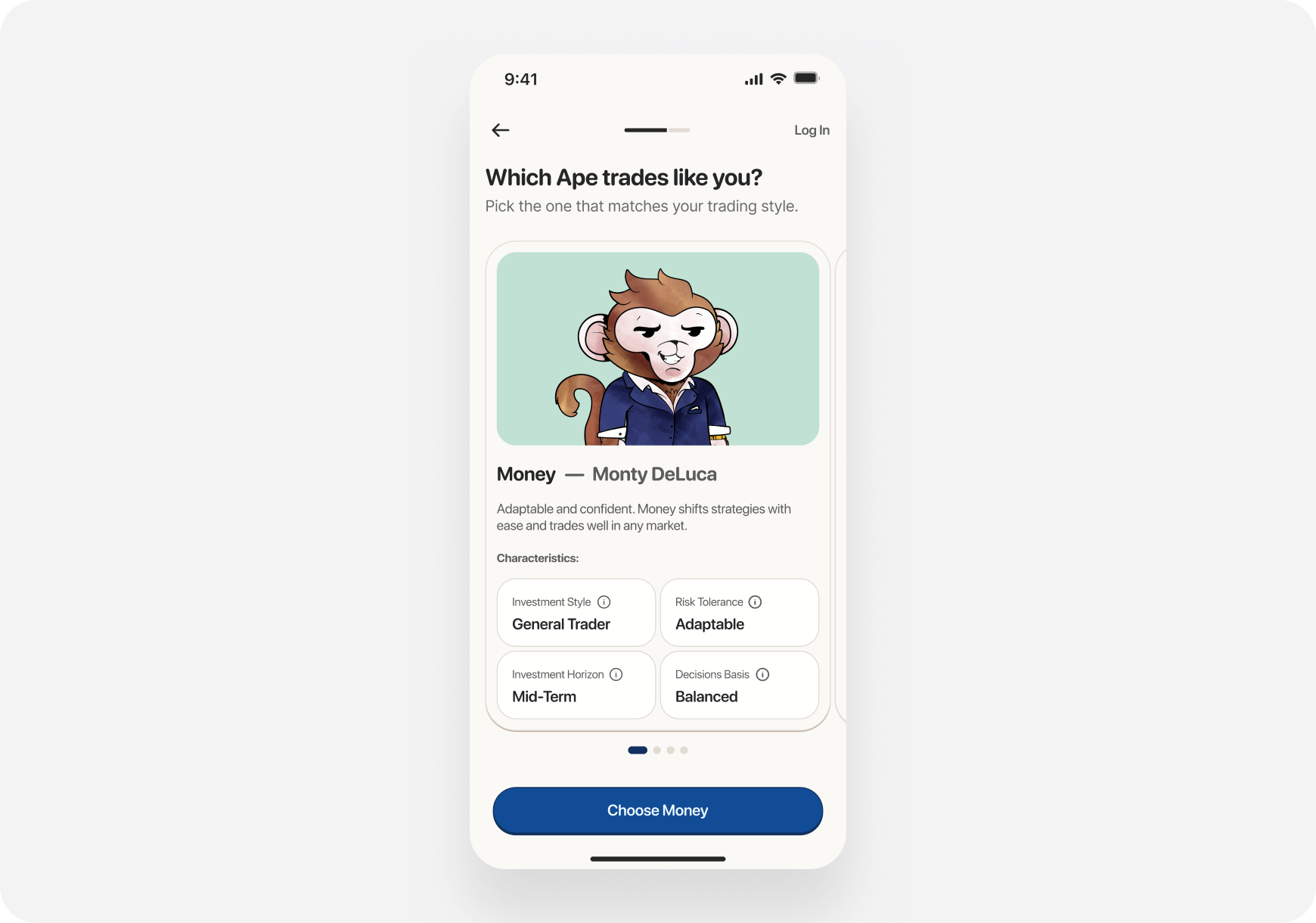 **Pick the one that matches your style:**
* **💰 Money Monty** – Balanced generalist (primary), 2–5 trades/week
* **📈 Maverick** – Momentum swing trader (days to weeks)
* **🏦 Sage** – Long‑term investor (fundamentals, buy & hold)
* **🚀 Blitz** – Experienced day trader (intraday, advanced only)
Tap your choice, then tap **Continue**.
> 💡 **Don’t worry**—you can change your companion anytime in settings.
***
## 🗺️ Step 4: Take the Tour
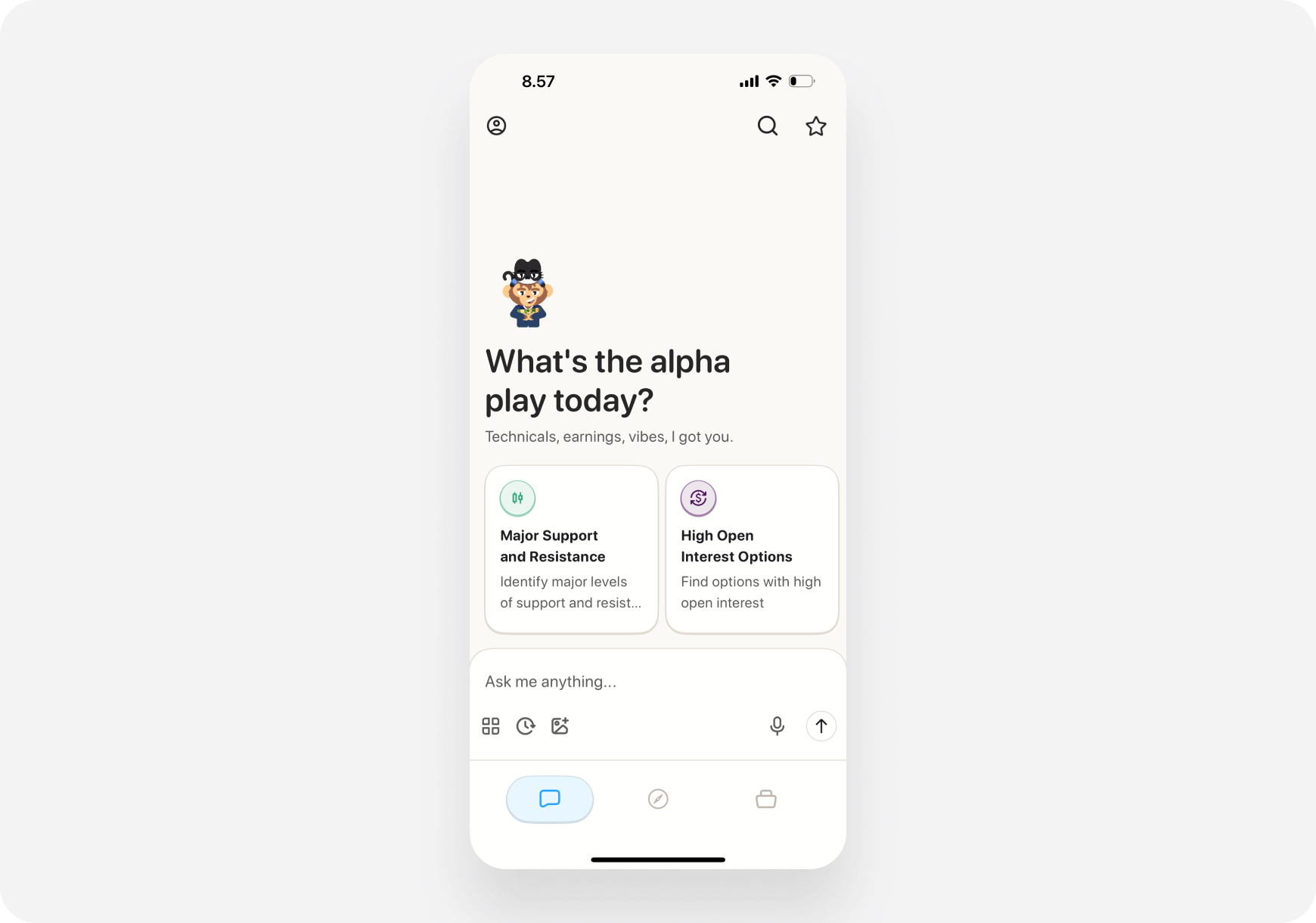
The app has **3 main tabs** at the bottom:
**Pick the one that matches your style:**
* **💰 Money Monty** – Balanced generalist (primary), 2–5 trades/week
* **📈 Maverick** – Momentum swing trader (days to weeks)
* **🏦 Sage** – Long‑term investor (fundamentals, buy & hold)
* **🚀 Blitz** – Experienced day trader (intraday, advanced only)
Tap your choice, then tap **Continue**.
> 💡 **Don’t worry**—you can change your companion anytime in settings.
***
## 🗺️ Step 4: Take the Tour
The app has **3 main tabs** at the bottom:
 ### 1. Chat 💬
Your AI trading companion. Ask anything!
* Quick Action cards for common prompts
* Custom questions
* Trade setups and analysis
### 2. Discover 📰
Market intelligence and news
* Ticker carousel (hot stocks)
* Personalized news feed
* Trending stocks
* Themes (stock lists)
### 3. Portfolio 💼
Track and analyze your holdings
* Connect brokerages
* View positions
* Ask your companion
* Get AI analysis
***
## 🤖 Step 5: Ask Your First Question
Let's try the AI Chat:
1. Tap the **Chat** tab (bottom left)
2. You'll see **Quick Action cards**—swipe through them
3. Tap **"Major Support and Resistance"** or **"High Open Interest Options"**
4. Wait a few seconds for the AI to respond
5. Review entries, risks, and timeframe
**Or type your own question:**
* Tap the text input at bottom
* Type: *"What stocks have improving fundamentals this month?"*
* Tap send (arrow icon)
* Get your answer!
***
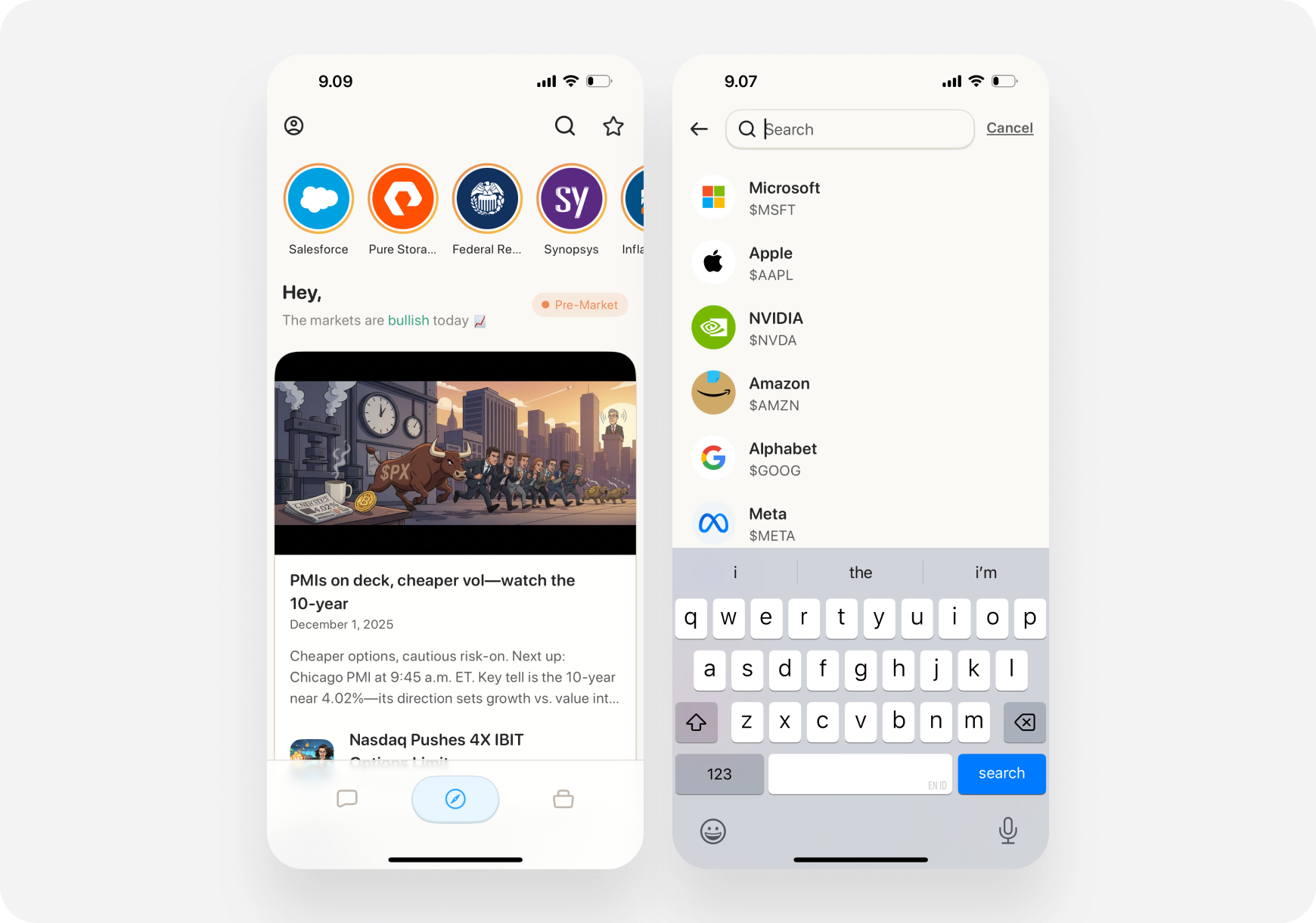
## 📈 Step 6: Look Up a Stock
Let's research a stock:
1. Tap the **Search icon** (top right)
2. Type a ticker symbol (e.g., **"AAPL"**)
3. Tap the result to view the ticker page
### 1. Chat 💬
Your AI trading companion. Ask anything!
* Quick Action cards for common prompts
* Custom questions
* Trade setups and analysis
### 2. Discover 📰
Market intelligence and news
* Ticker carousel (hot stocks)
* Personalized news feed
* Trending stocks
* Themes (stock lists)
### 3. Portfolio 💼
Track and analyze your holdings
* Connect brokerages
* View positions
* Ask your companion
* Get AI analysis
***
## 🤖 Step 5: Ask Your First Question
Let's try the AI Chat:
1. Tap the **Chat** tab (bottom left)
2. You'll see **Quick Action cards**—swipe through them
3. Tap **"Major Support and Resistance"** or **"High Open Interest Options"**
4. Wait a few seconds for the AI to respond
5. Review entries, risks, and timeframe
**Or type your own question:**
* Tap the text input at bottom
* Type: *"What stocks have improving fundamentals this month?"*
* Tap send (arrow icon)
* Get your answer!
***
## 📈 Step 6: Look Up a Stock
Let's research a stock:
1. Tap the **Search icon** (top right)
2. Type a ticker symbol (e.g., **"AAPL"**)
3. Tap the result to view the ticker page
 **You'll see:**
* Price chart (swipe timeframes)
* **AI Snapshot Grades** (A-F ratings) ⭐
* Market stats
* Bulls vs Bears sentiment
* Company Story
* Performance comparison
**You'll see:**
* Price chart (swipe timeframes)
* **AI Snapshot Grades** (A-F ratings) ⭐
* Market stats
* Bulls vs Bears sentiment
* Company Story
* Performance comparison
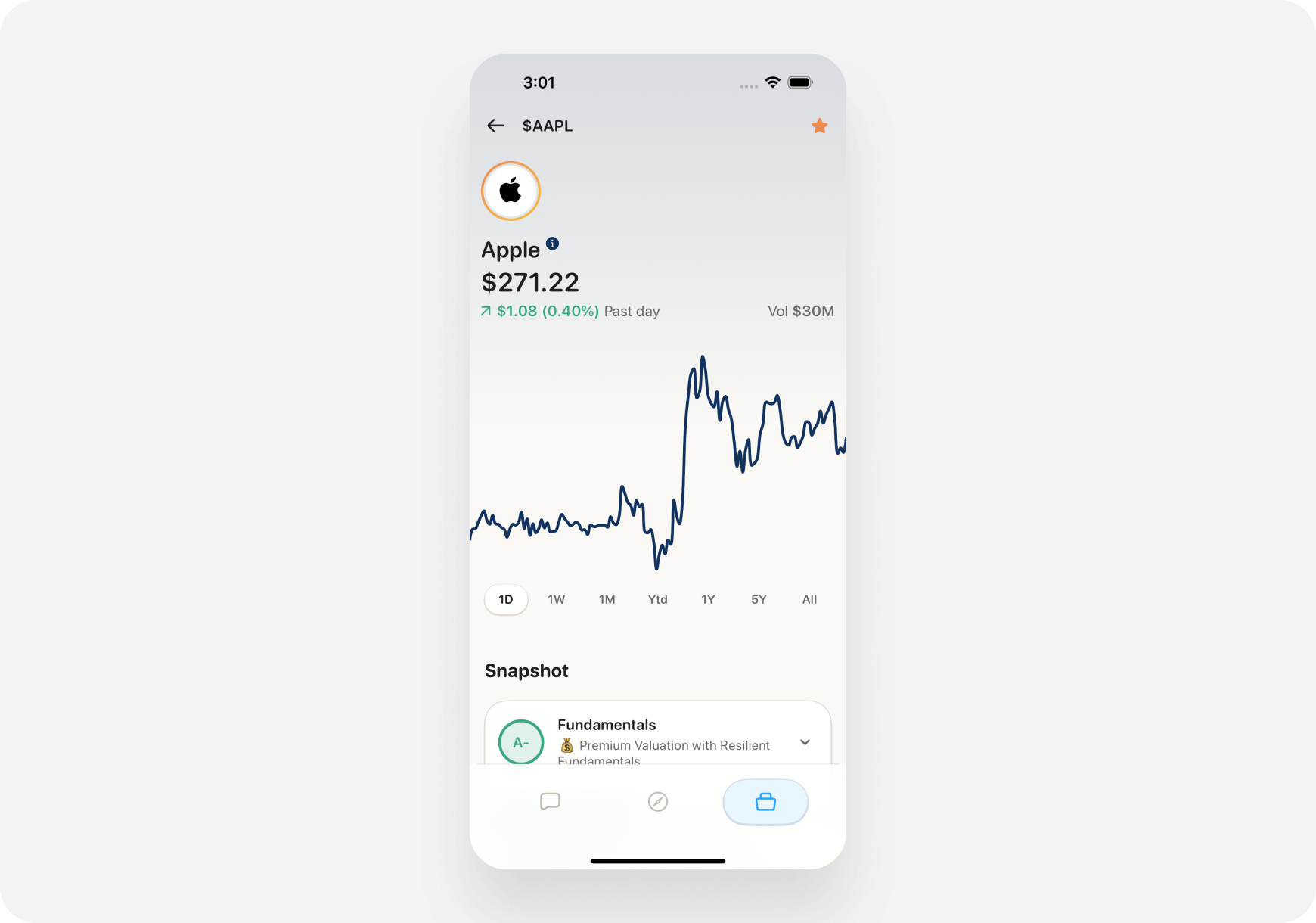 **Tap any Snapshot Grade card to expand** and see the full AI analysis.
***
## 🎨 Step 7: Create Your First Theme
Themes are like custom stock screeners:
1. Go to **Discover** tab
2. Scroll down and tap **More Themes**
3. Click **"Create a theme"**
4. Type your criteria in natural language:
* *"Tech stocks under \$50 with positive earnings"*
* *"Dividend stocks with 5%+ yield"*
* *"EV companies with strong momentum"*
5. Name your theme
6. Save and track it!
**Tap any Snapshot Grade card to expand** and see the full AI analysis.
***
## 🎨 Step 7: Create Your First Theme
Themes are like custom stock screeners:
1. Go to **Discover** tab
2. Scroll down and tap **More Themes**
3. Click **"Create a theme"**
4. Type your criteria in natural language:
* *"Tech stocks under \$50 with positive earnings"*
* *"Dividend stocks with 5%+ yield"*
* *"EV companies with strong momentum"*
5. Name your theme
6. Save and track it!
-1.png?fit=max&auto=format&n=bJ0yjEqTsXepHRxP&q=85&s=70fea39e9106c8062950f5a3ee04c119)
.png?fit=max&auto=format&n=bJ0yjEqTsXepHRxP&q=85&s=dfec0ed1befc443abd189f36185cde83) ***
## 💼 Step 8: Set Up Portfolio (Optional)
Want to track your investments?
1. Tap the **Portfolio** tab
2. Tap **Connect** a brokerage
***
## 💼 Step 8: Set Up Portfolio (Optional)
Want to track your investments?
1. Tap the **Portfolio** tab
2. Tap **Connect** a brokerage
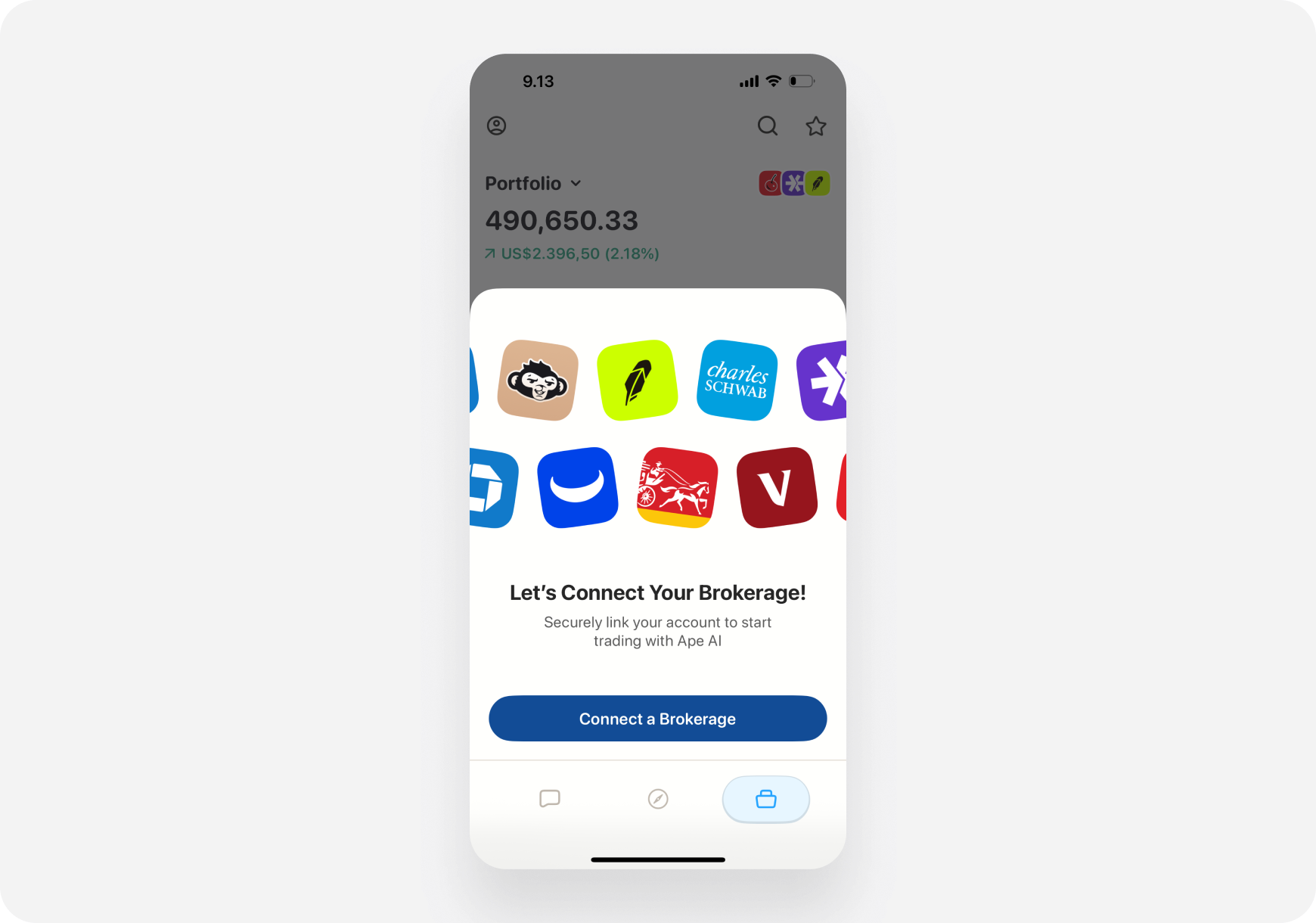 **Two options:**
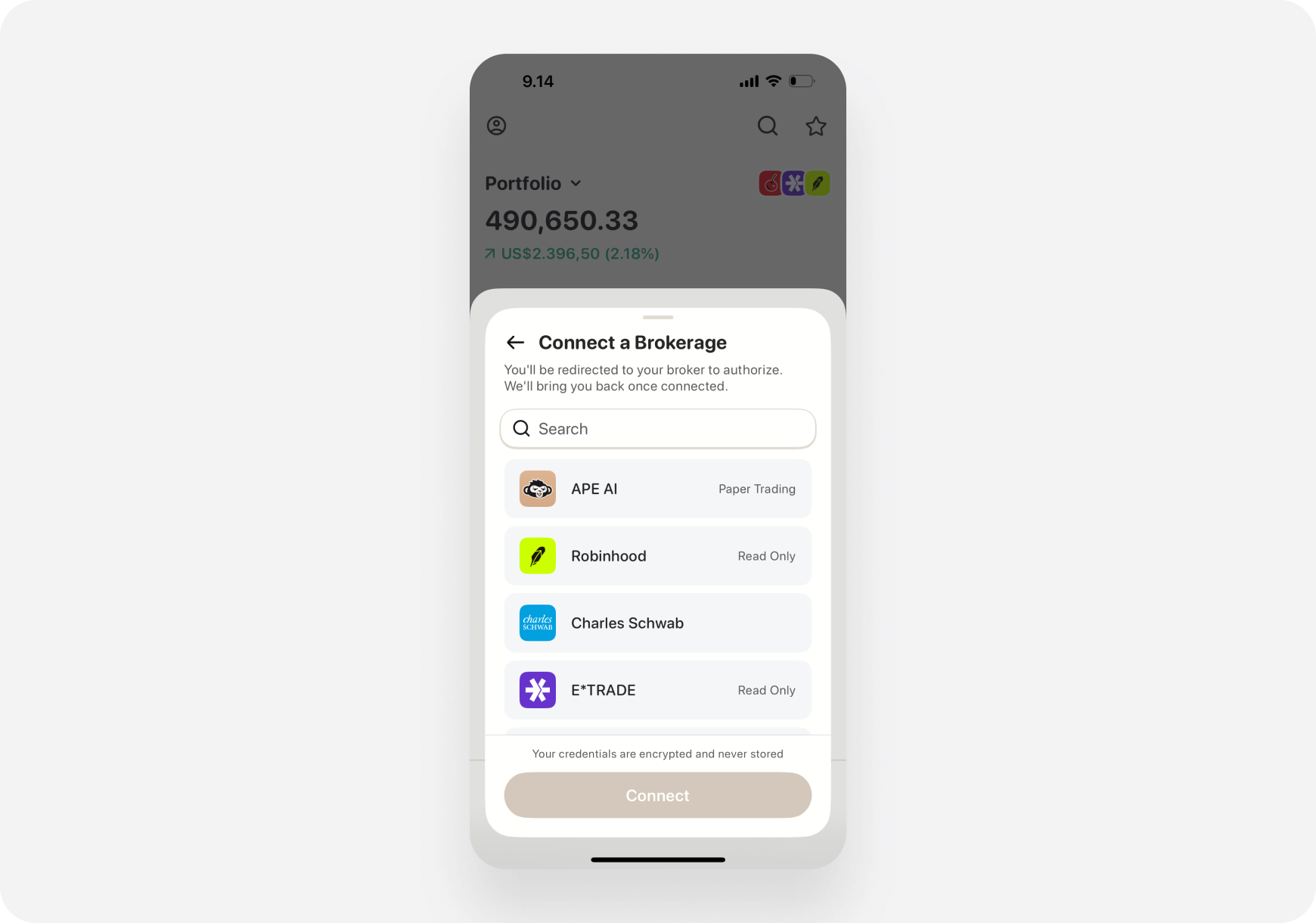 ### Option A: Ape Paper Trading (FREE) 📄
Perfect for beginners! Practice with virtual money.
1. See "APE AI Paper Trading" at the top
2. Tap **Claim Account**
3. Start practicing risk-free!
### Option B: Connect Real Brokerage 🏦
1. Choose your brokerage from the list
2. Follow the connection steps
3. Your positions sync automatically
***
## ⚡ Quick Tips for iOS
### Option A: Ape Paper Trading (FREE) 📄
Perfect for beginners! Practice with virtual money.
1. See "APE AI Paper Trading" at the top
2. Tap **Claim Account**
3. Start practicing risk-free!
### Option B: Connect Real Brokerage 🏦
1. Choose your brokerage from the list
2. Follow the connection steps
3. Your positions sync automatically
***
## ⚡ Quick Tips for iOS
 ### Gestures
* **Swipe left/right** on Quick Action cards
* **Tap to expand** Snapshot Grade cards
* **Swipe back** from left edge to go back
* **Pull down to refresh** news and data
### Navigation
* **Bottom tabs** for main sections
* **Top search icon** for quick stock lookups
* **Profile icon** (top left) for settings
### Quick Actions
* Use **Quick Action cards** in Chat for common tasks
* They're faster than typing!
***
## 🎯 What's Next?
Now that you're set up:
**Complete Your Profile:**
* [Choose Your Companion](../features/companions/) (if you haven't)
* [Connect a Brokerage](../Features/Brokerage/connecting)
**Learn the Features:**
* [AI Chat Basics](../features/)
* [Understanding Snapshot Grades](../Features/Ticker/snapshot-grades)
* [What Are Themes?](../features/themes/)
**Try a Workflow:**
* [My First Stock Research](../Use-Cases/Beginner/first-research/)
* [Premarket Day Trading Routine](../Use-Cases/Advanced/premarket-routine/)
***
## ❓ Need Help?
* [Contact Support](../support)
***
**Welcome to the ape army! 🦍🚀**
Ready to find some alpha on the web instead? → [Web Quick Start](/getting-started/quick-start-web)
### Gestures
* **Swipe left/right** on Quick Action cards
* **Tap to expand** Snapshot Grade cards
* **Swipe back** from left edge to go back
* **Pull down to refresh** news and data
### Navigation
* **Bottom tabs** for main sections
* **Top search icon** for quick stock lookups
* **Profile icon** (top left) for settings
### Quick Actions
* Use **Quick Action cards** in Chat for common tasks
* They're faster than typing!
***
## 🎯 What's Next?
Now that you're set up:
**Complete Your Profile:**
* [Choose Your Companion](../features/companions/) (if you haven't)
* [Connect a Brokerage](../Features/Brokerage/connecting)
**Learn the Features:**
* [AI Chat Basics](../features/)
* [Understanding Snapshot Grades](../Features/Ticker/snapshot-grades)
* [What Are Themes?](../features/themes/)
**Try a Workflow:**
* [My First Stock Research](../Use-Cases/Beginner/first-research/)
* [Premarket Day Trading Routine](../Use-Cases/Advanced/premarket-routine/)
***
## ❓ Need Help?
* [Contact Support](../support)
***
**Welcome to the ape army! 🦍🚀**
Ready to find some alpha on the web instead? → [Web Quick Start](/getting-started/quick-start-web)