> ## Documentation Index
> Fetch the complete documentation index at: https://guide.askape.com/llms.txt
> Use this file to discover all available pages before exploring further.
# Connecting Your Brokerage
Step-by-step guide to linking your trading account to Ape AI.
**⏱️ Time to read:** 5 minutes \
**📱🌐 Platform:** Both iOS & Web \
**👤 Best for:** Everyone
***
## 🎯 Before You Start
### What You'll Need:
**For Ape Paper Trading (Easiest):**
* ✅ Ape AI account
* ✅ That's it!
**For Real Brokerage:**
* ✅ Ape AI account
* ✅ Active brokerage account (Robinhood, Webull, TD Ameritrade, etc.)
* ✅ Brokerage login credentials
* ✅ 2FA device (if your broker uses it)
* ✅ 5 minutes
**Check if your broker is supported:** [See Supported Brokerages →](/features/brokerage/supported)
***
## 🍌 Option 1: Connect Ape Paper Trading (Recommended First)
**This is the easiest and ALWAYS appears first.**
### iOS
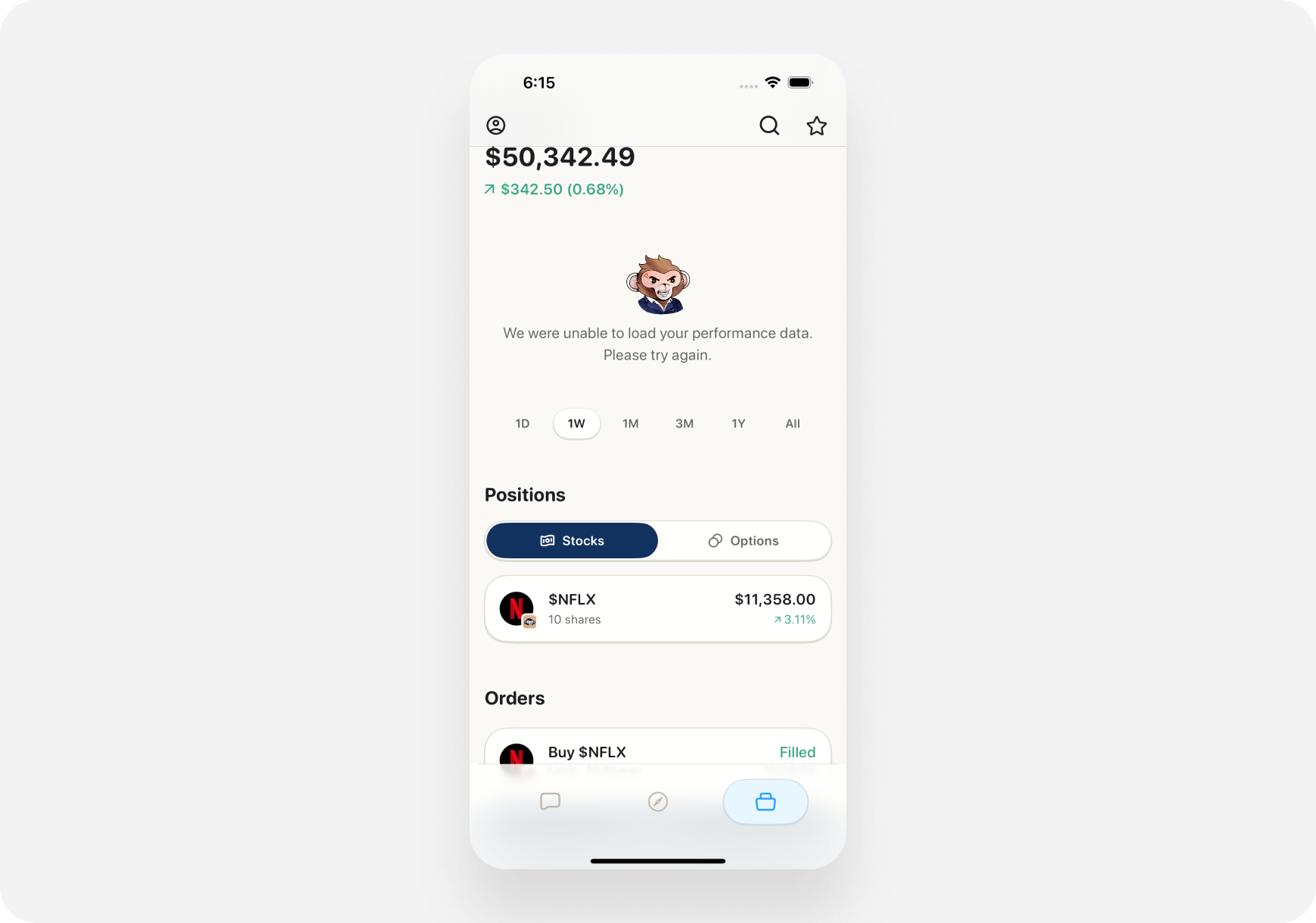
**Step 1: Go to Portfolio Tab**
1. Open Ape AI
2. Tap **Portfolio tab** (bottom right)
3. If no brokerages connected, you'll see **"Connect Brokerage"** button
 ***
**Step 2: Select Ape Paper Trading**
1. Tap **"Connect Brokerage"**
2. See list of brokerages
3. **Ape Paper Trading** is at the TOP ⭐
4. Tap it
***
**Step 3: Claim Your Account**
1. See welcome screen
2. Explains you get \$100,000 virtual cash
3. Tap **"Claim My Paper Trading Account"**
***
**Step 4: Done! ✅**
* Account created instantly
* \$100,000 available to trade
* Portfolio tab now shows your balance
* Start trading risk-free!
**Total time: 30 seconds**
***
### Web
**Step 1: Go to Portfolio Page**
1. Log into app.Ape AI.com
2. Click **Portfolio** (left sidebar)
3. Click **"+ Connect Brokerage"** button
***
**Step 2: Select Ape Paper Trading**
1. Brokerage list appears
2. **Ape Paper Trading** at the TOP
3. Click it
***
**Step 3: Claim & Activate**
1. Click **"Claim Account"**
2. Instant activation
3. \$100,000 virtual cash added
4. Portfolio page updates
**Total time: 30 seconds**
***
## 🏦 Option 2: Connect Real Brokerage
**We'll use Robinhood as an example. Process is similar for all brokers.**
### iOS
**Step 1: Open Brokerages**
1. Tap **Profile icon** (top left)
2. Tap **"Brokerages"**
3. Or: Portfolio tab → **"+ Add Brokerage"**
***
**Step 2: Select Ape Paper Trading**
1. Tap **"Connect Brokerage"**
2. See list of brokerages
3. **Ape Paper Trading** is at the TOP ⭐
4. Tap it
***
**Step 3: Claim Your Account**
1. See welcome screen
2. Explains you get \$100,000 virtual cash
3. Tap **"Claim My Paper Trading Account"**
***
**Step 4: Done! ✅**
* Account created instantly
* \$100,000 available to trade
* Portfolio tab now shows your balance
* Start trading risk-free!
**Total time: 30 seconds**
***
### Web
**Step 1: Go to Portfolio Page**
1. Log into app.Ape AI.com
2. Click **Portfolio** (left sidebar)
3. Click **"+ Connect Brokerage"** button
***
**Step 2: Select Ape Paper Trading**
1. Brokerage list appears
2. **Ape Paper Trading** at the TOP
3. Click it
***
**Step 3: Claim & Activate**
1. Click **"Claim Account"**
2. Instant activation
3. \$100,000 virtual cash added
4. Portfolio page updates
**Total time: 30 seconds**
***
## 🏦 Option 2: Connect Real Brokerage
**We'll use Robinhood as an example. Process is similar for all brokers.**
### iOS
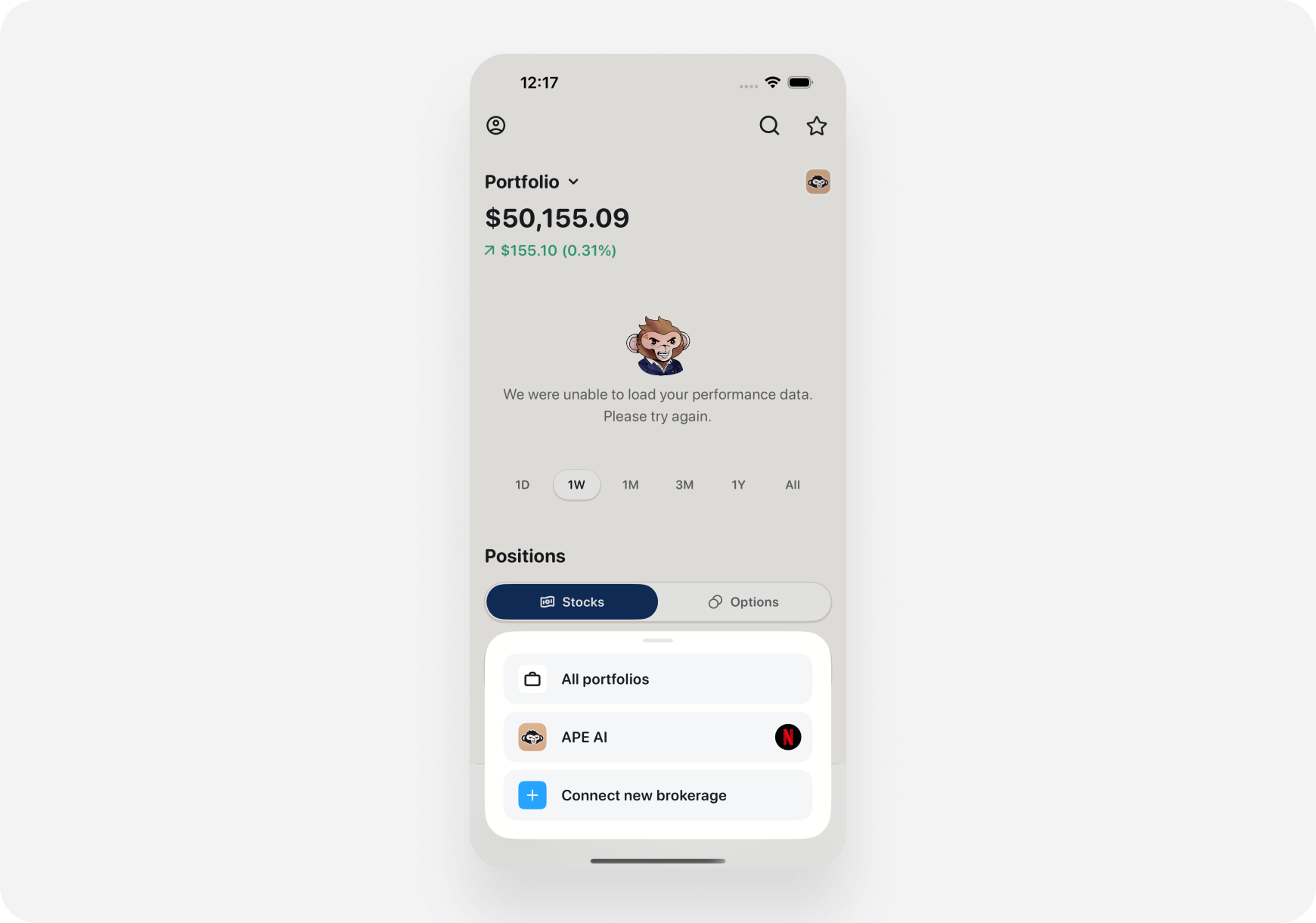
**Step 1: Open Brokerages**
1. Tap **Profile icon** (top left)
2. Tap **"Brokerages"**
3. Or: Portfolio tab → **"+ Add Brokerage"**
 ***
**Step 2: Choose Your Broker**
1. See list of supported brokerages
2. Scroll to find yours
3. Tap your brokerage card
**Tip:** Use search bar if you have many to scroll through
***
**Step 3: Review Permissions**
1. See what Ape AI will access:
* ✅ View your portfolio
* ✅ See positions
* ✅ View order history
* ❌ Cannot trade (unless you enable later)
2. Tap **"Continue"**
***
**Step 4: OAuth Login (Broker Website)**
1. Redirected to your broker's login page
2. This is YOUR BROKER'S website (not Ape AI)
3. Enter your broker username & password
4. Complete 2FA if required
**⚠️ Important:** **You're logging into your broker, not giving Ape AI your password**
***
**Step 5: Authorize Ape AI**
1. Broker asks: "Allow Ape AI to access your account?"
2. Review permissions again
3. Tap **"Allow"** or **"Authorize"**
***
**Step 6: Connection Success! ✅**
1. Redirected back to Ape AI
2. See "Connection Successful" message
3. Your portfolio starts syncing
4. Positions appear in Portfolio tab
***
**Step 7: (Optional) Enable Trading**
1. By default, connection is view-only
2. To enable trading from chat:
* Profile → Settings → Trading Permissions
* Toggle **"Execute Trades"** ON
* Confirm with Face ID/Touch ID
**Total time: 3-5 minutes**
***
### Web
**Step 1: Go to Settings**
1. Log into app.askape.com
2. Click **Profile icon** (top right)
3. Click **"Settings"**
4. Go to **"Integrations"** or **"Brokerages"** tab
***
**Step 2: Add Brokerage**
1. Click **"+ Connect New Brokerage"**
2. List of brokers appears
3. Click your broker
***
**Step 3: OAuth Flow**
1. New browser tab/window opens
2. Your broker's login page
3. Enter credentials
4. Complete 2FA
5. Click **"Authorize Ape AI"**
***
**Step 4: Return to Ape AI**
1. Tab closes automatically
2. Back to Ape AI settings
3. See broker listed as "Connected"
4. Portfolio syncing begins
***
**Step 5: (Optional) Enable Trading**
1. In Settings → Integrations
2. Find your broker
3. Toggle **"Allow Trade Execution"**
4. Enter password to confirm
**Total time: 3-5 minutes**
***
## 🔄 Connecting Multiple Brokerages
**Have accounts at multiple brokers? Connect them all!**
### How to Add a Second (or Third) Broker:
**📱 iOS:**
1. Profile → Brokerages
2. Scroll to bottom
3. Tap **"+ Add Another Brokerage"**
4. Repeat connection process
**🌐 Web:**
1. Settings → Integrations
2. Click **"+ Connect New Brokerage"**
3. Repeat steps
***
### What You'll See:
**Portfolio tab shows:**
* Combined total value
* All positions from all accounts
* Breakdown by brokerage
* Unified profit/loss
**Example:**
> **Total Portfolio Value:** \$45,250
>
> **Accounts:**
>
> * Robinhood: \$25,000 (10 positions)
> * Webull: \$15,000 (5 positions)
> * Ape Paper: \$5,250 (3 positions)
**One dashboard. All your trading.**
***
## 🔧 Troubleshooting Connection Issues
### Issue #1: "Connection Failed"
**Possible causes:**
1. Wrong broker username/password
2. 2FA code expired
3. Broker's servers down
4. Network issue
**Solutions:**
* Double-check credentials
* Try again (2FA might have timed out)
* Check broker's status page
* Try different network
* Wait 10 minutes and retry
***
### Issue #2: "Broker Not Responding"
**Possible causes:**
* Broker doing maintenance
* High traffic on broker's API
* Temporary outage
**Solutions:**
* Wait 30 minutes, try again
* Check broker's app (is it working?)
* Try during off-peak hours (not 9:30 AM)
***
### Issue #3: "Authorization Denied"
**Possible causes:**
* You clicked "Deny" instead of "Allow"
* Broker requires additional approval
* Account restrictions
**Solutions:**
* Try connecting again
* Read permissions carefully
* Check if your broker account has API access enabled
* Contact broker support if needed
***
### Issue #4: "Some Features Not Working"
**Possible causes:**
* Account type not fully supported (e.g., IRA is view-only)
* Broker has restricted certain features
* Need to enable trading permissions
**Solutions:**
* Check [Supported Brokerages](/features/brokerage/supported) for your broker's feature list
* Enable trading in Settings if you want execution
* Contact Ape AI support for clarification
***
### Issue #5: "Portfolio Not Syncing"
**Possible causes:**
* First sync takes 1-2 minutes
* Broker API slow
* Token expired
**Solutions:**
* Wait 2-3 minutes for first sync
* Pull to refresh on Portfolio tab
* Try disconnecting & reconnecting
* Check broker connection in Settings
***
## ⚙️ Managing Connected Brokerages
### View Connected Accounts
**📱 iOS:**
1. Profile → Brokerages
2. See all connected accounts
3. Green checkmark = Connected ✅
**🌐 Web:**
1. Settings → Integrations
2. See list of connected brokers
3. Status: Connected / Disconnected
***
### Reconnect a Broker
**Sometimes OAuth tokens expire (every 90 days for some brokers)**
**When it happens:**
* You'll see **"Reconnection Required"** alert
* Portfolio stops syncing
* Notification sent
**How to fix:**
1. Go to Brokerages/Integrations
2. Tap/click broker showing "Disconnected"
3. Tap **"Reconnect"**
4. Go through OAuth flow again
5. Connection restored
**Takes 1 minute. Easy.**
***
### Disconnect a Broker
**Changing brokers? Want to disconnect?**
**📱 iOS:**
1. Profile → Brokerages
2. Tap broker you want to remove
3. Scroll to bottom
4. Tap **"Disconnect Brokerage"** (red button)
5. Confirm
**🌐 Web:**
1. Settings → Integrations
2. Find broker
3. Click **"Disconnect"**
4. Confirm
**What happens:**
* OAuth connection revoked instantly
* Portfolio data removed from Ape AI
* Historical data may be kept for records
* Can reconnect anytime
***
### Toggle Trading Permissions
**Want to turn trade execution on/off?**
**📱 iOS:**
1. Profile → Settings → Trading Permissions
2. Find your broker
3. Toggle **"Execute Trades"** ON/OFF
4. Confirm with Face ID
**🌐 Web:**
1. Settings → Integrations
2. Find broker
3. Toggle **"Trade Execution"**
4. Enter password to confirm
**OFF = View-only** **ON = Can trade from chat**
***
## 🔒 Security Best Practices
### 1. Use Strong Broker Passwords
* Unique password (not used elsewhere)
* 12+ characters
* Mix of letters, numbers, symbols
### 2. Enable 2FA on Your Broker
* Use authenticator app (Google Authenticator, Authy)
* Not SMS (less secure)
* Protects your broker account
### 3. Review Connected Apps Regularly
* Check your broker's "Connected Apps" page
* Remove apps you don't use
* Keep only Ape AI and apps you trust
### 4. Monitor for Unusual Activity
* Check order history regularly
* Review trades you don't remember
* Report suspicious activity immediately
### 5. Disconnect When Not Using
* Taking a trading break?
* Disconnect your broker
* Reconnect when you're back
* Extra layer of security
***
## 💡 Pro Tips
### 1. Start with Paper, End with Real
**Recommended path:**
1. Week 1: Connect Ape Paper Trading
2. Learn Ape AI features
3. Practice trading
4. Test strategies
5. Week 4+: Connect real broker (once profitable in paper)
### 2. Connect Primary Broker First
**Have multiple accounts?**
* Connect your main account first
* Make sure everything works
* Then add secondary accounts
* Easier troubleshooting
### 3. Test Read-Only First
**Before enabling trading:**
* Connect as read-only
* Use for a few days
* Get comfortable
* Then enable trading when ready
### 4. Use Separate Brokers for Different Strategies
**Pro trader setup:**
* Broker 1: Long-term holds (Schwab, Fidelity)
* Broker 2: Active trading (Robinhood, Webull)
* Ape Paper: Testing new strategies
* All connected to Ape AI
**See everything in one place.**
***
## ❓ FAQ
**Q: Can I connect my broker on both iOS and Web?** A: Yes! Once connected, it works on all platforms. One connection = all devices.
**Q: Does my broker charge fees for API access?** A: No! API connections are free for all major brokers.
**Q: Will my broker's app still work normally?** A: Yes! Nothing changes with your broker's app. Ape AI just reads data.
**Q: Can I trade through both Ape AI and my broker's app?** A: Yes! They're independent. Trade wherever you want.
**Q: What if I change my broker password?** A: Reconnection may be required. Ape AI will alert you.
**Q: Can someone hack my Ape AI and trade my account?** A: Extremely unlikely. Trading requires:
1. Your Ape AI login
2. Face ID/Touch ID or password
3. Confirmation for every trade
4. Can disable trading instantly
**Q: How do I know Ape AI is actually connected?** A: Your positions will appear in Portfolio tab. If they're showing, you're connected!
***
## What's Next?
**After Connecting:**
* [Portfolio Overview →](../Portfolio/overview) - See your holdings
* [Ask Maverick →](/features/portfolio/ask-maverick) - AI portfolio analysis
* [Execute Trades →](../Chat/execute-trades) - Trade from chat
**Not Sure Yet?**
* [Why Connect? →](/features/brokerage/why-connect) - Benefits explained
* \[Ape Paper Trading →]\(\<../../Use-Cases/Pre-Investor/Getting Started/paper-trading-practice.md>) - Start risk-free
***
**Connect your brokerage and unlock Ape AI's full power! 🔗🚀**
***
**Step 2: Choose Your Broker**
1. See list of supported brokerages
2. Scroll to find yours
3. Tap your brokerage card
**Tip:** Use search bar if you have many to scroll through
***
**Step 3: Review Permissions**
1. See what Ape AI will access:
* ✅ View your portfolio
* ✅ See positions
* ✅ View order history
* ❌ Cannot trade (unless you enable later)
2. Tap **"Continue"**
***
**Step 4: OAuth Login (Broker Website)**
1. Redirected to your broker's login page
2. This is YOUR BROKER'S website (not Ape AI)
3. Enter your broker username & password
4. Complete 2FA if required
**⚠️ Important:** **You're logging into your broker, not giving Ape AI your password**
***
**Step 5: Authorize Ape AI**
1. Broker asks: "Allow Ape AI to access your account?"
2. Review permissions again
3. Tap **"Allow"** or **"Authorize"**
***
**Step 6: Connection Success! ✅**
1. Redirected back to Ape AI
2. See "Connection Successful" message
3. Your portfolio starts syncing
4. Positions appear in Portfolio tab
***
**Step 7: (Optional) Enable Trading**
1. By default, connection is view-only
2. To enable trading from chat:
* Profile → Settings → Trading Permissions
* Toggle **"Execute Trades"** ON
* Confirm with Face ID/Touch ID
**Total time: 3-5 minutes**
***
### Web
**Step 1: Go to Settings**
1. Log into app.askape.com
2. Click **Profile icon** (top right)
3. Click **"Settings"**
4. Go to **"Integrations"** or **"Brokerages"** tab
***
**Step 2: Add Brokerage**
1. Click **"+ Connect New Brokerage"**
2. List of brokers appears
3. Click your broker
***
**Step 3: OAuth Flow**
1. New browser tab/window opens
2. Your broker's login page
3. Enter credentials
4. Complete 2FA
5. Click **"Authorize Ape AI"**
***
**Step 4: Return to Ape AI**
1. Tab closes automatically
2. Back to Ape AI settings
3. See broker listed as "Connected"
4. Portfolio syncing begins
***
**Step 5: (Optional) Enable Trading**
1. In Settings → Integrations
2. Find your broker
3. Toggle **"Allow Trade Execution"**
4. Enter password to confirm
**Total time: 3-5 minutes**
***
## 🔄 Connecting Multiple Brokerages
**Have accounts at multiple brokers? Connect them all!**
### How to Add a Second (or Third) Broker:
**📱 iOS:**
1. Profile → Brokerages
2. Scroll to bottom
3. Tap **"+ Add Another Brokerage"**
4. Repeat connection process
**🌐 Web:**
1. Settings → Integrations
2. Click **"+ Connect New Brokerage"**
3. Repeat steps
***
### What You'll See:
**Portfolio tab shows:**
* Combined total value
* All positions from all accounts
* Breakdown by brokerage
* Unified profit/loss
**Example:**
> **Total Portfolio Value:** \$45,250
>
> **Accounts:**
>
> * Robinhood: \$25,000 (10 positions)
> * Webull: \$15,000 (5 positions)
> * Ape Paper: \$5,250 (3 positions)
**One dashboard. All your trading.**
***
## 🔧 Troubleshooting Connection Issues
### Issue #1: "Connection Failed"
**Possible causes:**
1. Wrong broker username/password
2. 2FA code expired
3. Broker's servers down
4. Network issue
**Solutions:**
* Double-check credentials
* Try again (2FA might have timed out)
* Check broker's status page
* Try different network
* Wait 10 minutes and retry
***
### Issue #2: "Broker Not Responding"
**Possible causes:**
* Broker doing maintenance
* High traffic on broker's API
* Temporary outage
**Solutions:**
* Wait 30 minutes, try again
* Check broker's app (is it working?)
* Try during off-peak hours (not 9:30 AM)
***
### Issue #3: "Authorization Denied"
**Possible causes:**
* You clicked "Deny" instead of "Allow"
* Broker requires additional approval
* Account restrictions
**Solutions:**
* Try connecting again
* Read permissions carefully
* Check if your broker account has API access enabled
* Contact broker support if needed
***
### Issue #4: "Some Features Not Working"
**Possible causes:**
* Account type not fully supported (e.g., IRA is view-only)
* Broker has restricted certain features
* Need to enable trading permissions
**Solutions:**
* Check [Supported Brokerages](/features/brokerage/supported) for your broker's feature list
* Enable trading in Settings if you want execution
* Contact Ape AI support for clarification
***
### Issue #5: "Portfolio Not Syncing"
**Possible causes:**
* First sync takes 1-2 minutes
* Broker API slow
* Token expired
**Solutions:**
* Wait 2-3 minutes for first sync
* Pull to refresh on Portfolio tab
* Try disconnecting & reconnecting
* Check broker connection in Settings
***
## ⚙️ Managing Connected Brokerages
### View Connected Accounts
**📱 iOS:**
1. Profile → Brokerages
2. See all connected accounts
3. Green checkmark = Connected ✅
**🌐 Web:**
1. Settings → Integrations
2. See list of connected brokers
3. Status: Connected / Disconnected
***
### Reconnect a Broker
**Sometimes OAuth tokens expire (every 90 days for some brokers)**
**When it happens:**
* You'll see **"Reconnection Required"** alert
* Portfolio stops syncing
* Notification sent
**How to fix:**
1. Go to Brokerages/Integrations
2. Tap/click broker showing "Disconnected"
3. Tap **"Reconnect"**
4. Go through OAuth flow again
5. Connection restored
**Takes 1 minute. Easy.**
***
### Disconnect a Broker
**Changing brokers? Want to disconnect?**
**📱 iOS:**
1. Profile → Brokerages
2. Tap broker you want to remove
3. Scroll to bottom
4. Tap **"Disconnect Brokerage"** (red button)
5. Confirm
**🌐 Web:**
1. Settings → Integrations
2. Find broker
3. Click **"Disconnect"**
4. Confirm
**What happens:**
* OAuth connection revoked instantly
* Portfolio data removed from Ape AI
* Historical data may be kept for records
* Can reconnect anytime
***
### Toggle Trading Permissions
**Want to turn trade execution on/off?**
**📱 iOS:**
1. Profile → Settings → Trading Permissions
2. Find your broker
3. Toggle **"Execute Trades"** ON/OFF
4. Confirm with Face ID
**🌐 Web:**
1. Settings → Integrations
2. Find broker
3. Toggle **"Trade Execution"**
4. Enter password to confirm
**OFF = View-only** **ON = Can trade from chat**
***
## 🔒 Security Best Practices
### 1. Use Strong Broker Passwords
* Unique password (not used elsewhere)
* 12+ characters
* Mix of letters, numbers, symbols
### 2. Enable 2FA on Your Broker
* Use authenticator app (Google Authenticator, Authy)
* Not SMS (less secure)
* Protects your broker account
### 3. Review Connected Apps Regularly
* Check your broker's "Connected Apps" page
* Remove apps you don't use
* Keep only Ape AI and apps you trust
### 4. Monitor for Unusual Activity
* Check order history regularly
* Review trades you don't remember
* Report suspicious activity immediately
### 5. Disconnect When Not Using
* Taking a trading break?
* Disconnect your broker
* Reconnect when you're back
* Extra layer of security
***
## 💡 Pro Tips
### 1. Start with Paper, End with Real
**Recommended path:**
1. Week 1: Connect Ape Paper Trading
2. Learn Ape AI features
3. Practice trading
4. Test strategies
5. Week 4+: Connect real broker (once profitable in paper)
### 2. Connect Primary Broker First
**Have multiple accounts?**
* Connect your main account first
* Make sure everything works
* Then add secondary accounts
* Easier troubleshooting
### 3. Test Read-Only First
**Before enabling trading:**
* Connect as read-only
* Use for a few days
* Get comfortable
* Then enable trading when ready
### 4. Use Separate Brokers for Different Strategies
**Pro trader setup:**
* Broker 1: Long-term holds (Schwab, Fidelity)
* Broker 2: Active trading (Robinhood, Webull)
* Ape Paper: Testing new strategies
* All connected to Ape AI
**See everything in one place.**
***
## ❓ FAQ
**Q: Can I connect my broker on both iOS and Web?** A: Yes! Once connected, it works on all platforms. One connection = all devices.
**Q: Does my broker charge fees for API access?** A: No! API connections are free for all major brokers.
**Q: Will my broker's app still work normally?** A: Yes! Nothing changes with your broker's app. Ape AI just reads data.
**Q: Can I trade through both Ape AI and my broker's app?** A: Yes! They're independent. Trade wherever you want.
**Q: What if I change my broker password?** A: Reconnection may be required. Ape AI will alert you.
**Q: Can someone hack my Ape AI and trade my account?** A: Extremely unlikely. Trading requires:
1. Your Ape AI login
2. Face ID/Touch ID or password
3. Confirmation for every trade
4. Can disable trading instantly
**Q: How do I know Ape AI is actually connected?** A: Your positions will appear in Portfolio tab. If they're showing, you're connected!
***
## What's Next?
**After Connecting:**
* [Portfolio Overview →](../Portfolio/overview) - See your holdings
* [Ask Maverick →](/features/portfolio/ask-maverick) - AI portfolio analysis
* [Execute Trades →](../Chat/execute-trades) - Trade from chat
**Not Sure Yet?**
* [Why Connect? →](/features/brokerage/why-connect) - Benefits explained
* \[Ape Paper Trading →]\(\<../../Use-Cases/Pre-Investor/Getting Started/paper-trading-practice.md>) - Start risk-free
***
**Connect your brokerage and unlock Ape AI's full power! 🔗🚀**